EasyManua.ls Logo

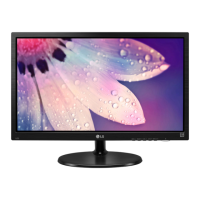
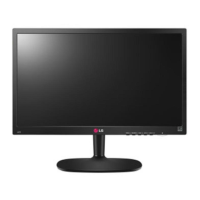
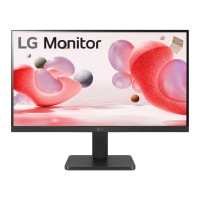
LG 22M34D - User Manual

LG 22M34D
38 pages
Print Icon
To Next Page IconTo Next Page
Loading...
www.lg.com
19M35A
20M35A
22M35A
24M35A
19M35D
20M35D
22M35D
24M35D
22M34D
22M33D
LED LCD MONITOR MODEL
ENGLISH
OWNER’S MANUAL
LED LCD MONITOR
Please read this manual carefully before operating
your set and retain it for future reference.

Questions and Answers

  • A
    Anthony BrownAug 11, 2025
    How to fix no image on LG 22M34D?
    • L
      lisaaveryAug 11, 2025
      If no image appears on your LG Monitor, ensure the power cord is properly connected to the outlet and that the monitor is turned on by pressing the Power button. Adjust the brightness and contrast settings. If the monitor is in power saving mode, try moving the mouse or pressing a key on the keyboard. Also, ensure your PC is turned on. If a 'No-Signal' message appears, it indicates the signal from your PC is out of the monitor's frequency range; refer to the 'Specifications' section to configure your display. Note that the monitor enters DPM mode if it's on 'No-Signal' for 5 minutes.
  • R
    Richard VelezAug 15, 2025
    What to do if display image is incorrect on LG 22M34D Monitor?
    • E
      Edward AcostaAug 15, 2025
      If the display image on your LG Monitor is incorrect, press the AUTO button to automatically adjust the display image to the ideal setting. Also, check the display settings in your computer's Control Panel to ensure the resolution is set to the recommended value and the color setting is higher than 24 bits (true color).
  • S
    Stacy GoodwinAug 20, 2025
    What to do if LG 22M34D is unrecognized?
    • B
      bmilesAug 21, 2025
      If your LG Monitor is unrecognized and shows a Plug&Play (VESA DDC) message, install the display driver from the CD or diskette that came with your monitor. Also, make sure that your video card supports the Plug&Play function.
  • M
    Matthew BairdAug 26, 2025
    Why is the screen color mono or abnormal on my LG 22M34D Monitor?
    • F
      Felicia PonceAug 27, 2025
      If the screen color on your LG Monitor is mono or abnormal, check if the signal cable is properly connected, tightening it with a screwdriver if necessary. Also, ensure that the video card is properly inserted in its slot. Finally, verify that the color setting is set higher than 24 bits (true color) in the Control Panel settings.
  • P
    Paula BarrettAug 30, 2025
    Why does my LG Monitor screen blink?
    • L
      Lori MitchellAug 30, 2025
      If the screen of your LG Monitor blinks, check if the screen is set to interlace mode. If it is, change it to the recommended resolution.
  • D
    Darlene RoblesSep 4, 2025
    How to unlock OSD on LG 22M34D Monitor?
    • M
      Matthew Duncan MDSep 4, 2025
      To unlock the OSD controls on your LG Monitor when the “OSD LOCKED” message appears, push the MENU button for several seconds until the message “OSD UNLOCKED” appears.

LG 22M34D Specifications

General IconGeneral
Screen Size21.5 inches
Resolution1920 x 1080
Panel TypeTN
Brightness200 cd/m²
Response Time5 ms
Refresh Rate60 Hz
Aspect Ratio16:9
Contrast Ratio1000:1
Dynamic Contrast Ratio5000000:1
VESA Mounting100 x 100 mm
Weight3.2 kg
PortsD-Sub, DVI-D
Viewing Angle (Horizontal)170°
Viewing Angle (Vertical)160 degrees

Related product manuals