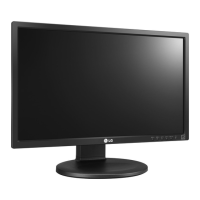
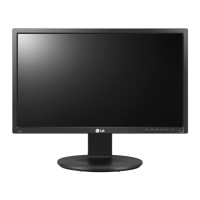
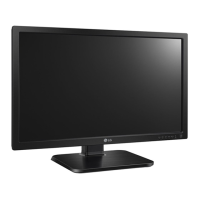
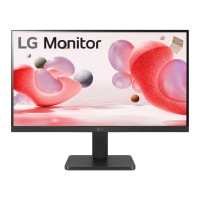
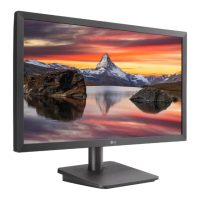
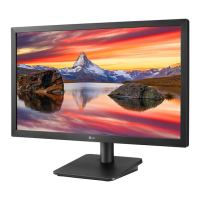
This document is an owner's manual for an LG LED LCD Monitor, specifically models 22MB35PU and 24MB35PU. It provides comprehensive instructions for assembling, operating, customizing, and troubleshooting the monitor.
Function Description
The LG LED LCD Monitor is designed to display video signals from a personal computer (PC) or other peripheral devices. It supports both analog (D-SUB) and digital (DVI-D) video inputs, allowing for versatile connectivity with various systems. The monitor is equipped with a Plug & Play feature, enabling automatic recognition and configuration when connected to a PC without requiring manual setup. It also includes integrated speakers, providing audio output without the need for external speakers.
Usage Features
Assembly and Setup:
The manual details the unpacking process, listing all included accessories such as the CD (Owner's Manual)/Card, D-SUB Cable, DVI-D Cable, Power Cord, Stand Base, Audio Cable, and USB Cable. It provides clear instructions for attaching the stand base to the monitor body, emphasizing the importance of protecting the screen during the process. For users who prefer wall mounting, the manual outlines the VESA compatibility and provides guidelines for proper installation, including recommended clearances for ventilation and screw specifications.
Physical Adjustments:
The monitor offers several ergonomic adjustments to enhance user comfort. Users can adjust the screen's angle, tilting it up to 5° forwards and 20° backwards. The stand also allows for height adjustment, with a range of up to 110 mm, by removing a locking pin. For advanced users, the pivot function enables rotating the screen 90° clockwise, transitioning between landscape and portrait orientations. Additionally, the swivel stand allows for 355° rotation, providing flexibility in viewing angles.
Connectivity:
The monitor features multiple input connectors: AC-IN (for power), USB UP (upstream port for connecting to a computer), DVI-D IN, D-SUB IN, and AUDIO IN (PC). It also includes two USB Downstream ports (USB IN) for connecting peripheral devices like a mouse, keyboard, or memory stick. The manual provides detailed instructions for connecting the monitor to a PC using either D-SUB or DVI-D cables, explaining how each type of connection transmits video signals.
On-Screen Display (OSD) and Customization:
The monitor's settings are managed through an intuitive OSD menu, accessed via buttons on the bottom panel.
- Menu/t: Accesses the main menus for customization.
- READER/◄: Enters the Reader Mode menu, which adjusts the screen for eye comfort, simulating a paper-like picture.
- eo/►: Enters the SMART ENERGY SAVING menu.
- AUTO/ن: Automatically adjusts display settings (Analog Mode only) and serves as the power button.
- INPUT/EXIT: Allows selection of input signals and exits the OSD menu.
Customization Settings include:
- Volume: Adjusts audio output.
- Brightness: Controls screen luminance.
- Response Time: Optimizes display for fast-moving pictures (available on specific models).
- Wide/Original: Switches between full-screen and original aspect ratios.
- Reset: Restores all factory default settings.
- Picture: Adjusts Contrast and Sharpness.
- Color: Offers Gamma settings (Gamma 0, 1, 2), Color Temp (Custom, Warm, Medium, Cool), and Six Color adjustments (Hue and Saturation for Red, Green, Blue, Cyan, Magenta, Yellow) on specific models.
- Display: Adjusts Horizontal and Vertical position, Clock, and Phase to improve image clarity and stability.
- Others: Includes Language selection, Power Indicator control (On/Off), and Off Time Setting (to automatically power off the monitor after a chosen duration).
Reader Mode:
This feature is designed for eye comfort, offering two modes:
- Reader 1: Optimized for newspaper-like viewing.
- Reader 2: Optimized for cartoon-like viewing.
Brightness can be adjusted in Menu OSD for both modes. Selecting Reader Mode automatically sets Picture Mode to Custom and disables SMART ENERGY SAVING.
SMART ENERGY SAVING:
This function helps conserve energy by using a luminance compensation algorithm. It offers three settings:
- High: Enables high-efficiency energy saving.
- Low: Enables low-efficiency energy saving.
- Off: Disables the energy-saving function.
Maintenance Features
Troubleshooting:
The manual includes a dedicated troubleshooting section to help users resolve common issues without professional assistance.
- No Image Appears: Provides steps to check power cord connection, power indicator status, brightness/contrast, and PC power. It also addresses "OUT OF RANGE" and "NO SIGNAL" messages, guiding users to adjust display settings or check for power-saving modes.
- "OSD LOCKED" Message: Explains how to unlock the OSD controls by pressing and holding the MENU button for several seconds.
- Incorrect Display Image: Suggests using the AUTO button to automatically adjust the display image, checking for vertical bars or stripes, and adjusting horizontal noise. It also advises checking Control Panel Display Settings for recommended resolution and color depth.
- Screen Color Issues: Recommends checking signal cable connection, video card insertion, and color settings (24 bits or higher).
- Screen Blinks: Advises checking if the screen is set to interlace mode and changing it to the recommended resolution.
- "Unrecognized monitor, Plug&Play (VESA DDC) monitor found" Message: Guides users to install the display driver from the provided CD or LG's website and verify video card support for Plug&Play.
Safety Precautions:
The manual emphasizes several safety precautions throughout:
- Using only approved accessories to ensure safety and product lifespan.
- Unplugging the power cord before moving or installing the monitor to prevent electric shock.
- Avoiding carrying the monitor upside-down to prevent it from falling.
- Holding the stand or plastic cover when lifting or moving the monitor to prevent screen damage.
- Not putting fingers between the screen and the base when adjusting height.
- Being careful with cables when rotating the screen.
- Not over-tightening screws during wall mounting to prevent damage and voiding the warranty.
- Avoiding prolonged display of fixed images to prevent image burn, recommending the use of a screensaver.
Kensington Locking Device:
For security, the monitor includes a connector for a Kensington lock, allowing users to secure the monitor to a table. Instructions for installation and usage are referenced in the Kensington lock user manual or website.
This comprehensive manual ensures users can effectively set up, operate, customize, and maintain their LG LED LCD Monitor for an optimal viewing experience.



 To Next Page
 General