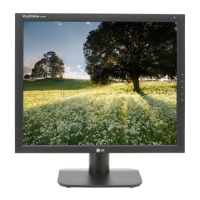
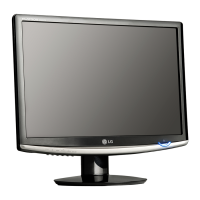
This document is an owner's manual for an LG IPS LED Monitor, model 27MB65PY. It provides comprehensive instructions for assembling, setting up, using, customizing, and troubleshooting the monitor, ensuring users can maximize its features and maintain its longevity.
Function Description
The LG IPS LED Monitor is designed to display visual content from a connected PC or other peripheral devices. As an "IPS LED Monitor," it utilizes In-Plane Switching (IPS) technology, known for its superior color accuracy and wide viewing angles, making it suitable for tasks requiring precise color representation and for multiple viewers. The LED backlighting contributes to energy efficiency and a slim design. The monitor supports various input signals, including D-SUB (analog), DVI-D (digital), and DisplayPort (digital), allowing for versatile connectivity with different types of computers and devices. It also includes an audio input for PC audio, which can be output through integrated speakers or headphones.
Usage Features
The monitor offers a range of features designed to enhance user experience and comfort:
- Assembly and Setup: The manual details the unpacking process, identifying all included accessories such as the power cord, stand base, and various cables (D-SUB, DVI-D, USB, audio). It provides step-by-step instructions for attaching and detaching the stand base and body, ensuring a secure setup.
- Ergonomic Adjustments: The monitor is highly adjustable to promote proper posture and comfortable viewing. Users can:
- Adjust the angle: The screen can be tilted from -5° forwards to 35° backwards.
- Adjust the stand height: The height can be adjusted up to 120 mm.
- Swivel the stand: The monitor can swivel 355 degrees to adjust the viewing angle.
- Pivot function: The screen can be rotated 90 degrees clockwise for portrait orientation, which is particularly useful for reading long documents or coding. The manual emphasizes lifting the monitor to its highest height before pivoting to avoid contact with the stand base.
- Connectivity:
- PC Connection: Instructions are provided for connecting the monitor to a PC using D-SUB, DVI-D, or DisplayPort cables. The monitor supports Plug & Play functionality for automatic device recognition.
- Peripheral Device Connection: The monitor includes USB upstream and downstream ports, allowing users to connect peripherals like a mouse, keyboard, or memory stick directly to the monitor, acting as a USB hub.
- On-Screen Display (OSD) Menu: The OSD menu is the central hub for customizing monitor settings. It is accessed via buttons on the front side of the monitor. Key customization categories include:
- Picture Settings: Adjustments for contrast, sharpness, brightness, and response time (for fast-moving pictures).
- Color Settings: Options for gamma, color temperature (warm, medium, cool, or custom RGB levels), and "Six Color" adjustments for hue and saturation of specific colors (Red, Green, Blue, Cyan, Magenta, Yellow).
- Display Settings: Controls for horizontal and vertical position, clock, and phase to optimize image clarity and stability, especially for analog signals.
- Audio Settings: Selection of audio input source (DP, Audio-In, or Auto).
- Other Settings: Language selection, power indicator control (on/off), and off-time setting for automatic power off.
- Reader Mode: A dedicated "Reader Mode" button allows users to quickly switch to screen settings optimized for reading, simulating a paper-like picture for eye comfort. It offers "Reader 1" (newspaper) and "Reader 2" (cartoon) modes, which automatically set Picture Mode to Custom and Super Energy Saving to Off.
- Super Energy Saving: The monitor features a "Super Energy Saving" function, accessible via a dedicated button, which helps conserve energy by adjusting screen brightness. It offers "High" and "Low" saving modes, as well as an "Off" option. This function also displays the total power reduction and CO2 reduction achieved.
Maintenance Features
The manual provides guidance for safe handling and troubleshooting to ensure the monitor's longevity and proper functioning:
- Safety Precautions: Warnings are given regarding the use of unapproved accessories, which can lead to damage or injury and void the warranty. Users are advised to avoid putting unnecessary pressure on the screen when lifting or moving the monitor.
- Cable Management: The manual includes instructions for using a cable holder to keep cables organized and prevent damage.
- Wall Mounting: Detailed instructions and VESA standards are provided for mounting the monitor on a wall, including warnings about disconnecting the power cord first and using authorized wall mounts and proper screws to prevent damage or injury.
- Screen Protection: Users are advised to place the monitor screen-side down on a flat, cushioned surface when assembling or disassembling the stand to protect the screen from scratches. To prevent image burn, users are cautioned against displaying a fixed image for long periods and are recommended to use a screensaver.
- Troubleshooting Guide: A comprehensive troubleshooting section addresses common issues such as no image, power indicator problems, "OUT OF RANGE" or "NO SIGNAL" messages, "OSD LOCKED" messages, and incorrect display images (mono color, blinking, vertical bars, horizontal noise, flickering). Solutions often involve checking cable connections, adjusting brightness/contrast, using the AUTO button for optimal settings, installing display drivers, or adjusting resolution.
- Kensington Lock: The monitor includes a connector for a Kensington lock, allowing users to secure the monitor to a table and deter theft.
- Product Information: The manual encourages users to retain it for future reference and to record the model and serial number, which are located on the back and side of the set, for service needs.


 To Next Page
 General