EasyManua.ls Logo

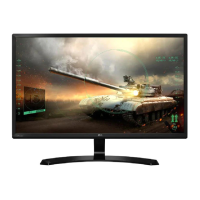
LG 27MP60GP - User Manual

LG 27MP60GP
29 pages
Print Icon
To Next Page IconTo Next Page
Loading...
* LG LED Monitor applies LCD screen with LED backlights.
Please read this manual carefully before operating your set and
retain it for future reference.
24MP60G/24MP60GP
27MP60G/27MP60GP
32MP60G/32MP60GP
OWNER’S MANUAL
LED LCD MONITOR
(LED Monitor*)
www.lg.com
Copyright © 2020 LG Electronics Inc. All Rights Reserved.

Questions and Answers

  • J
    jasonjeffersonJul 29, 2025
    What to do if nothing is displayed on my LG Monitor screen?
    • R
      Robert EnglishJul 29, 2025
      If nothing is displayed on your LG Monitor screen, first, ensure the power cord is correctly plugged into the power outlet. Also, check the signal cable between the PC and the monitor to make sure it is properly connected. If the issue persists, the signals transferred from the PC (graphics card) might be out of the monitor's horizontal or vertical frequency range. Refer to the Product Specification section of this manual to set the appropriate frequency.
  • K
    Karen BushAug 3, 2025
    How to fix no sound from the headphone port on my LG 27MP60GP Monitor?
    • J
      Julie Brown DDSAug 3, 2025
      If there is no sound from the headphone port on your LG Monitor, verify that the headphone port connections are properly made. Also, try increasing the volume using the joystick. Finally, ensure that the audio output of your PC is set to the monitor you are using. Note that the settings may differ depending on your operating system.
  • M
    mthompsonAug 7, 2025
    Why is my LG Monitor screen display unstable and shaky?
    • T
      Travis SmithAug 7, 2025
      An unstable or shaky display on your LG Monitor, or shadow trails on images, can occur if the selected resolution is HDMI 1080i 60/50 Hz (interlaced). To resolve this, change the resolution to 1080p or the recommended resolution. Also, ensure that the graphics card is set to the recommended (optimal) resolution to avoid blurred text, a dimmed screen, a truncated display area or misalignment of the display. Note that setting methods may vary depending on the computer or operating system, and some resolutions may not be available depending on the performance of the graphics card.
  • D
    Dylan AndersonAug 13, 2025
    What to do if I see an "Unrecognized monitor, Plug and Play (VESA DDC) monitor found" message on my LG monitor?
    • M
      Matthew ThompsonAug 13, 2025
      If you see an "Unrecognized monitor, Plug and Play (VESA DDC) monitor found" message on your LG monitor, install the display driver from the LG website. Also, make sure to check if the graphics card supports Plug and Play function.
  • M
    Mrs. Julia BakerAug 18, 2025
    Why are some functions not available when I press the Menu button on my LG Monitor?
    • S
      sharoncrawfordAug 18, 2025
      If some functions are unavailable when you press the Menu button on your LG Monitor, the OSD might be locked. Disable OSD Lock in General settings.
  • J
    Jennifer GentryAug 23, 2025
    Why does image sticking occur even when the LG monitor is turned off?
    • P
      plopezAug 23, 2025
      Image sticking on your LG monitor, even when turned off, may be caused by displaying a still image for a prolonged time, which can damage the screen and result in image retention. To extend the lifetime of the monitor, use a screensaver.

Summary

ASSEMBLING AND PREPARING

Product and Button Description

How to Use the Joystick Button

Guide on operating the monitor's functions using the joystick button.

Installing on a Table

Using the Kensington Lock

Installing the Wall Mount Plate

Information on specifications and installation of the wall mount plate.

Installing on the Wall

Guidelines for installing the monitor on a wall, ensuring proper ventilation.

USING THE MONITOR

Connecting to a PC

Instructions for connecting the monitor to a computer via various input methods.

HDMI Connection

Details on transmitting digital video and audio signals using HDMI.

DisplayPort Connection

Details on transmitting digital video and audio signals using DisplayPort.

Connecting AV Devices

Connecting Peripherals

USER SETTINGS

Activating the Main Menu

Step-by-step guide on how to access and navigate the monitor's main menu using the joystick.

Main Menu Features

Menu Settings

Detailed instructions on navigating and adjusting settings within the monitor's OSD menu.

Settings and Input Options

Quick Settings

Adjusts screen brightness, contrast, volume, and color temperature.

Input Selection

Allows selection of the input source and adjustment of aspect ratio.

Picture

Picture Mode

Selects pre-defined picture modes optimized for gaming, documents, photos, or videos.

Picture Adjust

Game Adjust

Color Adjust

General Settings

TROUBLESHOOTING

Nothing is displayed on the screen.

Checks power, signal cables, and range settings when the screen is blank.

Screen display is unstable and shaky.; Images displayed on the monitor leave shadow trails.

Addresses issues with screen stability, shakiness, and shadow trails, suggesting resolution checks.

Some features are disabled.

Explains that disabled features may be due to OSD Lock and how to resolve it.

PRODUCT SPECIFICATION (24 MP60 G;24 MP60 GP)

PRODUCT SPECIFICATION (27 MP60 G;27 MP60 GP)

PRODUCT SPECIFICATION (32 MP60 G;32 MP60 GP)

Factory Support Mode (Preset Mode, PC)

D-Sub;HDMI

DisplayPort and HDMI Timing Specifications

LG 27MP60GP Specifications

General IconGeneral
Pixel pitch0.3114 x 0.3114 mm
Screen shapeFlat
Display diagonal27 \
Anti-glare screenYes
Display technologyLED
Native aspect ratio16:9
Maximum refresh rate60 Hz
NTSC coverage (typical)72 %
Display number of colors16.7 million colors
Display diagonal (metric)69 cm
Display brightness (typical)250 cd/m²
Package typeBox
Package depth432 mm
Package width710 mm
Package height146 mm
Package weight5800 g
DisplayPort version1.2
AC input voltage100 - 240 V
Power supply typeExternal
AC input frequency50/60 Hz
Energy efficiency scaleA to G
Power consumption (max)22 W
Power consumption (off)0.3 W
Power consumption (standby)0.5 W
Power consumption (typical)20 W
Tilt angle range-5 - 15 °
Height adjustment-
Panel mounting interface75 x 75 mm
Smart modesEnergy saving
AMD FreeSync typeFreeSync
Brand specific technologiesBlack Equalizer, Crosshair
Feet colorBlack/Red
Product colorBlack
Market positioningGaming
Cables includedHDMI, Power
Weight and Dimensions IconWeight and Dimensions
Depth (with stand)211.7 mm
Width (with stand)611.1 mm
Height (with stand)455.1 mm
Weight (with stand)4400 g
Depth (without stand)39.5 mm
Height (without stand)362.6 mm
Weight (without stand)3800 g

Related product manuals