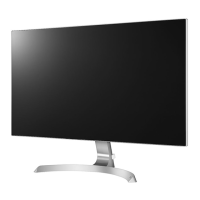
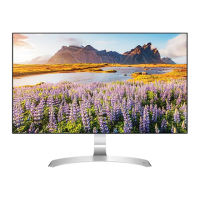
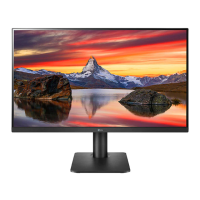
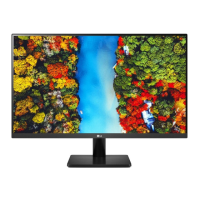
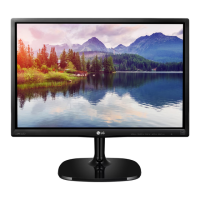
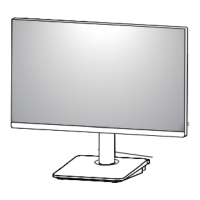
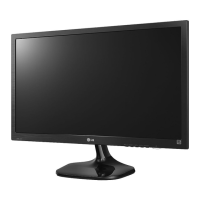
This document is an owner's manual for an LG IPS LED Monitor, specifically model 27MP89HM. The manual provides comprehensive instructions for assembling, preparing, using, customizing settings, and troubleshooting the monitor.
Function Description
The LG IPS LED Monitor is a display device designed for various uses, including connection to PCs and AV devices. It features LED backlighting, providing a vibrant visual experience. The monitor supports both D-SUB (analog) and HDMI (digital) input for video and audio signals, offering versatility in connectivity. A unique aspect of this monitor is its joystick button, which serves as a multi-functional control for power, volume, and navigating the On-Screen Display (OSD) menu. The monitor also incorporates "SMART ENERGY SAVING" technology, which uses a luminance compensation algorithm to conserve energy. For an enhanced audio experience, it includes "MaxxAudio" technology by Waves, which provides studio-quality sound tools and various audio settings like Bass Enhancement, Treble Enhancement, and Dialog Enhancement. The monitor also supports AMD's FreeSync technology, which synchronizes the vertical frequency of the input signal with that of the output signal for seamless and natural images, particularly beneficial for gaming.
Usage Features
The monitor offers a range of features to customize the user experience. The joystick button, located at the bottom of the monitor, simplifies control. A single press turns the monitor on, while a long press turns it off. Moving the joystick left or right adjusts the volume. When the main menu is enabled, moving the joystick allows navigation through various settings.
The OSD menu provides extensive customization options:
- Quick Settings: Allows adjustment of Brightness, Contrast, Volume, and Ratio. The Ratio setting enables users to display video in wide-screen or according to the original aspect ratio.
- Picture Mode: Offers several preset modes optimized for different content types, including Custom, Reader 1 (for newspaper-like viewing), Reader 2 (for cartoons), Photo, Cinema, and Game. A "Color Weakness" mode is also available to help users distinguish between red and green colors.
- Picture Adjust: Includes "SUPER RESOLUTION+" for crystal clear images, Sharpness adjustment, and "Black Level" settings (for HDMI only) to control the darkest color the monitor can display. The "DFC" (Digital Fine Contrast) feature automatically adjusts brightness.
- Game Adjust: Features "FreeSync" for smooth gaming visuals, "Black Stabilizer" to enhance visibility in dark scenes, and "Cross Hair" to provide a target mark on the screen for FPS games.
- Color Adjust: Allows users to modify Gamma settings, Color Temperature (Warm, Medium, Cool, Custom), and individual Red/Green/Blue color levels. A "Six Color" option provides fine-tuning of hue and saturation for six primary colors.
- Display: Offers controls for Horizontal and Vertical image positioning, Clock (to minimize vertical bars/stripes), and Phase (to adjust display focus and sharpen characters).
- Sound: Provides "MaxxAudio" settings for sound enhancement, "Midnight Mode" for low-volume listening, and selection of the main audio input (Audio-In or HDMI).
- General: Includes Language selection for the OSD, Power LED control (on/off), and "Automatic Standby" to turn off the display after a period of inactivity.
- Resolution: Allows users to set the desired screen resolution (for D-SUB only).
- OSD Lock: Prevents incorrect key input by disabling OSD controls, except for brightness, contrast, input, and volume.
- Auto Configuration: Optimizes display settings for D-SUB input.
- Reset: Returns all settings to their default values.
The monitor can be tilted from +15 to -2 degrees to adjust the viewing angle. It also supports a Kensington security system for physical security, allowing the monitor to be secured to a table.
Maintenance Features
The manual emphasizes several points for safe handling and maintenance:
- Product Components: Users are advised to check if all components are included upon unboxing and to contact the retailer if anything is missing.
- Genuine Components: Always use genuine components to ensure safety and product performance, as counterfeit parts can lead to damage or injury and void the warranty.
- Cable Usage: It is recommended to use the supplied cables. If using generic cables not certified by LG, the screen may not display correctly or exhibit image noise. For HDMI connections, certified cables with the HDMI logo are recommended to avoid compatibility issues.
- Moving and Lifting: When moving the monitor, it should be placed in its original box or packing material. The power cord and all cables should be disconnected. Users should hold the top and bottom of the monitor frame firmly, avoiding touching the panel itself to prevent damage. The monitor should be kept upright and not tilted sideways during movement.
- Installation: When attaching the stand base, a soft cloth should be used to protect the screen from scratches. When installing to a wall, a minimum distance of 100 mm from the wall and sides should be maintained for proper ventilation. Only genuine LG wall mounting brackets and VESA-standard screws should be used, with screw length from the back cover not exceeding 8mm.
- Cleaning: While not explicitly detailed as a "maintenance feature," the caution against touching the monitor screen during movement implies a need to keep the screen clean and free from damage.
- Troubleshooting: The manual includes a troubleshooting section to address common issues such as no image, "Out of Range" or "NO SIGNAL" messages, OSD control problems, incorrect display image (mono color, blinking), and flickering screens. It guides users to check cable connections, power, display drivers, and resolution settings. For HDMI PC connections, it advises changing the resolution to 1080P if flickering occurs.


 To Next Page
 General