EasyManua.ls Logo

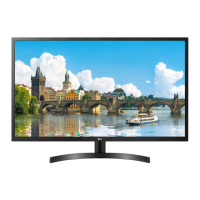
LG 32MN60T - User Manual

LG 32MN60T
28 pages
Print Icon
To Next Page IconTo Next Page
Loading...
* LG LED Monitor applies LCD screen with LED backlights.
Please read this manual carefully before operating your set and
retain it for future reference.
32MN500M
32MN50W
32MN60T
32MN510M
OWNER’S MANUAL
LED LCD MONITOR
(LED Monitor*)
www.lg.com
Copyright © 2018 LG Electronics Inc. All Rights Reserved.

Other manuals for LG 32MN60T

Questions and Answers

  • M
    Meghan SmithAug 20, 2025
    What to do if nothing is displayed on my LG 32MN60T Monitor screen?
    • J
      James ArnoldAug 20, 2025
      If nothing is displayed on your LG Monitor screen, first ensure the power cord is correctly plugged into the power outlet. Also, check the signal cable between your PC and the monitor to ensure it is properly connected. If the issue persists, the signals from your PC might be outside the monitor's frequency range. Refer to the Product Specification section of this manual to set the appropriate frequency.
  • K
    Kathryn AndrewsAug 21, 2025
    Why is my LG 32MN60T Monitor screen display unstable and shaky?
    • M
      Matthew OwenAug 22, 2025
      If the screen display on your LG Monitor is unstable or images leave shadow trails, the resolution might be set to HDMI 1080i 60/50 Hz (interlaced). Change the resolution to 1080p or the recommended setting. Also, ensure your graphics card is set to the recommended resolution; otherwise, you may experience blurred text or a misaligned display. Setting methods vary by computer and OS, and some resolutions may depend on your graphics card's performance.
  • S
    Susan MendozaAug 25, 2025
    How to fix no sound from the headphone port on my LG 32MN60T Monitor?
    • B
      barnesaliciaAug 25, 2025
      If you are not getting any sound from the headphone port on your LG Monitor, first ensure that the headphone port connections are properly made. If the connections are correct, try increasing the volume using the joystick. Finally, verify that the audio output of your PC is set to the monitor you are using, as the settings may differ depending on your operating system.
  • J
    johnstonmichelleAug 26, 2025
    What to do if nothing is displayed on my LG Monitor?
    • A
      Anthony HaynesAug 26, 2025
      If nothing is displayed on your LG Monitor, first, check if the power cord is correctly plugged into the power outlet. Also, ensure the signal cable between the PC and the monitor is properly connected. If the issue persists, the signals from your PC's graphics card may be outside the monitor's supported frequency range. Refer to the Product Specification section of this manual to set the appropriate frequency.
  • B
    Barbara ColonAug 27, 2025
    Why is my LG Monitor screen blank?
    • E
      Elijah BrownAug 28, 2025
      A blank screen on your LG Monitor can occur if the power cord isn't correctly plugged into the power outlet. Another reason might be that the signal cable between your PC and the monitor is either missing or disconnected; ensure it's properly connected. The issue may also arise if the signals from the PC's graphics card are outside of the monitor's supported horizontal or vertical frequency range. In that case, check the Product Specification section of this manual to set the appropriate frequency.
  • M
    Mrs. Lindsay PerryAug 30, 2025
    How to fix LG 32MN60T Monitor when nothing is displayed on the screen?
    • J
      Jimmy BrownAug 30, 2025
      If nothing is displayed on your LG Monitor screen, first ensure the power cord is correctly plugged into the power outlet. Also, check the signal cable between your PC and the monitor to make sure it's properly connected. If the issue persists, it could be due to the signals transferred from the PC being out of the monitor's frequency range. Refer to the Product Specification section of the manual to set the appropriate frequency.
  • A
    Anna WilliamsAug 31, 2025
    What to do if images are displayed without sound on LG 32MN60T Monitor?
    • T
      taylormaryAug 31, 2025
      If images are displayed without sound on your LG Monitor, first make sure that the headphone port connections are properly made. Then, try increasing the volume using the joystick. Finally, ensure that the audio output of your PC is set to the monitor you are using. Note that the settings may differ depending on your operating system.
  • J
    jeffreybakerSep 3, 2025
    How to fix a blank LG 32MN60T screen?
    • A
      Aaron RosalesSep 3, 2025
      To resolve a blank LG Monitor screen, begin by verifying that the power cord is securely plugged into the power outlet. Next, check the signal cable connecting your PC to the monitor, ensuring it is properly connected. If the problem continues, the signals from the PC (graphics card) might be exceeding the monitor's supported frequency range. Consult the Product Specification section of this manual to configure the correct frequency settings.
  • J
    Jennifer ValdezSep 5, 2025
    How to stop image sticking on my LG 32MN60T Monitor?
    • L
      Lisa SkinnerSep 5, 2025
      Displaying a still image for a prolonged time may cause damage to the screen, resulting in the retention of the image. To extend the lifetime of your LG monitor, use a screensaver.
  • L
    Lori MurraySep 7, 2025
    What to do if I see an "Unrecognized monitor, Plug and Play (VESA DDC) monitor found" message on my LG 32MN60T Monitor?
    • R
      rholmesSep 7, 2025
      If you see an "Unrecognized monitor, Plug and Play (VESA DDC) monitor found" message on your LG Monitor, be sure to install the display driver from the LG website. Also, make sure your graphics card supports the Plug and Play function.

Summary

Open Source Software Notice

Assembling and Preparing

Assembly Precautions

Safety and handling guidelines for monitor assembly.

Product Description and Operation

Joystick Button Controls and Monitor Handling

How to use the joystick and safely move the monitor.

Installation and Adjustments

Installation Precautions and Angle Adjustment

Guidelines for table installation, ventilation, angle adjustment, and safety.

Security and Mounting Options

Kensington Lock and Wall Mounting

Using the Kensington lock and installing a wall mount plate.

Wall Mounting Details

Wall Mount Specifications and Safety

Requirements for wall mounting brackets and safety precautions.

Monitor Operation and Connectivity

Cautions, PC Connections, and HDMI Best Practices

Operating cautions, PC connection methods, and HDMI cable recommendations.

AV and Peripheral Connections

HDMI and Headphone Connectivity

Connecting AV devices via HDMI and headphones.

User Settings and Menu Navigation

Accessing and Controlling the Main Menu

How to activate and navigate the main menu using the joystick.

Main Menu Features

Input, Power, Settings, Picture, Auto Config

Overview of main menu options including input, power, settings, picture, and auto configuration.

Navigating Menu Settings

Quick Settings, Input, Picture, General

Navigating through the main menu categories.

Customizing Quick Settings and Input

Brightness, Contrast, Volume, Aspect Ratio

Adjusting basic display and aspect ratio settings.

Advanced Picture Settings

Picture Mode and Adjustments

Fine-tuning picture quality through various modes and adjustments.

Gaming and Performance Settings

Response Time, FreeSync, Black Stabilizer, Crosshair

Optimizing performance for gaming and dynamic scenes.

Color, Resolution, and Reset Settings

Color, D-SUB Settings, and Reset

Customizing color, adjusting D-SUB input, and resetting picture settings.

General Settings and Management

Language, OSD Lock, Energy Saving, Standby, Info, Reset

Managing language, controls, power saving, and monitor information.

Troubleshooting Common Issues

Display and Feature Problems

Solutions for no display, instability, ghosting, and feature lock issues.

Troubleshooting Connectivity and Audio

Monitor Recognition and Audio Issues

Fixing unrecognized monitor messages and headphone audio problems.

Product Specifications

Resolution and Power Details

Technical specifications for screen resolution and power.

Detailed Specifications

Environmental and Physical Specs

Operating conditions, dimensions, and weight.

Factory Support Modes

PC Preset Mode Frequencies

Table of PC preset modes with frequency data.

HDMI Timing Information

Video Preset Mode Timings

Table of HDMI video timings and recommended modes.

Beep Guide and Menu Navigation

Menu Structure for Specific Models

Guide to menu items and their locations.

Menu Navigation Assistance

General Settings Menu Locations

Specific locations for general settings.

32 MN50 W Menu Navigation

Comprehensive Menu Item List

A detailed list of menu items and their locations.

Extended Menu Navigation

Picture and General Setting Locations

Specific locations for picture and general settings.

Compliance Information

Declaration of Conformity

LG's declaration of conformity and contact details.

LG 32MN60T Specifications

General IconGeneral
BrandLG
Model32MN60T
CategoryMonitor
LanguageEnglish

Related product manuals