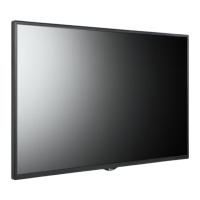
What to do if 'Unknown Product' message appears on LG 32SM5KD?
M
Matthew YoungSep 23, 2025
If the 'Unknown Product' message appears when your LG Digital Signage is connected, check if the Plug and Play function is supported by referring to the graphics card user manual.
L
Logan AndersonAug 25, 2025
What to do if audio function does not work on LG 32SM5KD?
M
moodytimothyAug 25, 2025
If the audio function on your LG Digital Signage isn't working, check if the audio cable is connected properly. Also, adjust the volume and ensure the sound is set correctly. Try selecting an appropriate equalizer sound.
J
Justin SmithAug 25, 2025
Why is the screen color abnormal on my LG 32SM5KD?
A
Amy RodriguezAug 26, 2025
If the screen color on your LG Digital Signage is abnormal, set the number of colors to more than 24 bits (true color) by selecting [Control Panel] ? [Display] ? [Settings] ? [Color Table] in Windows. Also, check the connection status of the signal cable. Note that several pixels (red, green, blue, white, or black color) may appear on the screen, which is attributable to the unique characteristics of the LCD panel and is not a malfunction.
P
powelldavidAug 27, 2025
Why does the screen image look abnormal on my LG Digital Signage?
N
Nicholas BrownAug 27, 2025
If the screen image looks abnormal on your LG Digital Signage, check if the graphics card resolution and frequency are supported by the product. If the frequency is out of range, set to the recommended resolution in the [Control Panel] ? [Display] ? [Setting] menu. Also, ensure the proper input signal is connected to the signal port by connecting the signal cable that matches with the source input signal.
T
Travis SimsAug 27, 2025
What to do if LG 32SM5KD operation does not work normally?
A
ashleytaylorAug 27, 2025
If the operation of your LG Digital Signage does not work normally, check if the Timer is set. Also, check the power control settings and verify that there was no power interruption.
C
Christopher AndersonSep 14, 2025
How to resolve after-image appearing on LG 32SM5KD Digital Signage?
E
evan30Sep 14, 2025
If an after-image appears on your LG Digital Signage and you use a fixed image for a long time, the pixels may be damaged, so use the screen-saver function. Note that this is normal for LCD screen products.
F
fbrownSep 12, 2025
What to do if the audio function does not work on LG 32SM5KD?
K
Kevin NguyenSep 12, 2025
If the audio function is not working on your LG Digital Signage, check if the audio cable is properly connected and that the sound is set correctly. Also, ensure the volume is appropriately adjusted and the correct equalizer sound is selected.
L
Lisa IngramSep 13, 2025
Why does the operation not work normally on LG Digital Signage?
M
milleralbertSep 13, 2025
If the operation of your LG Digital Signage does not work normally, check if the Timer is set and review the power control settings. Also, consider the possibility of a power interruption.
L
Lauren TaylorSep 5, 2025
How to fix if the operation does not work normally on LG 32SM5KD?
W
wrobersonSep 5, 2025
If the operation does not work normally on your LG Digital Signage, check if the Timer is set. You may also want to check the power control settings and verify that power was not interrupted.
N
Nathaniel HouseSep 2, 2025
Why does after-image appear on LG 32SM5KD Digital Signage?
E
Erika JohnsonSep 2, 2025
If you notice an after-image on your LG Digital Signage, it could be due to using a fixed image for a long time, which may damage the pixels; use the screen-saver function. Also, when a dark image is displayed on the screen after an image with high contrast (black and white or gray), this may cause image sticking, which is normal for LCD screen products.


 To Next Page


 General