EasyManua.ls Logo

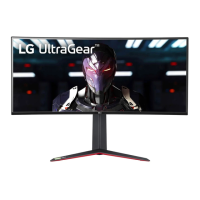
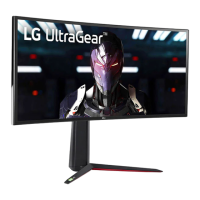
LG 34GP83A - User Manual

LG 34GP83A
37 pages
Print Icon
To Next Page IconTo Next Page
Loading...
* LG LED Monitor applies LCD screen with LED
backlights.
Please read this manual carefully before operating
your set and retain it for future reference.
www.lg.com
34GN850
34GN85B
34GP83A
OWNER’S MANUAL
LG Gaming Monitor
(LED MONITOR*)

Questions and Answers

  • A
    Audrey FlemingJul 28, 2025
    How to fix LG 34GP83A when nothing is displayed on the screen?
    • R
      Ryan MataJul 28, 2025
      If your LG Monitor displays nothing on the screen, try the following: * Ensure the power cord is correctly plugged into the power outlet. * Verify the power cable connection and press the power button. * Confirm the connected input is enabled by going to Menu > Input. * If the monitor is in sleep mode, move the mouse or press any key on the keyboard. Also, check if the computer is turned on. * If the signals from the PC are out of the monitor's recommended range, refer to the Product Specification section to set the appropriate frequency. * If the signal cable is missing or disconnected, check and reconnect it. * Install the display driver from the LG website and ensure your graphics card supports Plug and Play.
  • B
    Brenda FisherAug 2, 2025
    What to do if there is no sound from the headphone port on my LG Monitor?
    • J
      jamesbarbaraAug 2, 2025
      If you're getting no sound from the headphone port on your LG monitor, ensure that the headphone port connections are properly made. Also, try increasing the volume using the joystick. Finally, set the audio output of your PC to the monitor by going to Control Panel > Hardware and Sound > Sound and setting the Monitor as the default device. Note that the exact path may differ depending on your operating system.
  • K
    Kyle MillerAug 7, 2025
    Why is the screen display unstable and shaky on my LG Monitor?
    • C
      Christopher KellyAug 7, 2025
      If the screen display on your LG Monitor is unstable or shaky, or if images leave shadow trails, and the resolution is set to HDMI 1080i 60/50 Hz (interlaced), this could be the cause. Try changing the resolution to 1080p or the recommended resolution.
  • E
    Edward AndersonAug 12, 2025
    Why is the display color abnormal on my LG 34GP83A?
    • D
      Denise LunaAug 12, 2025
      If the display color on your LG monitor appears abnormal, here are a few things you can try: * Set the color to 24 bit (true color) or higher via Control Panel > Display > Menu > Color Quality in Windows. Note that the exact path may vary depending on your operating system. * Check the signal cable connection. Try reconnecting it or reinserting the PC's graphics card. * Note that pixilated spots (red, green, blue, white, or black) may appear. This is normal for an LCD screen and does not indicate an error.
  • M
    Michael PerezAug 17, 2025
    Why does the screen retain an image on my LG 34GP83A Monitor?
    • A
      Alyssa ShahAug 17, 2025
      Displaying a still image for an extended period may cause damage to the screen of your LG monitor, resulting in image retention. To prevent this and extend the monitor's life, use a screensaver.
  • S
    Sarah HayesAug 22, 2025
    How to enable disabled features on my LG Monitor?
    • M
      Marie HinesAug 22, 2025
      If some features are disabled on your LG Monitor, it's possible that the OSD is locked. To unlock it, navigate to Menu > General and set OSD Lock to Off.

Summary

Assembling and Preparing Monitor

Product and Button Description

How to Use the Joystick Button

Explains how to control monitor functions using the joystick button.

Moving and Lifting the Monitor

Installing on a Table

Physical Adjustments

Using the Monitor

Connecting to a PC

Connects the monitor to a computer via Plug and Play.

HDMI Connection

Transmits digital video and audio signals from PC via HDMI.

DisplayPort and AV Connectivity

DisplayPort Connection

Transmits digital video and audio signals from PC via DisplayPort.

User Settings

Activating the Main Menu

Steps to access and navigate the monitor's main menu.

Main Menu Features

Menu Settings

Navigating Menu Options

Explains how to navigate and configure various settings like Game Mode, Picture Adjust.

Game Mode: SDR Settings

Game Mode: HDR Settings

Game Adjustments

Overclock Feature

Enables a higher refresh rate than the panel specification.

Adaptive-Sync Function

Synchronizes display and graphics card refresh rates for smooth visuals.

Black Stabilizer

Improves visibility in dark game scenes.

Advanced Game Settings

Response Time Adjustment

Configures picture response time for gaming or viewing.

Cross Hair Feature

Adds a crosshair for FPS gaming.

Picture Adjustments

Basic Picture Settings

Adjusts brightness, contrast, and sharpness.

Input Settings

Input Selection and Aspect Ratio

Selects input source and adjusts video aspect ratio.

General Settings

Troubleshooting Common Issues

Display Issues

Display and Audio Troubleshooting

LG 34GP83A Specifications

General IconGeneral
Screen Size34 inches
Resolution3440 x 1440
Panel TypeIPS
Response Time1ms (GtG)
Aspect Ratio21:9
Brightness400 cd/m²
Contrast Ratio1000:1
Color GamutDCI-P3 98%
HDRHDR10
Ports2x HDMI, 1x DisplayPort, 2x USB 3.0
Stand AdjustmentsHeight, Tilt, Swivel
VESA Mount100 x 100 mm
Refresh Rate144Hz
Adaptive SyncNVIDIA G-SYNC Compatible
Viewing Angle178°(H)/178°(V)
Weight7.9 kg (without stand), 10.3 kg (with stand)

Related product manuals