EasyManua.ls Logo

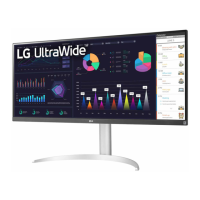
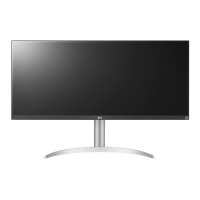
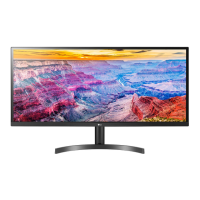
LG 34WQ73A-B - User Manual

LG 34WQ73A-B
30 pages
Print Icon
To Next Page IconTo Next Page
Loading...
* LG LED Monitor applies LCD screen with LED backlights.
Please read this manual carefully before operating your set and
retain it for future reference.
34WQ75C
34BQ75C
34WQ75X
34WQ73A
OWNER’S MANUAL
LED LCD MONITOR
(LED Monitor*)
www.lg.com
Copyright © 2022 LG Electronics Inc. All Rights Reserved.

Questions and Answers

  • G
    Glenn Kaiser DDSJul 29, 2025
    What to do if nothing is displayed on my LG 34WQ73A-B Monitor screen?
    • R
      Robert HillJul 29, 2025
      If your LG Monitor screen is blank, ensure the power cord is securely connected to the outlet. Also, verify the power cable connection and press the power button. Check that the connected input is enabled in the monitor settings (Settings > Input). If the signal cable is disconnected, check the cable and reconnect it. Finally, if the PC's graphics card signals are outside the monitor's frequency range, refer to the Product Specification section of this manual to set the appropriate frequency.
  • J
    Jeffrey HarveyAug 2, 2025
    Why is my LG 34WQ73A-B Monitor screen display unstable and shaky?
    • D
      Dennis DunnAug 3, 2025
      If the display on your LG Monitor is unstable or shaky, or if images leave shadow trails, and the resolution is HDMI 1080i 60/50 Hz (interlaced), try changing the resolution to 1080p or the recommended resolution. Also, make sure the graphics card is set to the recommended resolution to avoid blurred text, a dimmed screen, or misalignment.
  • M
    Misty SimsAug 8, 2025
    How to fix no sound from headphone port on LG 34WQ73A-B Monitor?
    • L
      Lawrence LawrenceAug 8, 2025
      If there is no sound from the headphone port on your LG Monitor, first ensure that the headphone connections are properly made. Then, try increasing the volume using the joystick. Lastly, set the audio output of your PC to the monitor you are using; note that these settings may vary depending on your operating system.
  • W
    William WatersAug 12, 2025
    What to do if image sticking occurs on my LG 34WQ73A-B?
    • J
      Julia McclainAug 13, 2025
      To prevent image sticking on your LG Monitor, especially if displaying a still image for a long time, use a screensaver to extend the monitor's lifespan.
  • J
    Joel TranAug 17, 2025
    Why does my LG 34WQ73A-B Monitor say "Unrecognized monitor, Plug and Play (VESA DDC) monitor found"?
    • L
      lori05Aug 18, 2025
      If you see an "Unrecognized monitor, Plug and Play (VESA DDC) monitor found" message on your LG Monitor, install the display driver from the LG website: http://www.lg.com. Additionally, ensure that your graphics card supports the Plug and Play function.
  • J
    Joseph OdomAug 23, 2025
    Why are some functions not available when I press the Menu button on my LG 34WQ73A-B?
    • Z
      zpattonAug 25, 2025
      If some functions are unavailable when you press the Menu button on your LG Monitor, it may be because the OSD is locked. To resolve this, disable OSD Lock in the General settings.

Summary

License Information

HDMI, USB Trident, and MaxxAudio Trademarks

Information regarding various trademarks and logos related to the monitor's technologies.

Open Source Software and Preparation

Open Source Software Notice

Information on obtaining source code and relevant license terms.

Assembly and Preparation Safety

Safety warnings regarding component usage and assembly procedures.

Product and Button Description

Joystick Button Functionality

Explains the location and basic functions of the monitor's joystick button.

Monitor Handling and Installation

Moving and Lifting Safety

Safety guidelines for handling the monitor to prevent damage or injury.

Table Installation Precautions

Electrical safety precautions when connecting the monitor to a power outlet.

Adjusting the Monitor Stand

Height and Angle Adjustments

Instructions and warnings for adjusting screen height and angle.

Security and Mounting Options

Kensington Lock and Wall Mounting

Information on using the Kensington lock and installing the monitor on a wall mount.

Wall Mount Specifications

Mounting Guidelines and Precautions

Details VESA standards, screw specifications, and safety precautions for wall mounting.

Monitor Usage and PC Connectivity

General Usage and Connection Types

Covers monitor operation, PC connections via HDMI, DisplayPort, and USB-C, with cautions.

Network and AV Device Connections

LAN and HDMI Connection Details

Instructions for connecting to LAN and AV devices via HDMI, including cable recommendations.

Peripheral Device Connections

USB and Headphone Connectivity

Guides for connecting USB devices and headphones, including cautions and recommendations.

User Settings and Menu Navigation

Activating and Navigating the Main Menu

Details on accessing and using the monitor's On-Screen Display (OSD) menu with the joystick.

Main Menu Features and Submenus

Menu Options and Navigation Paths

Overview of main menu features and navigation through submenus like Input, Picture, Sound, and General.

Quick Settings Menu Options

Picture and Audio Adjustments

Covers settings like Brightness, Contrast, Volume, Color Temp, MaxxAudio, and User-defined Keys.

Input Settings and Display Modes

Input Sources and Display Configuration

Details on Input List, Auto Input Switch, Aspect Ratio, PBP, and KVM Switch settings.

Picture Settings for SDR

Picture Mode and Color Weakness

Options for setting Picture Mode for SDR signals and adjusting for color weakness.

HDR Picture Mode Settings

HDR Picture Modes and Notes

Explains picture modes for HDR content and provides important notes on compatibility and performance.

Advanced Picture Adjustments

Brightness, Sharpness, and Color Control

Covers Brightness, Contrast, Sharpness, SUPER RESOLUTION+, Black Level, and DFC adjustments.

Game-Specific Picture Settings

Response Time and Black Stabilizer

Adjusts response time and black contrast for optimal gaming performance.

Color Adjustments and Reset

Gamma, Color Temp, and Picture Reset

Details on adjusting Gamma, Color Temperature, RGB, Six Color, and resetting picture settings.

Sound Settings

Volume and MaxxAudio Control

Adjusts volume level and enables/disables MaxxAudio for enhanced audio.

General Settings

Language, Energy Saving, and Sleep Mode

Covers language, USB selection, energy saving options, deep sleep mode, and automatic standby.

Advanced General Settings

User-defined Keys, OSD Lock, and Reset

Details on customizing keys, locking the OSD, viewing information, and resetting settings to default.

TROUBLESHOOTING

Display and Image Issues Troubleshooting

Solutions for common display problems like no image, unstable picture, and image sticking.

Troubleshooting Common Problems

Monitor Recognition and Sound Issues

Addresses 'Unrecognized monitor' messages and issues with no sound from the headphone port.

PRODUCT SPECIFICATION

Technical Specifications Overview

Lists color depth, resolutions, power, environmental conditions, dimensions, and weight.

Factory Support Mode: PC Connectivity

DisplayPort;USB-C Timings

Table detailing preset modes, frequencies, and polarity for DisplayPort/USB-C.

Factory Support Mode: HDMI Connectivity

HDMI Timings

Table detailing preset modes, frequencies, and polarity for HDMI connections.

HDMI Video Timing Standards

Preset Video Modes and Frequencies

Table showing standard video modes and their corresponding horizontal/vertical frequencies for HDMI.

LG 34WQ73A-B Specifications

General IconGeneral
BrandLG
Model34WQ73A-B
CategoryMonitor
LanguageEnglish

Related product manuals