EasyManua.ls Logo

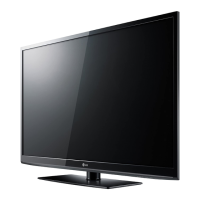
LG 50PA4500 - User Manual

LG 50PA4500
136 pages
Print Icon
To Next Page IconTo Next Page
Loading...
www.lg.com
OWNER’S MANUAL
PLASMA TV
Please read this manual carefully before operating the
set and retain it for future reference.
PA45**
PA49**
PA55**
PA65**

Table of Contents

Other manuals for LG 50PA4500

Questions and Answers

  • P
    patrickmartinSep 9, 2025
    How to correct the display offset on my LG 50PA4500?
    • N
      natalie35Sep 9, 2025
      To correct the display offset on your LG Plasma TV, first, adjust the position setting in the PICTURE menu. Second, check if the video card resolution and frequency are supported by the TV. If the frequency is out of range, set the recommended resolution using the display settings on the external device.
  • M
    mgordonAug 22, 2025
    Why does my LG Plasma TV keep turning off by itself?
    • B
      Brittany NelsonAug 23, 2025
      If your LG Plasma TV turns off suddenly, check the power control settings to ensure the power supply isn't interrupted. Also, check if the Auto sleep feature is activated in the Time settings. If there is no signal while the TV is on, the TV will turn off automatically after 15 minutes of inactivity.
  • L
    Leah SmithAug 25, 2025
    Why is my LG Plasma TV remote not working?
    • T
      Tamara HoltAug 25, 2025
      If you cannot control your LG Plasma TV with the remote, first, check the remote control sensor on the TV and try again. Second, make sure there are no obstacles blocking the path between the remote and the TV. Finally, check that the batteries in the remote are working and properly installed.
  • D
    Danielle PhelpsAug 26, 2025
    How to fix no sound on LG Plasma TV but picture is fine?
    • A
      April CraigAug 27, 2025
      If you see images on your LG Plasma TV but hear no sound, try the following: First, press the volume + or - button. Second, check if the sound is muted by pressing the MUTE button. Third, try switching to other channels to rule out a broadcast issue. Lastly, verify that the audio cables are correctly connected.
  • N
    Nancy SweeneyAug 27, 2025
    How to fix 'No Signal' on my LG 50PA4500 Plasma TV?
    • N
      Natalie CooperAug 27, 2025
      If you see a “No Signal” message on your LG Plasma TV screen, first, check if the signal cable is correctly connected between the TV and your other devices. Then, press the INPUT button to check and select the correct input source.
  • D
    Destiny SpencerAug 29, 2025
    Why is my LG Plasma TV showing black and white, or poor color?
    • G
      Glenn PerezAug 29, 2025
      If your LG Plasma TV displays images in black and white or with poor color quality, first, adjust the color setting in the PICTURE menu. Second, ensure there's sufficient distance between the TV and other electronic devices. Finally, try switching to other channels to rule out a broadcast issue.
  • D
    Deborah AbbottSep 18, 2025
    Why is the touch pen touching wrong positions on my LG Plasma TV?
    • K
      kaitlynvasquezSep 18, 2025
      If the touch pen touches wrong positions on your LG Plasma TV, set the computer screen to display only on the TV. If the point you touch on the TV screen using the touch pen and the point indicated as touched on the computer screen do not match when the computer and the TV are connected by a PC signal (RGB) cable, use the TV remote control to select [Home] ? [PICTURE] ? [SCREEN] (RGB) , then select [Auto Configure] to adjust the screen.
  • K
    kvegaSep 18, 2025
    Why is the touch pen movement not smooth on my LG 50PA4500?
    • A
      Alice OwensSep 19, 2025
      If the touch pen movement is not smooth on your LG Plasma TV, check whether the computer and the TV are too far from each other, and whether there are too many obstructions between them. Also, check whether many other applications are running on the computer and avoid running other applications while using the Pentouch program.
  • J
    jacquelinebarajasSep 7, 2025
    How to prevent afterimages (ghosts) on my LG 50PA4500 Plasma TV?
    • D
      Douglas Bradley VSep 8, 2025
      Afterimages (ghosts) appear when the product turns off because pixels may have been damaged from a fixed image displayed for a long time (image burn). Use a screen saver to prevent pixel damage on the screen.
  • K
    Katrina MyersSep 4, 2025
    How to fix lines or streaks on LG 50PA4500 Plasma TV screen?
    • C
      Cassandra RussellSep 4, 2025
      If lines or streaks appear on the images of your LG Plasma TV, check the antenna and make sure to aim it in the proper direction.

Summary

LICENSES

INSTALLATION PROCEDURE

ASSEMBLING AND PREPARING

Procedures for setting up the TV, including unpacking and assembly.

Setting up the TV

Instructions for placing the TV and attaching the stand.

REMOTE CONTROL

Remote Control Buttons

Explanation of the functions of each button on the remote control.

WATCHING TV

Connecting an antenna

Steps to connect an antenna for receiving TV signals.

Initial TV Setup

First-time setup process including language and basic settings.

Programme Management

Tuning, editing, and organizing TV programmes.

PENTOUCH

Using Pentouch

Overview of Pentouch features and safety precautions.

Installing the Pentouch Program

Guide on installing the Pentouch software on a computer.

Checking the Pentouch Functions

Accessing and using various Pentouch applications like Sketchbook.

NETWORK SETTING

Connecting to a wired network

Steps to connect the TV to a local area network (LAN).

Network Status

Checking the TV's network connection status.

ENTERTAINMENT

Connecting USB storage devices

How to connect USB devices for media playback.

Browsing files

Accessing and viewing photo, music, or movie lists from USB.

Viewing movies

Playing video files saved on a USB storage device.

CUSTOMIZING TV SETTING

Accessing main menus

How to navigate through the TV's main menu settings.

PICTURE settings

Adjusting image quality settings like brightness, contrast, and mode.

AUDIO settings

Adjusting sound quality settings like volume, mode, and balance.

MAKING CONNECTIONS

Connection overview

Illustration of various external device connections to the TV.

Connecting to a HD receiver, DVD, or VCR player

How to connect video sources like receivers and players using HDMI.

Connecting to a PC

Connecting the TV to a computer via HDMI, DVI, or RGB cable.

TELETEXT

Switch On;Off

How to turn the teletext feature on and off.

Simple Text

Basic teletext page selection and navigation.

DIGITAL TELETEXT

Teletext within digital service

Accessing teletext within a digital TV service.

MAINTENANCE

Cleaning your TV

Instructions for cleaning the TV screen, frame, cabinet, and stand.

TROUBLESHOOTING

General

Solutions for common TV problems like no image or sound.

Video

Troubleshooting specific video display issues like poor color or lines.

Pentouch

Solutions for issues related to the Pentouch feature and pen.

SPECIFICATIONS

Models

Technical details and dimensions for different TV models.

Video supported mode

List of supported video file formats, codecs, and resolutions.

IR CODES

EXTERNAL CONTROL DEVICE SETUP

RS-232 C Setup

Connecting the TV to external devices via RS-232C for control.

Communication Parameters

Technical details for serial communication with the TV.

LG 50PA4500 Specifications

General IconGeneral
3DNo
Depth53.34 mm
Width1168 mm
Height703.6 mm
Weight25830 g
HD typeNot supported
24p supportYes
Pixel pitch- mm
Smart modesCinema, Game, Standard, Vivid
Aspect ratio4:3
HDMI version1.3
Package depth229.6 mm
Package width1331 mm
Product colorBlack
Package height817.9 mm
Package weight33790 g
RMS rated power10 W
AC input voltage100 - 240 V
Display diagonal50 \
AC input frequency50 - 60 Hz
Depth (with stand)297.2 mm
Display brightness- cd/m²
Display resolution1024 x 768 pixels
Display technologyPlasma
Number of speakers2
Height (with stand)756.9 mm
Placement supportedHorizontal
Weight (with stand)28210 g
Supported video modes1080i, 1080p, 720p
USB 2.0 ports quantity1
Audio formats supportedAAC, HE-AAC, LPCM, MP2, MP3, MS-ADPCM, WMA
Image formats supportedJPG
Number of OSD languages4
S-Video inputs quantity0
Video formats supportedDIVX
Contrast ratio (dynamic)3000000:1
Contrast ratio (typical)-
Equalizer bands quantity5
Panel mounting interface400 x 400 mm
Annual energy consumption189.8 kWh
Display diagonal (metric)126.7 cm
Screen format adjustments4:3, 16:9
Analog signal format systemNTSC
Power consumption (standby)0.2 W
Power consumption (typical)130 W
Sustainability certificatesENERGY STAR
Digital signal format systemATSC
Supported graphics resolutions1024 x 768 (XGA), 1280 x 720 (HD 720), 1920 x 1080 (HD 1080)
On Screen Display (OSD) languagesENG, ESP, FRE, KOR
Consumer Electronics Control (CEC)Anynet+

Related product manuals