EasyManua.ls Logo

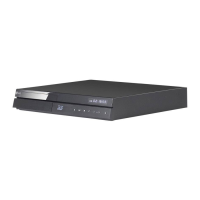
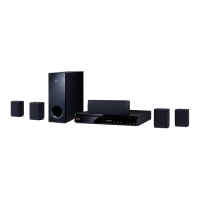
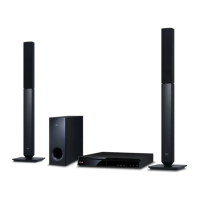
LG BH6220C - User Manual

LG BH6220C
75 pages
Print Icon
To Next Page IconTo Next Page
Loading...
Please read this manual carefully before operating
your set and retain it for future reference.
OWNER’S MANUAL
3D Blu-ray™/ DVD
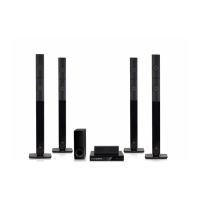
Home Cinema System
BH6220S (BH6220S, S62S1-S, S62T1-C, S62S1-W)
BH6320H (BH6320H, SH86TM-S, SH86TM-C, SH85TM-W)
BH6420P (BH6420P, S62T1-S, S62S1-S, S62T1-C, S62S1-W)
BH6520T (BH6520T, S62T1-S, S62T1-C, S62S1-W)
BH6620P (BH6620P, SH86TQ-S/ C, SH86PE-S, S62D3-W)
BH6620S (BH6620S, SH86PE-S, SH86TQ-C, S62D3-W)
BH6620T (BH6620T, SH86TQ-S/ C, S62D3-W)
P/NO : SAC35474805

Table of Contents

Questions and Answers

  • W
    woodscarlaSep 9, 2025
    Why can't my LG Home Theater System play movie, photo, or music files?
    • J
      Jessica ThomasSep 9, 2025
      Your LG Home Theater System may not be able to play certain movie, photo, or music files if the files are not recorded in a supported format or if the unit does not support the codec of the movie file.
  • T
    taylormichaelAug 23, 2025
    What to do if there is no picture on my LG Home Theater System?
    • A
      Andrea SmithAug 23, 2025
      If there is no picture on your LG Home Theater System, try these steps: * Select the correct video input mode on your TV. * Ensure the video connection is secure. * Check the [HDMI Color Setting] in the [Setup] menu and set it to the appropriate item for your video connection. * Change the resolution to one that your TV supports.
  • J
    jeffreystaffordAug 25, 2025
    Why is my LG BH6220C remote control not working?
    • A
      Ariel CarrollAug 25, 2025
      If your LG Home Theater System remote control isn't working properly, it could be due to several reasons: * Make sure the remote control is pointed at the remote sensor on the unit. * Ensure you are not too far from the unit. * Remove any obstacles blocking the path between the remote control and the unit. * Check if the batteries in the remote control are exhausted.
  • M
    Michael MoralesAug 27, 2025
    What to do if my LG Home Theater System does not start playback?
    • S
      Susan AdamsAug 27, 2025
      If your LG Home Theater System isn't starting playback, try the following: * Insert a playable disc, ensuring it's the correct type, color system, and regional code. * Insert the disc with the playback side facing down. * Clean the disc. * Cancel the Rating function or change the rating level.
  • T
    Tanya BennettAug 28, 2025
    What to do if my LG Home Theater System remote control does not work properly?
    • T
      Tim SparksAug 28, 2025
      If the remote control for your LG Home Theater System isn't working correctly, consider these potential issues: * The remote control is not pointed at the remote sensor of the unit. * The remote control is too far from the unit. * There is an obstacle in the path of the remote control and the unit. * The batteries in the remote control are exhausted.
  • J
    James IrwinSep 23, 2025
    Why is the access point not displayed on my LG Home Theater System?
    • D
      Dr. Joseph Sanders MDSep 23, 2025
      If the access point isn't displayed on the 'Access point name' list of your LG Home Theater System, your network device may not be set with an available frequency range and channel that this player can support. Try setting the frequency range and channel on the network device setting.
  • E
    Edward SolomonSep 16, 2025
    How to fix LG BH6220C when the power will not turn on or off?
    • M
      Ms. Jessica SchultzSep 16, 2025
      To reset your LG Home Theater System, unplug the power cord, wait at least five seconds, and then plug it back in.
  • K
    Kristin MarshallSep 18, 2025
    Why are media servers not displayed on my LG BH6220C Home Theater System?
    • C
      cmooreSep 18, 2025
      If media servers aren't showing up on your LG Home Theater System, it could be due to the firewall or anti-virus software running on your media server. Try turning off the firewall or anti-virus software. Also, the player is not connected to the local area network that your media server is connected.
  • M
    Max WoodardSep 7, 2025
    Why does picture noise appear on my LG BH6220C?
    • A
      amycunninghamSep 7, 2025
      If picture noise appears on your LG Home Theater System, it may be because you are playing a disc recorded in a colour system different from your TV. Try setting the resolution that your TV accepts.
  • M
    Michelle PhelpsSep 4, 2025
    Why is the BD-Live feature not working on my LG BH6220C Home Theater System?
    • K
      Kenneth WilliamsSep 4, 2025
      If the BD-Live feature isn't working on your LG Home Theater System, consider the following: * Connect USB storage with at least 1GB of free space. * Ensure the unit is connected to the local area network and can access the internet. * Set the [BD-LIVE connection] option in the [Setup] menu to [Permitted].

Summary

Safety Information

Electric Shock and Laser Warnings

Warnings about electric shock risk and self-servicing.

Power Cord Safety Precautions

Precautions for using the power cord safely.

Disposal and Environmental Safety

Appliance and Battery Disposal Guidelines

Instructions for the proper disposal of electrical products and batteries.

Introduction to the System

File Compatibility Details

System Settings and Requirements

DLNA, Regional Code, and System Select

DLNA, regional code, and TV system selection.

Remote Control Guide

Basic Operation and Navigation Buttons

Buttons for power, playback, disc menu, and navigation.

Settings and Special Function Buttons

Buttons for input, subtitles, volume, and other functions.

Front Panel Overview

Disc Tray, Display, and Ports

Disc tray, display window, and USB/PORT.IN connection ports.

Rear Panel Overview

Power, Speaker, Cooling, Antenna, and LAN Ports

Connections for power, speakers, cooling, antenna, and network.

Speaker Positioning for Surround Sound

Speaker Connection Procedure

Attaching Speakers to the Player

Instructions for connecting speaker wires to the player and speakers.

Connecting to Your TV

HDMI Connection Guide

How to connect the player to a HDMI TV or monitor.

Video Connection and SIMPLINK

Connecting via video cable and using the SIMPLINK feature.

Video Connection and Resolution Setting

Video Cable Connection

Connect the VIDEO OUT jack on the player to the TV.

Connecting External Devices

Optical Audio Input Connection

Connecting to Your Home Network

Wired Network Setup

How to connect the player to a network using a wired Ethernet cable.

Wired Network Setup Details

Advanced Network Settings

Manual network configuration for IP address and DNS settings.

USB Device Connection and Playback

Connecting USB Devices

How to connect USB storage devices.

Initial Setup Wizard

Adjusting Player Settings

Display Menu Settings

TV Aspect Ratio and Resolution

Select aspect ratio and output resolution for display.

Display and Language Settings

Audio Menu Options

Digital Audio Output Formats

Configure digital audio output formats via HDMI.

Speaker Setup and Calibration

Adjust speaker volume, distance, and test tone.

Advanced Audio Settings

Parental Control and Lock Settings

Password Management and DVD Ratings

Create/change password and block rated DVDs.

Network and Online Features

System Management and Updates

Sound Effect Customization

General Playback Operations

Using the Home Menu

Navigate the home menu to access content categories.

Playing Discs and USB Files

Steps to play movies, music, and photos from discs or USB.

Blu-ray 3 D and BD-Live Features

Network Server Playback

Basic Video and Audio Operations

Playback Controls and Navigation

Stop, pause, frame-by-frame, scan, slow, skip playback functions.

Disc Menu and Playback Features

Advanced Playback Functions

Content List View and Subtitle Selection

On-Screen Display Information

Playback Navigation and Control

Picture and Subtitle Settings

Radio Operations and Tuning

Troubleshooting - General Issues

Troubleshooting - Network Issues

Troubleshooting - Picture and Sound

Picture and Sound Issues

Troubleshooting steps for no picture or distorted sound.

Remote Control TV Operation

Software Update Procedures

Network Update Notification and Options

Notification of available software updates via home network.

Product Specifications

Unit Maintenance and Disc Care

LG BH6220C Specifications

General IconGeneral
TypeHome Theater System
Total Power Output1000W
Speaker Configuration5.1 Channel
Blu-ray PlaybackYes
3D PlaybackYes
HDMI Inputs1
USB PlaybackYes
Wi-FiYes
DLNA SupportYes
Smart TVYes
Wireless Rear SpeakerNo
Playable MediaBD, DVD, CD
ConnectivityHDMI, USB

Related product manuals