13
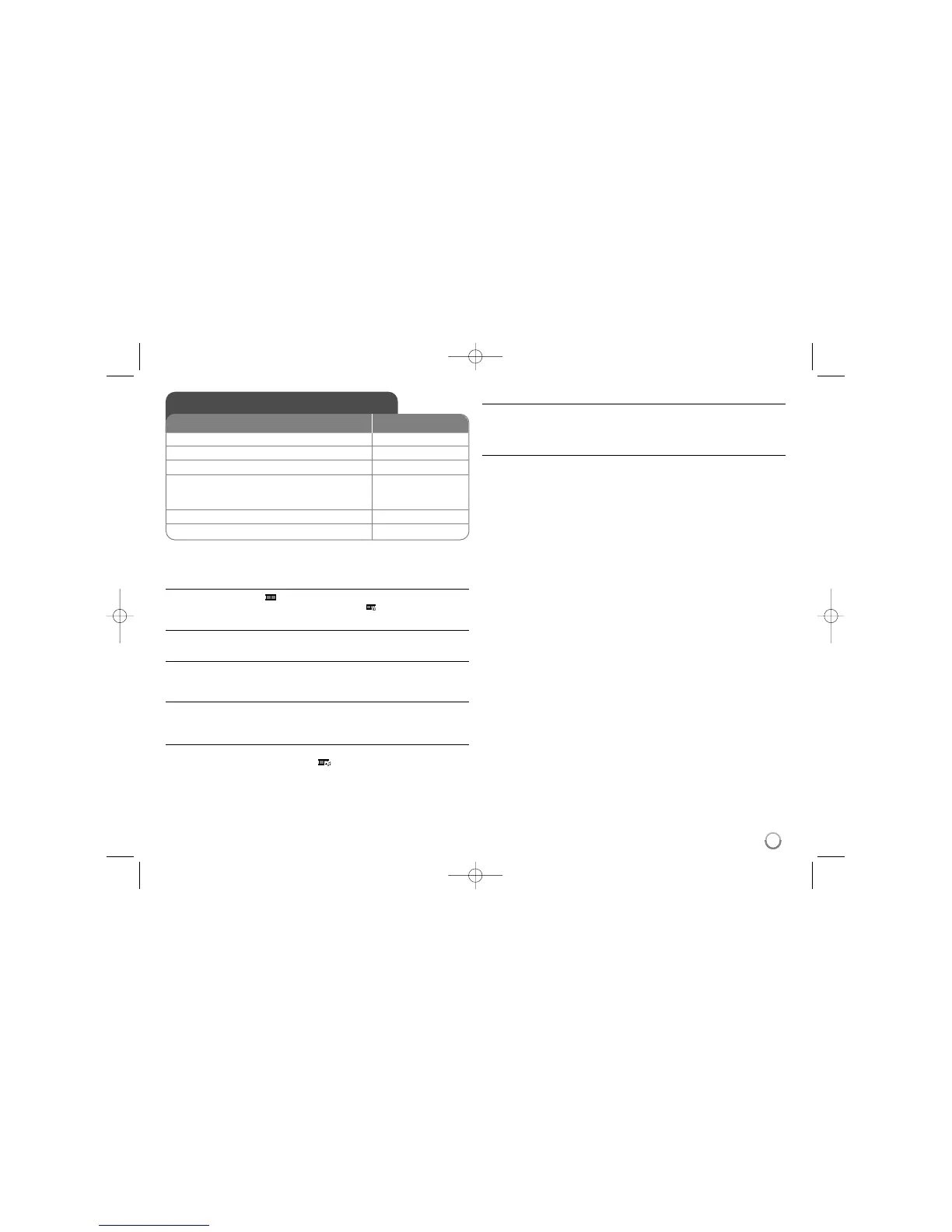
Viewing photo files - more you can do
Viewing photo files as a slide show
Use vV b B to highlight ( ) icon then press ENTER to start slide show.
You can change slide show speed using bBwhen ( ) icon is highlighted.
Skip to the next/previous photo
Press SKIP (. or >) to view the previous/next photo.
Rotate a photo
Use vV to rotate the photo in full screen counterclockwise or clockwise while
viewing a photo in full screen.
Pause a slide show
Press PAUSE/STEP (X) to pause a slide show. Press PLAY (
NN
) to continue
the slide show.
Listening to music during slide show
You can listen to music during slide show, if the disc contain music and photo
files together. Use vV b B to highlight ( ) icon then press ENTER to start
slide show.
Watching an enlarged photo image
While viewing a photo in full screen, press ZOOM repeatedly to select zoom
mode. You can move through the zoomed photo using vVb B buttons. Press
CLEAR to exit.
Photo file requirement
JPEG file compatibility with this unit is limited as follows:
• File extensions: “.jpg”
• Photo size: Less than 2 MB recommended
• CD-R/RW, DVD±R/RW Format: ISO 9660
• Maximum Files/Folders: Less than 600 (total number of files and folders)
Viewing photo files
1 Open the disc tray:
ZZ
OPEN/CLOSE
2 Insert a disc: -
3 Close the disc tray:
ZZ
OPEN/CLOSE
4 Select a photo file on the menu:
vv VV
, DVD MENU
To go directly to file, enter the file number
using the numbered buttons (0-9).
5 Display the selected file in full screen:
NN
PLAY
6 To return to the menu:
xx
STOP
ON REMOTE



 To Next Page