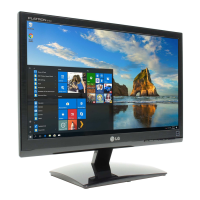
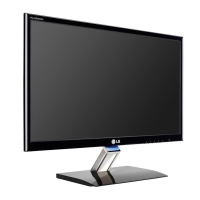
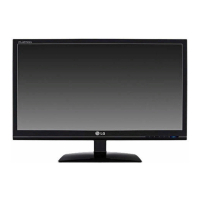
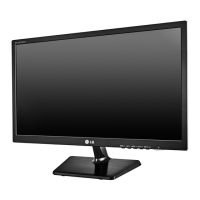
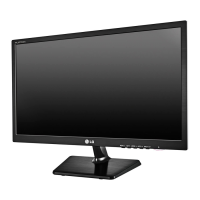
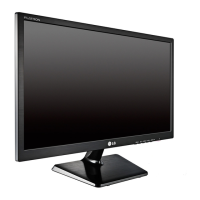
This document serves as the owner's manual for an LG LCD monitor, model E1641S, providing essential information for its safe installation, operation, and maintenance. The monitor is designed to offer a clear visual display for various computing tasks, with user-friendly controls and features to optimize viewing experience and energy consumption.
Function Description
The LG LCD monitor E1641S is a display unit primarily used for connecting to a personal computer or other compatible devices to output visual information. Its core function is to present images and text generated by a connected source, such as a desktop computer, laptop, or other video output devices. The monitor utilizes an Active Matrix LCD panel with an anti-glare coating, ensuring a comfortable viewing experience by reducing reflections. It supports a D-Sub (analog signal) input, making it compatible with a wide range of systems. The monitor is equipped with a power button and an array of control buttons on the front panel, allowing users to navigate the On Screen Display (OSD) menu for various adjustments.
A key feature of this monitor is the "Self Image Setting Function," which automatically optimizes display settings when the monitor is first connected or when the AUTO button is pressed. This function is particularly useful for achieving optimal display settings for individual input signals, addressing common issues like blurry screens, blurred letters, screen flicker, or tilted screens. The monitor also incorporates "SUPER ENERGY SAVING" technology, designed to reduce power consumption and contribute to environmental conservation. This feature can be activated or deactivated through the OSD menu, allowing users to manage their energy usage effectively.
Usage Features
The monitor is designed for ease of use, from initial setup to daily operation.
- Stand Assembly and Disassembly: The manual provides clear instructions for assembling and disassembling the monitor stand. The stand body and base are designed to click into place, and a screw on the back of the stand base can be tightened or loosened with a coin for secure attachment or removal. This modular design facilitates easy setup and portability.
- Display Positioning: Users can adjust the tilt angle of the monitor from -5° to 15° to achieve maximum comfort and an ergonomic viewing position. It is recommended to keep the forward tilt angle within 5 degrees for optimal ergonomics. The manual emphasizes the importance of not touching or pressing the screen during adjustment and warns against placing fingers between the monitor head and stand body to prevent injury.
- Connecting to a PC: The monitor connects to a PC via a 15-pin D-Sub signal cable and a power cord. The process is straightforward: connect the signal cable and power cord, then tighten the signal cable screw. For Macintosh users, a separate plug adapter may be required to convert the 15-pin high-density D-sub VGA connector to a 15-pin 2-row connector.
- On Screen Display (OSD) Control: The front panel controls provide access to the OSD menu, which allows for comprehensive adjustments to the display.
- MENU Button: This button accesses the main OSD menu and also serves as the OSD LOCK/UNLOCK function. Holding it for several seconds will lock or unlock the current control settings, preventing accidental changes.
- SUPER ENERGY SAVING Button: This dedicated button allows users to enter the SUPER ENERGY SAVING menu, where they can activate or deactivate the energy-saving feature and monitor power reduction statistics.
- AUTO Button: In analog mode, pressing the AUTO button automatically adjusts the display image to the ideal settings for the current screen resolution. This is a quick way to correct display issues.
- EXIT Button: Used to exit the OSD menu.
- Navigation Buttons: These buttons are used to navigate through menu items and adjust setting values.
- OSD Menu Options: The OSD menu offers a range of adjustments:
- BRIGHTNESS: Adjusts the overall brightness of the screen.
- ORIGINAL RATIO: Allows switching between "WIDE" (full screen) and "ORIGINAL" (input signal ratio) display modes. The "ORIGINAL" mode is particularly useful when the input resolution is lower than the monitor's native 16:9 ratio.
- COLOR TEMP (PRESET / USER): Provides options to select preset color temperatures (WARM, MEDIUM, COOL) or customize individual Red, Green, and Blue color levels.
- CONTRAST: Adjusts the contrast of the screen.
- LANGUAGE: Allows selection of the OSD menu language.
- FACTORY RESET: Resets all display settings to their factory defaults, except for the language.
- SUPER ENERGY SAVING: Enables or disables the energy-saving function and displays the total power reduction and total CO2 reduction. When active, the SUPER SAVING color is green; when off, it's gray. There's also an option to reset these accumulated values.
- Kensington Security Slot: The monitor includes a Kensington Security Slot, allowing users to connect a locking cable (purchased separately) to secure the monitor in public or shared environments, deterring theft.
- Wall Mount Plate Installation: The manual details how to prepare the monitor for wall mounting by removing the stand body and base. It specifies the VESA compatible screw mounting interface dimensions (75 mm x 75 mm) and recommends specific screw and wall mount pad specifications for proper installation.
Maintenance Features
Proper maintenance is crucial for the longevity and optimal performance of the LG LCD monitor.
- Cleaning:
- Always unplug the display before cleaning.
- Use a slightly damp (not wet) soft cloth to clean the display screen. Avoid spraying aerosols or liquids directly onto the screen to prevent electrical shock.
- For the front frame, spray water onto a soft cloth 2 to 4 times and wipe in one direction. Excessive moisture can cause staining.
- Do not use harsh chemicals like benzene, paint thinners, or alcohol, as these can damage the product.
- Gently scrub with a soft cloth to prevent scratching.
- Handling:
- Avoid rubbing or striking the Active Matrix LCD with hard objects, as this can cause permanent scratches or damage.
- Do not press the LCD screen with your finger for extended periods, as this may cause temporary afterimages.
- If moving the monitor, ensure the panel faces forward and hold it with both hands to prevent dropping, which could lead to electric shock, fire, or physical injury.
- Avoid high temperatures and humidity.
- Storage and Repacking:
- Retain the original carton and packing materials, as they are ideal for transporting the unit if it needs to be moved to another location.
- Disposal:
- The product should not be disposed of with general household waste.
- Disposal must be carried out in accordance with local authority regulations, emphasizing environmentally responsible practices.
- Troubleshooting: The manual includes a troubleshooting section to help users diagnose and resolve common issues such as no image, incorrect display image (position, vertical bars, horizontal noise, mono/abnormal color, flickering), or messages like "OUT OF RANGE," "CHECK SIGNAL CABLE," and "OSD LOCKED." It advises checking power connections, signal cables, display settings, and driver installations. For issues related to display position or image quality, pressing the AUTO button is often recommended. If the display driver is not installed, users are directed to install it from the provided CD or the LG website.
The LG LCD monitor E1641S is designed to be a reliable and user-friendly display solution, with features that prioritize ease of use, visual quality, and energy efficiency, all while providing clear guidelines for safe and effective maintenance.

 Need help?
 General

 To Next Page