EasyManua.ls Logo

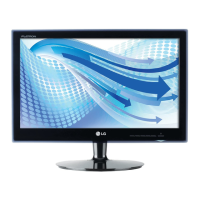
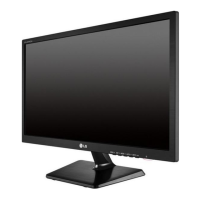
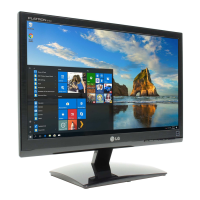
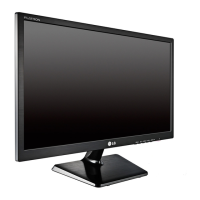
LG E1951S - User Manual

LG E1951S
30 pages
Print Icon
To Next Page IconTo Next Page
Loading...
www.lg.com
OWNER’S MANUAL
LED LCD MONITOR
Please read this manual carefully before operating
your set and retain it for future reference.
LED LCD MONITOR MODELS
ENGLISH
E1951T
E2051T
E2251T
E2351T
E1951S
E2051S
E2251S
E2251VR
E2351VR
E2251VQ
E2351VQ

Questions and Answers

  • K
    Kimberly GambleSep 4, 2025
    What to do if the audio function is not working on my LG E1951S?
    • J
      Jonathan BowenSep 4, 2025
      If the audio on your LG monitor isn't working, check that the volume isn't set to '0' and that the sound isn't muted. Ensure the HDMI cable and headphone cable are properly installed. Also, verify the sound format is correct and not a compressed format.
  • A
    Alexandra JohnsonSep 18, 2025
    How to resolve 'Unrecognized monitor, Plug&Play (VESA DDC) monitor found' message on my LG E1951S Monitor?
    • S
      Samuel MitchellSep 18, 2025
      To resolve the 'Unrecognized monitor' message on your LG monitor, ensure you install the display driver from the display driver CD that comes with your display. Also, make sure to check if the video card supports Plug&Play function.
  • D
    Derek KnightSep 16, 2025
    Why is the screen color mono or abnormal on my LG Monitor?
    • T
      Timothy JordanSep 16, 2025
      If the screen color on your LG monitor is mono or abnormal, first check if the signal cable is properly connected and use a screwdriver to fasten it if necessary. Also, make sure the video card is properly inserted in the slot. Finally, set the color setting higher than 24 bits (true color) at Control Panel ? Settings.
  • A
    Ann KirbySep 14, 2025
    How to unlock OSD on LG E1951S Monitor?
    • B
      Barbara LopezSep 14, 2025
      To unlock the OSD controls on your LG Monitor, push the left first button for several seconds until the message “OSD UNLOCKED” appears.
  • S
    Sharon AyersSep 12, 2025
    How to fix the mono or abnormal screen color on my LG E1951S?
    • B
      Brian WallsSep 13, 2025
      If your LG Monitor's screen color is mono or abnormal, check if the signal cable is properly connected, tightening it with a screwdriver if necessary. Also, ensure the video card is properly inserted in its slot. Lastly, set the color setting higher than 24 bits (true color) in the Control Panel settings.
  • J
    James HarrisSep 12, 2025
    What to do if the display image on my LG Monitor is incorrect?
    • J
      Joseph StevensSep 12, 2025
      If the display image on your LG Monitor is incorrect, with issues like incorrect position, vertical bars, stripes, or horizontal noise, press the AUTO button to automatically adjust the display image to the ideal setting. For horizontal noise or unclear characters, also check the display settings in the Control Panel and adjust to the recommended resolution, ensuring the color setting is higher than 24 bits (true color).
  • D
    David RosarioSep 9, 2025
    How to fix screen blinking on LG Monitor?
    • M
      Melinda HendersonSep 9, 2025
      To fix a blinking screen on your LG Monitor, check if the screen is set to interlace mode and change it to the recommended resolution if it is.
  • M
    Marcus AndersonSep 7, 2025
    What to do if no image appears on my LG E1951S?
    • G
      Gabrielle HernandezSep 7, 2025
      If no image appears on your LG Monitor, here are a few things you can try: * Ensure the power cord is properly connected to the power outlet. * Press the Power button. * If the display is in power saving mode, move the mouse or press any key on the keyboard. * Try turning on the PC. * Check the 'Specifications' section of this manual and configure your display again. * Check the signal cable and try again.
  • A
    awellsSep 5, 2025
    How to fix incorrect display image on my LG E1951S Monitor?
    • B
      Brittany DiazSep 6, 2025
      To correct the display image on your LG monitor, press the AUTO button to automatically adjust the image to the ideal setting. Alternatively, go to Control Panel ? Display ? Settings and adjust the display to the recommended resolution. You can also adjust the display image to the ideal setting there. Ensure the color setting is higher than 24 bits (true color).
  • M
    Mark PowellAug 20, 2025
    Why does my LG E1951S Monitor have no image?
    • N
      newtonstephanieAug 21, 2025
      If your LG Monitor displays no image, ensure the power cord is properly connected to the outlet and that the power button is pressed. If in power saving mode, move the mouse or press a key. Also, verify that the signal cable is connected correctly.

Summary

ASSEMBLING AND PREPARING

Setting Up the Monitor

Instructions for physical setup, including stand attachment.

USING THE MONITOR SET

Connecting to a PC

Explains PC connection using various cable types (D-SUB, DVI, HDMI).

D-SUB Connection

Details analog video connection using a D-SUB cable.

DVI to HDMI Connection

Describes DVI to HDMI connection for digital video.

HDMI Connection

Covers digital video and audio connections via HDMI cable.

CUSTOMIZING SETTINGS

Accessing the Main Menus

Guide to navigating and opening the monitor's OSD menus.

Menu Settings

Details adjustable OSD settings: brightness, contrast, color, etc.

TROUBLESHOOTING

No Image Appears

Solutions for no picture or no signal issues.

Incorrect Display Image

Troubleshooting steps for distorted, blurry, or misaligned screen images.

SPECIFICATIONS

D-SUB; DVI Timing Specifications

HDMI Timing Specifications

Monitor Indicator Status

LG E1951S Specifications

General IconGeneral
Screen Size19 inches
Resolution1366 x 768
Panel TypeTN
Brightness250 cd/m²
Contrast Ratio1000:1
Response Time5 ms
ConnectivityVGA
Aspect Ratio16:9
Power Consumption (Operating)18W
Power Consumption (Standby)0.3W
Weight2.9 kg
VESA Mount Compatibility75 x 75 mm

Related product manuals