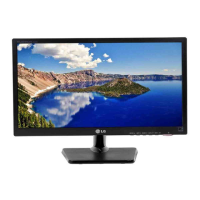
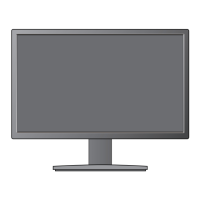
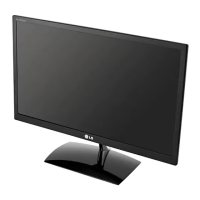
This document is an owner's manual for an LG LED LCD monitor, providing comprehensive instructions for assembly, usage, customization, troubleshooting, and maintenance. The monitor is designed for general computing use, offering a clear visual display and user-friendly controls.
Function Description
The LG LED LCD monitor serves as a visual output device for personal computers, displaying images and text generated by a connected PC. It supports a "Plug & Play" function, meaning that a connected PC will automatically recognize the monitor without requiring complex device configuration or user intervention. The monitor is equipped with a D-SUB connection, allowing it to transmit analog video signals from a PC. It is designed to provide optimal display settings automatically through its "Self Image Setting" function when first connected to a PC in analog mode. This function adjusts the display to suit individual input signals, ensuring a clear and stable image. For users who experience issues like a blurry screen, blurred letters, screen flicker, or a tilted screen, an "AUTO" function button is available to improve resolution, specifically supported in Analog Mode.
The monitor also includes an "OSD LOCKED/UNLOCKED" feature, which allows users to secure the current control settings to prevent accidental changes. This can be toggled by pressing and holding the MENU button for several seconds.
Usage Features
The monitor's usage is centered around its on-screen display (OSD) menu, which is accessed via buttons located on the bottom panel. These buttons allow users to navigate through various settings and customize the display to their preferences.
Assembly and Setup:
The manual details a straightforward assembly process, involving attaching the stand body to the monitor and then securing the stand base. It emphasizes placing the monitor screen-side down on a cushioned surface to prevent damage during assembly. For mounting on a table, a minimum 10 cm clearance from the wall is recommended for proper ventilation. Wall mounting is also supported, with instructions to use VESA standard screws and wall mount interfaces.
Connecting to a PC:
The primary connection method described is the D-SUB connection, using a 15-pin signal cable. The manual also mentions the need for a separate plug adapter for Apple Macintosh users to convert the 15-pin high-density D-SUB VGA connector to a 15-pin 2-row connector.
Power Management:
The monitor is powered via an AC-DC adapter and a power cord connected to a wall outlet. A power indicator light on the monitor's front panel shows the power status: lighting on when turned on and lighting off when turned off. The power indicator blinks red when the display is in Sleep Mode.
Customizing Settings:
The OSD menu offers extensive customization options, categorized into:
- PICTURE: Adjusts brightness, contrast, and sharpness. It also includes a "WIDE/ORIGINAL" setting to switch between full-screen mode and original input ratio, particularly useful when input resolution is lower than the monitor's native 16:9 ratio.
- COLOR: Allows users to customize color levels (Red, Green, Blue), gamma values (GAMMA 0, GAMMA 1, GAMMA 2), and color temperature (Warm, Medium, Cool).
- DISPLAY: Provides controls for horizontal and vertical image positioning, clock adjustment to minimize vertical bars or stripes, and phase adjustment to improve image clarity and stability, especially for characters.
- OTHERS: Includes settings for language selection, power indicator control (ON/OFF), and white balance adjustment to optimize color levels for video signals.
Picture Mode Settings:
The monitor features predefined picture modes accessible via the MODE button:
- CUSTOM: Allows users to adjust each element of the display.
- TEXT: Optimized for text-based work.
- PHOTO: Adjusted for viewing pictures.
- CINEMA: Tailored for watching videos.
- GAME: Configured for playing games.
SUPER ENERGY SAVING Settings:
A dedicated "SUPER ENERGY SAVING" function is available to reduce energy consumption. This feature can be enabled or disabled, and it provides estimates of total power reduction and CO2 emission reduction. The manual notes that saving data values may vary depending on the panel and vendor.
Maintenance Features
The manual provides several precautions and troubleshooting tips to ensure the longevity and proper functioning of the monitor.
General Precautions:
- Users are advised not to use unapproved accessories to ensure product safety and life span.
- When adjusting the monitor's angle, users should avoid holding the bottom frame to prevent finger injuries.
- The screen should not be touched or pressed for extended periods to prevent temporary distortion or image burn. Using a screensaver is recommended to avoid fixed image burn-in.
- The monitor should not be carried upside down by only holding the stand base, as this could lead to the product falling and causing damage or injury.
Troubleshooting:
The troubleshooting section addresses common issues:
- Power-related problems: Instructions include checking the power cord connection, pressing the power button, adjusting brightness/contrast, moving the mouse or pressing a keyboard key if in power saving mode, and ensuring the PC is turned on.
- Signal issues: For "OUT OF RANGE" messages, users are directed to check the PC's video card frequency range and configure the display again according to the manual's specifications. For "CHECK SIGNAL CABLE" messages, users should verify the signal cable connection between the PC and the display.
- OSD LOCKED: If the OSD is locked, users are reminded to press and hold the MENU button for several seconds to unlock it.
- Incorrect display image: For issues like incorrect display position, vertical bars/stripes, or horizontal noise, users are advised to use the "AUTO" function button to automatically adjust the display image to ideal settings. Additionally, checking Control Panel > Display > Settings to adjust resolution and color depth (24 bits or higher) is recommended.
- Unrecognized monitor: If the PC displays an "Unrecognized monitor, Plug&Play (VESA DDC) monitor found" message, users should install the display driver from the provided CD or LG's website and ensure the video card supports Plug&Play.
Environmental Considerations:
The manual emphasizes the importance of proper ventilation, recommending a 10 cm clearance from walls when mounting on a table. It also provides warnings against installing the monitor on a ceiling or slanted wall, as it may fall and cause severe injury. Only authorized LG wall mounts and qualified personnel should be used for wall mounting.
By following these guidelines, users can effectively operate, customize, and maintain their LG LED LCD monitor for an optimal viewing experience.


 To Next Page
 General