EasyManua.ls Logo

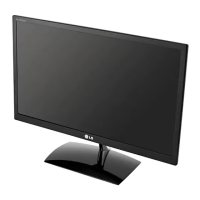
LG E2051S-BN - User Manual

LG E2051S-BN
30 pages
Print Icon
To Next Page IconTo Next Page
Loading...
www.lg.com
OWNER’S MANUAL
LED LCD MONITOR
Please read this manual carefully before operating
your set and retain it for future reference.
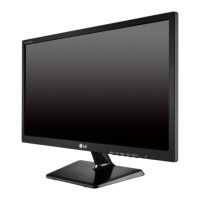
LED LCD MONITOR MODELS
ENGLISH
E1951T
E2051T
E2251T
E2351T
E1951S
E2051S
E2251S
E2251VR
E2351VR
E2251VQ
E2351VQ

Questions and Answers

  • J
    John ArmstrongAug 8, 2025
    Why does my LG Monitor have no image?
    • K
      katie55Aug 8, 2025
      If your LG Monitor displays no image, ensure the power cord is properly connected to the outlet and that the power button is pressed. If in power saving mode, move the mouse or press a key. Also, verify that the signal cable is connected correctly.
  • V
    Vincent RiveraAug 13, 2025
    What to do if my LG E2051S-BN audio function is not working?
    • J
      joneserinAug 14, 2025
      If the audio function on your LG Monitor is not working, first check that the volume is not set to "0" and that the sound is not muted. Then, verify that the HDMI or headphone cable is properly installed. Also, ensure that the sound format is supported, as compressed sound formats are not supported.
  • M
    Marissa SuttonAug 19, 2025
    Why is my LG Monitor screen blinking?
    • P
      Patricia GreenAug 19, 2025
      If your LG Monitor screen is blinking, check if the screen is set to interlace mode. If it is, change it to the recommended resolution.
  • S
    Sean WebbAug 23, 2025
    What to do if the display image on my LG E2051S-BN Monitor is incorrect?
    • B
      Bradley JacksonAug 23, 2025
      If the display image on your LG Monitor is incorrect, with issues like incorrect position, vertical bars, stripes, or horizontal noise, press the AUTO button to automatically adjust the display image to the ideal setting. For horizontal noise or unclear characters, also check the display settings in the Control Panel and adjust to the recommended resolution, ensuring the color setting is higher than 24 bits (true color).
  • K
    kmayAug 28, 2025
    How to fix the mono or abnormal screen color on my LG E2051S-BN Monitor?
    • J
      James ScottAug 29, 2025
      If your LG Monitor's screen color is mono or abnormal, check if the signal cable is properly connected, tightening it with a screwdriver if necessary. Also, ensure the video card is properly inserted in its slot. Lastly, set the color setting higher than 24 bits (true color) in the Control Panel settings.
  • R
    Robin LeeSep 2, 2025
    How to unlock OSD on LG Monitor?
    • B
      Bailey SmithSep 2, 2025
      To unlock the OSD controls on your LG Monitor, push the left first button for several seconds until the message “OSD UNLOCKED” appears.

Summary

ASSEMBLING AND PREPARING

Control Button Functions

Details the functions of monitor buttons like MENU, AUTO, INPUT, etc.

Monitor Stand Assembly

Step-by-step guide for attaching and detaching the monitor stand base.

VESA Wall Mounting Specifications

Details VESA compatibility, screw specs, and mounting pad thickness.

USING THE MONITOR SET

Connecting Monitor to PC

Explains Plug & Play functionality for PC connection.

D-SUB Connection Setup

Instructions for connecting the monitor using a D-SUB cable.

DVI to HDMI Connection Guide

Guide for connecting the monitor via a DVI to HDMI cable.

HDMI Connection for Audio;Video

Instructions for connecting via HDMI for video and audio signals.

CUSTOMIZING SETTINGS

Accessing OSD Menu

Steps to navigate and access the monitor's OSD setup menu.

Monitor Menu Settings Explained

Details available menu options like Brightness, Contrast, Color Temp, Language.

Super Energy Saving Configuration

How to enable/disable and reset energy saving features for power reduction.

TROUBLESHOOTING

Resolving No Image or Range Errors

Troubleshooting steps for issues like no display or "out of range" messages.

Fixing Display Image Problems

Solutions for incorrect display position, vertical bars, or horizontal noise.

SPECIFICATIONS

LG E2051S-BN Specifications

General IconGeneral
Screen Size20 inches
Resolution1600 x 900
Panel TypeTN
Brightness250 cd/m²
Contrast Ratio1000:1
Response Time5 ms
Aspect Ratio16:9
Viewing Angle (Horizontal)170°
Viewing Angle (Vertical)160°
Power Consumption (Typical)25 W
ConnectivityVGA
Dynamic Contrast Ratio5, 000, 000:1
Viewing Angle170°/160°
Input ConnectorsVGA

Related product manuals