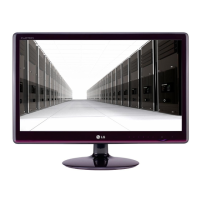
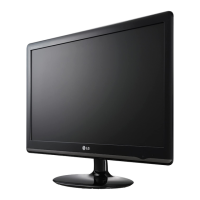
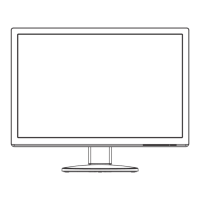
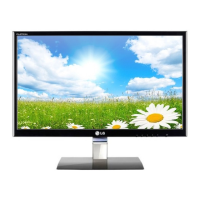
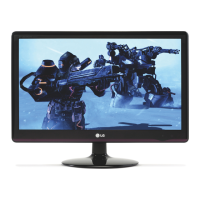
This document serves as the owner's manual for an LG LED LCD Monitor, providing instructions for assembly, operation, customization, and troubleshooting. The monitor is designed for general computing use, offering a range of features to enhance user experience and display quality.
Function Description
The LG LED LCD Monitor is a display device primarily used for connecting to a personal computer (PC) to visualize graphical output. It supports a "Plug & Play" functionality, meaning that when connected to a PC and powered on, the computer should automatically recognize the monitor without requiring extensive manual configuration. The monitor utilizes a D-SUB connection for transmitting analog video signals from the PC.
Upon initial power-on or after changing screen resolution, the monitor features a "Self Image Setting" function, which automatically adjusts display settings to optimal levels for individual input signals. This is particularly useful for achieving the best possible display quality without manual intervention. Additionally, an "AUTO" function button is available to improve resolution in cases of blurry screens, blurred letters, screen flicker, or tilted images, especially when using analog input.
The monitor includes an On-Screen Display (OSD) menu system, accessible via buttons located on the bottom panel. This menu allows users to customize various display settings such as brightness, contrast, color, and other advanced options. The OSD can be locked to prevent accidental changes to the settings, and unlocked when adjustments are needed.
A key feature of this monitor is the "SUPER ENERGY SAVING" mode, designed to reduce power consumption. Users can enable or disable this mode through the OSD, and the monitor provides information on estimated power and CO2 reduction. This feature highlights the monitor's commitment to energy efficiency and environmental responsibility.
The monitor also offers different "PICTURE MODE" presets, including CUSTOM, TEXT, PHOTO, CINEMA, and GAME. These modes allow users to quickly optimize the display settings for specific content types, ensuring the best visual experience whether for reading text, viewing photos, watching movies, or playing games. The CUSTOM mode provides flexibility for users to fine-tune each element according to their preferences.
Usage Features
To set up the monitor, users first unpack the components, which typically include the stand body, stand base, D-SUB cable, power cord, AC-DC adapter, and an owner's manual CD. The stand base is attached to the stand body, and then the assembled stand is connected to the monitor set. It's crucial to place the monitor on a flat, cushioned surface during assembly to prevent damage to the screen. The stand allows for tilt adjustments, ranging from +20 to -5 degrees, to achieve an optimal viewing angle.
For connection to a PC, the D-SUB cable is used. The manual provides clear illustrations for connecting the cable to both the monitor's DC-IN and D-SUB ports and the PC's RGB OUT port. For Macintosh users, a separate plug adapter may be required to convert the 15-pin high-density D-SUB VGA connector to a 15-pin 2-row connector.
The monitor can be mounted on a table or a wall. When mounting on a table, a minimum of 10 cm space from the wall is recommended for proper ventilation. For wall mounting, specific VESA standards for screws and wall mount interfaces must be followed to ensure safety and prevent damage. The manual emphasizes using authorized LG wall mounts and qualified personnel for installation. A cable holder is integrated into the design to help manage and organize cables, contributing to a tidy workspace.
The OSD menu is navigated using buttons on the bottom panel. The "MENU" button accesses the main menu, and arrow buttons are used to select and adjust options. The "NEXT MENU" button allows access to more advanced settings, and "EXIT" is used to leave the OSD. The power indicator light, typically red, shows the monitor's status: steady red for "On Mode" and blinking red for "Sleep Mode."
Maintenance Features
The manual provides several cautions and notes for proper usage and maintenance. Users are advised not to use unapproved accessories to ensure product safety and longevity, as damages from such use are not covered by the warranty. When adjusting the monitor's angle, it's important to avoid holding the bottom frame to prevent finger injuries and to avoid touching or pressing the screen. The monitor should not be carried upside down by only holding the stand base, as this could lead to the product falling and causing damage or injury.
To prevent image burn, users are cautioned against displaying a fixed image on the screen for extended periods and are advised to use a screensaver. If the screen flickers when the monitor is turned on while cold, this is noted as normal. The appearance of some red, green, or blue spots on the screen is also described as normal.
Troubleshooting guidelines are provided for common issues. If no image appears, users should check the power cord connection, power indicator light, and adjust brightness/contrast. For "OUT OF RANGE" or "NO SIGNAL" messages, users are directed to check PC signal output, adjust resolution, or ensure the monitor is not in DPM mode. If the display image is incorrect (e.g., incorrect position, vertical bars, horizontal noise), the "AUTO" function button is recommended to adjust the display to ideal settings. For color issues, checking signal cable connections, video card insertion, and color settings in the Control Panel are suggested. If an "Unrecognized monitor" message appears, installing the display driver from the provided CD or LG's website is recommended.
The Kensington security system connector is located at the back of the monitor, allowing users to secure the monitor to a table with a Kensington security system cable, which is an optional accessory. This feature helps prevent theft.
Overall, the manual emphasizes careful handling, proper installation, and utilizing the monitor's built-in adjustment features to maintain optimal performance and extend the product's life.


 To Next Page
 General