EasyManua.ls Logo

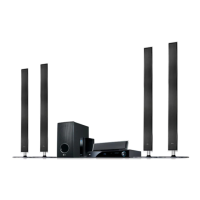
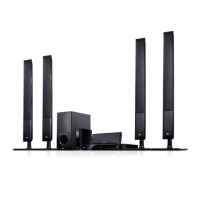
LG HB954SA - User Manual

LG HB954SA
52 pages
Print Icon
To Next Page IconTo Next Page
Loading...
HB954PA (HB954PA / SB94PA-C/F/S/W)
HB954SA (HB954SA / SB94SA-C/S/W)
As an ENERGY STAR
®
Partner, LG
has determined that this product
or product models meet the
ENERGY STAR
®
guidelines for
energy efficiency.
ENERGY STAR
®
is a U.S. registered mark.
ENGLISH
P/NO : MFL56962839
http://www.lg.ca
For questions
about
this product,
please call.
11--888888--554422--22662233
HB954PA-AD_HB954SA-AD.BCANLL_39 3/11/09 2:12 PM Page 1

Other manuals for LG HB954SA

Questions and Answers

  • S
    Stephanie RichardsonAug 12, 2025
    What to do if my LG HB954SA does not start playback?
    • D
      David VaughnAug 12, 2025
      If your LG Home Theater System player isn't starting playback, ensure the disc is inserted correctly with the playback side down. Also, verify that the disc is a playable format and that the regional code is compatible. Check if the rating level is set and, if so, change it. If the disc was recorded on another unit, finalize it on that unit. Finally, make sure the remote control is pointed at the remote sensor on the player.
  • A
    amyhickmanAug 15, 2025
    What to do if there is no picture on my LG Home Theater System?
    • C
      Christopher OliverAug 15, 2025
      If your LG Home Theater System isn't displaying a picture, make sure your TV is set to the correct video input mode. Also, check that the video cable is securely connected. If the issue persists, try selecting a different resolution using the RESOLUTION button, as the current resolution may not be compatible with your TV.
  • M
    Matthew MoranAug 19, 2025
    Why is there no sound coming from my LG HB954SA?
    • G
      Gabriel McclureAug 19, 2025
      If your LG Home Theater System has no sound, first ensure that the equipment connected with the audio cable is set to receive the disc signal output by selecting the correct input mode. Also, verify that the connected equipment is powered on. If these steps don't resolve the issue, the [AUDIO] options might be incorrectly configured (refer to pages 24-25 for correct settings). Finally, check if the player is in reverse play, fast forward, slow motion, or pause mode; if so, return to normal playback.
  • J
    Julie GonzalezAug 23, 2025
    What to do if my LG Home Theater System player does not start playback?
    • B
      brandonpetersonAug 25, 2025
      If your LG Home Theater System player isn't starting playback, ensure the disc is inserted correctly with the playback side down. Also, make sure you're using a playable disc that matches the correct type and regional code. Check if the rating level is set, and if so, change it. If the disc was recorded on another unit, finalize it on that unit. Ensure the remote control is pointed at the remote sensor on the player.
  • K
    Karen WiseAug 27, 2025
    Why is there no sound from my LG HB954SA Home Theater System?
    • T
      Tanner GonzalesAug 27, 2025
      If you're experiencing no sound from your LG Home Theater System, ensure that the equipment connected to the audio cable is set to the correct input mode for receiving the disc signal. Verify that the connected equipment is powered on. Also, check that the [AUDIO] options are set correctly. Finally, if the player is in reverse play, fast forward, slow motion, or pause mode, return to normal playback.
  • M
    Mark FlynnAug 31, 2025
    How to fix the BD-Live feature on my LG Home Theater System?
    • P
      Paul LaneAug 31, 2025
      The BD-Live feature on your LG Home Theater System might not work because a USB device isn't connected. Connect a FAT16 or FAT32 formatted USB device to the USB port (see page 21). Also, the connected USB device might not have enough space. Ensure at least 1GB of free space is available on the USB device. Another reason might be that the Internet connection is not established. Ensure that the unit is correctly connected to the local area network and can access the internet (see page 18-19). Finally, the [BD-LIVE connection] option in the [Setup] menu might be set to [Prohibited]. Set the [BD-LIVE connection] option to [Permitted].
  • M
    marcofoxSep 4, 2025
    Why is there no picture on my LG HB954SA Home Theater System?
    • R
      Robin WarrenSep 4, 2025
      If you're not getting any picture on your TV when using your LG Home Theater System, first, make sure your TV is set to the correct video input mode to receive the DVD signal. Also, check that the video cable is securely connected. If the issue persists, the selected resolution might not be compatible with your TV, so try selecting a different resolution using the RESOLUTION button.
  • A
    Angela SanchezSep 7, 2025
    How to fix BD-Live feature if it is not working on LG HB954SA?
    • D
      darlenewilliamsSep 7, 2025
      If the BD-Live feature is not working on your LG Home Theater System, ensure that the [BD-LIVE connection] option in the [Setup] menu is set to [Permitted]. Make sure that the unit is correctly connected to the local area network and can access the internet. Also, ensure your connected USB device has at least 1GB of free space. If the ID list is full, delete one of the stored IDs and SignIn with the ID again. Contact your Internet Service Provider (ISP) and increase the broadband speed is recommended.

Summary

Important Safety Instructions

Remote Control Functions

Front Panel Overview

Speaker Setup and Connection

Speaker Wire Connection

Guidance on connecting speaker wires to speakers and player.

Speaker Placement Guide

Connecting to Your TV

HDMI Connection Guide

Steps for connecting the player to a TV via HDMI cable.

Video Output Resolution

Internet Connection Setup

Audio and Sound Features

USB Device Usage

Home Menu Navigation

Setup Menu Configuration

Adjusting Setup Settings

Steps to configure player settings via the Setup menu.

Display Settings

Video Resolution Settings

Setting the output resolution for video signals.

Language and Audio Settings

Speaker Setup and Audio

Configuring speaker levels, test tones, and audio settings.

Parental Control and Locks

Lock Menu and Password

Setting up parental controls and security passwords.

Parental Control Details

Disc Rating and Age Limits

Setting playback restrictions based on disc rating and age.

Network and BD-Live Settings

IP Address Configuration

Setting up IP address for network connection.

BD-Live Connection Restrictions

Configuring internet access for BD-Live features.

Disc Playback Controls

Starting and Stopping Playback

Basic operations for playing and stopping discs.

Resume and Pause Playback

Features for resuming interrupted playback and pausing.

Advanced Playback Modes

Using frame-by-frame, slow-motion, and fast-forward/reverse.

BD-Live Feature Guide

BD-Live Disc Requirements

What's needed to enjoy discs with BD-Live features.

BD-Live Internet Connection

Setting up internet connection for BD-Live functionality.

BD-Live Cautions and Notes

Important precautions and considerations for using BD-Live.

Movie Playback

Playing Movies from Disc;USB

Steps to play movie files from discs and USB devices.

DivX Movie Playback Details

DivX Subtitle and File Requirements

Troubleshooting subtitles and understanding DivX file compatibility.

Music Playback

Photo Viewing

iPod Connectivity and Playback

Connecting and Selecting iPod Mode

Steps to connect iPod and choose playback mode.

iPod Operation and Compatibility

HDMI Input Usage

Software Update Procedure

Network Connection Check

Ensuring network connectivity before updating software.

Updating Software Steps

Step-by-step guide to update the player's software.

Remote Control for TV

Universal Remote Control Guide

How to use the supplied remote to control your TV.

Troubleshooting Common Issues

Player Not Working or No Picture

Solutions for power, disc insertion, and video output problems.

No Sound or Playback Issues

Troubleshooting sound output and playback errors.

Remote Control and Disc Errors

Resolving remote control issues and disc playback errors.

Advanced Troubleshooting and Support

BD-Live and Radio Troubleshooting

Solutions for BD-Live feature and radio tuning issues.

Customer Support and Unit Reset

How to get support and reset the player to factory settings.

Product Specifications

LG HB954SA Specifications

General IconGeneral
TypeHome Theater System
Total Power Output1000W
Speaker Configuration5.1 Channel
Blu-ray PlayerYes
HDMI Inputs3
USB PlaybackYes
Audio Formats SupportedDolby Digital, Dolby Digital Plus, Dolby TrueHD, DTS, DTS-HD Master Audio
Weight12.5 kg
BD-LiveYes
DLNAYes
BluetoothNo
HDMI Output1
Optical Input1
Video Formats SupportedMPEG2, MPEG4, AVCHD
Playable File FormatsMP3, WMA, JPEG

Related product manuals