Playing a DivX Movie Disc
Playing a DivX Movie Disc
Using this unit you can play DivX disc. Before playing
DivX files, read “About DivX movie files” on page 37.
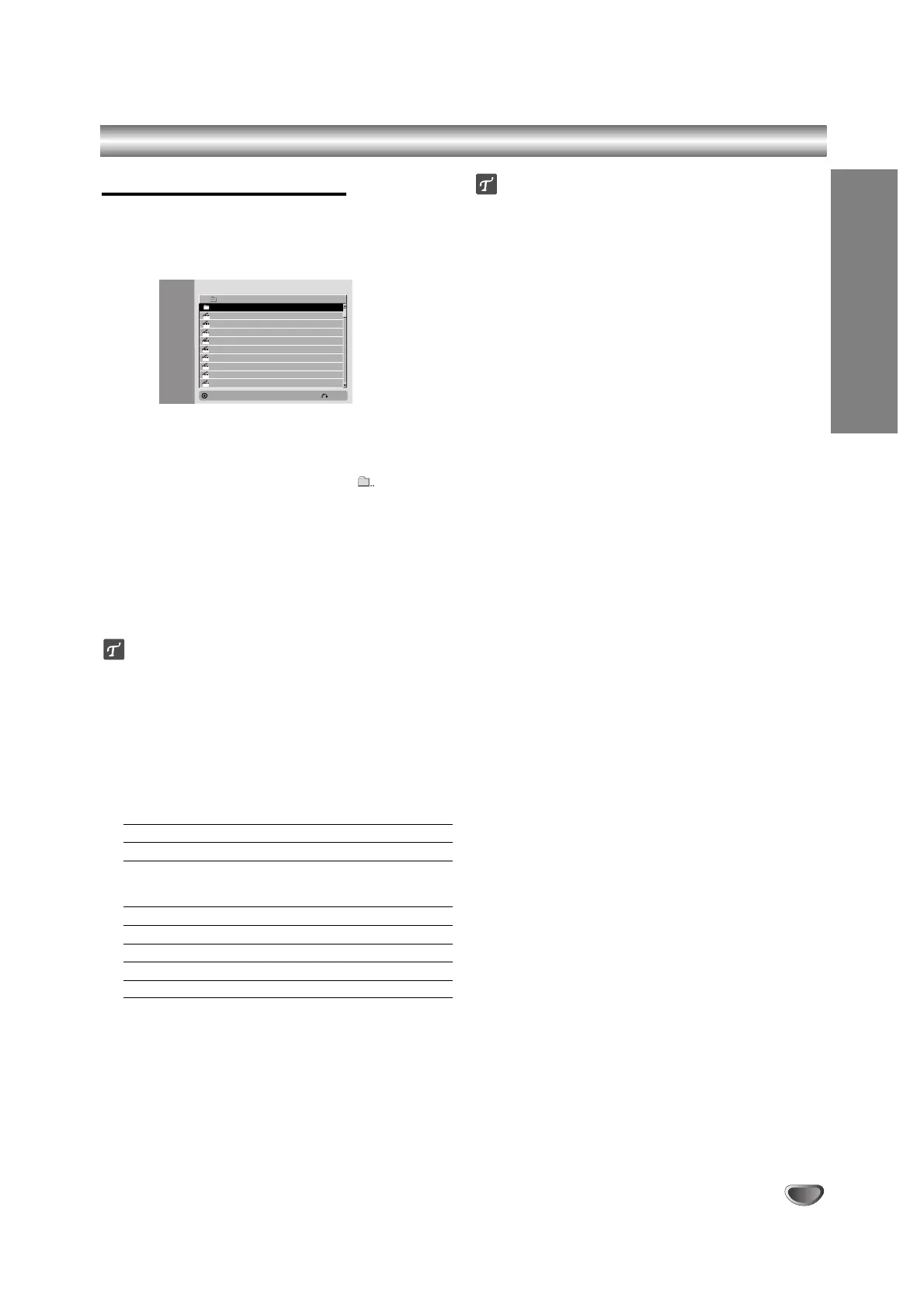
1. Insert a disc and close the tray. The Movie menu
appears on the TV screen.
2. Press v / V to select a folder, and press ENTER. A
list of files in the folder appears. If you are in a file
list and want to return to the Folder list, use the v /
V buttons on the remote to highlight and press
ENTER.
3. If you want to view a particular file, press
v / V to highlight a file and press PLAY.
You can use variable playback functions. Refer to
pages 33-36.
4. Press STOP to stop the playback. The Movie menu
appears.
ip
• On a CD with MP3/WMA, JPEG and MOVIE file, you can
switch Music, Photo and Movie menu. Press TITLE.
Notice for displaying the DivX subtitle
Please refer to following notice when the DivX sub-
title does not display properly.
1. Find a suitable language for the DivX subtitle on the
figure below.
Disc Subtitle Language Available DivX Subtitle
Original, English English
French, German, French, German, Italian,
Italian, Spanish, Spanish, Portuguese
Portuguese Dutch, Swedish
Russian Russian
Other 6976 Greek
Other 8076 Polish
Other 7285 Hungarian
Other 6783 Czech
2. Press SETUP. The Setup menu appears.
Press SETUP b [LANGUAGE] b [Disc Subtitle] then
select the language you have found.
Refer to “Disc Menu/Audio/Subtitle” on page 23.
ip
If the subtitle still does not display properly after the steps
1-2 proceeded, press and hold SUBTITLE about 3 sec-
onds then another language code of the subtitle is dis-
played properly.
Movie menu options
1. Press v / V to select a folder/file on the Movie menu
then press ENTER.
Movie menu options appear.
2. Press v / V to select an option, and press ENTER.
[Play] Start playback the selected title.
[Open] Opens the folder and a list of files in the
folder appears
[Dubbing] Copies the file(s) to a VHS tape. (page
44)
About DivX movie files
DivX disc compatibility with this recorder is limited
as follows:
Available resolution size of the DivX file is under
720x576 (W x H) pixel.
The file name of the DivX subtitle is limited to charac-
ters.
The total number of files and folders on the disc
should be less than 1999.
If the number of the screen frame is over 29.97
frames per second, this unit may not operate
normally.
If the video and audio structure of recorded file is
not interleaved, returns to the menu screen.
If the file is recorded with GMC, the unit supports
only 1-point of the record level.
*
GMC?
GMC is the acronym for Global Motion
Compensation. It is an encoding tool specified in
MPEG4 standard. Some MPEG4 encoders, like DivX
or Xvid, have this option.
There are different levels of GMC encoding, usually
called 1-point, 2-point, or 3-point GMC.
Playable DivX file
“.avi”, “.divx”
Playable DivX subtitle
“.smi”, “.srt ”, “.sub (Micro DVD format only)”,
“.txt (Micro DVD format only)”
Divx subtitle except those listed above is not dis-
played on the TV screen.
Playable Codec format
“DIV3”, “MP43”, “DIVX”, “XVID”, “DX50”
Playable Audio format
“AC3”, “PCM”, “MP2”, “MP3”, “WMA”
Sampling frequency: within 8 - 48 kHz (MP3), within
32 - 48kHz (WMA)
Bit rate: within 8 - 320kbps (MP3),
32 - 192kbps (WMA)
PLAYBACK
37



 To Next Page