7
Linking Your GizmoPal 2 to Your Smartphone
Step 2: Activate your GizmoPal 2
1. Your GizmoPal 2 should start activating automatically the first time you
turn it on. Your GizmoPal 2 should say, “I’m setting up. This could take a
few minutes.”
2. Then, your GizmoPal 2 will turn off and on by itself.
3. When activation is complete, your GizmoPal 2 will say, “Yay! I’m ready.”
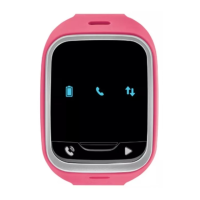
NOTE Once your GizmoPal 2 is activated, the up and down arrows will blink green every 20
seconds.
If activation fails, your GizmoPal 2 will tell you something went wrong and the up and
down arrows will blink red every 2 seconds. You can try to activate again by pressing the
Call button
.
Step 3: Register as a caregiver using the GizmoHub app
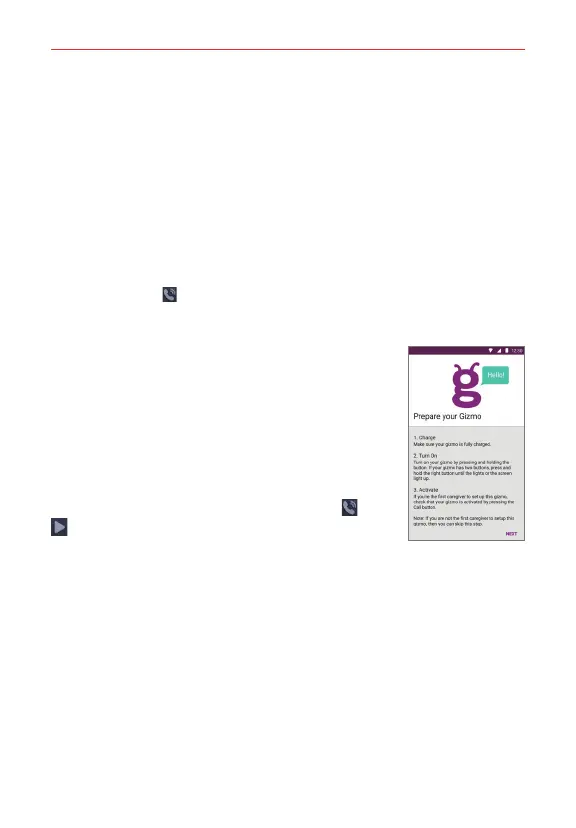
Open the GizmoHub app on your smartphone and
follow the instructions in the app and the voice
instructions on your GizmoPal 2 to:
#
Register as the primary caregiver
#
Add additional contacts
You will be asked for your GizmoPal 2’s mobile
number. You can find the mobile number on your
customer receipt or by pressing either button (
or
) on your GizmoPal 2 after it has been activated.
NOTES • If you previously registered with the GizmoHub app and want to register a new
smartphone that has your same mobile number, register your new phone as described
above. Then you'll receive a text message with a security code that you'll need to
enter to register the new smartphone. Entering the code will unregister the previous
device.
• Descriptions and screen images in this user guide may differ due to GizmoHub app
updates.


 To Next Page