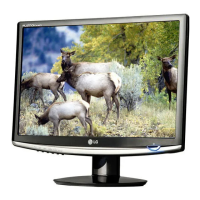
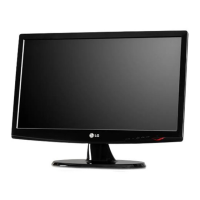
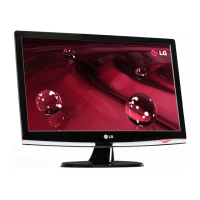
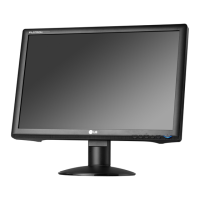
This document is a user's guide for the LG W1752S monitor, providing instructions for safe operation, setup, control panel functions, OSD adjustments, and troubleshooting.
On Safety
The monitor is engineered for personal safety, but improper use can lead to electrical shock or fire hazards. It's crucial to observe basic rules for installation, use, and servicing to ensure all safeguards operate correctly. Only use the power cord supplied with the unit; if it's faulty, contact the manufacturer or an authorized service provider for a replacement. The power supply cord serves as the main disconnection device, so ensure the socket-outlet is easily accessible after installation. The monitor should only be operated from a power source specified in the manual. Overloaded AC outlets, extension cords, frayed power cords, and broken plugs are dangerous and can cause shock or fire hazards.
Never open the display, as there are no user-serviceable components inside, and dangerous high voltages are present even when the power is off. If the display isn't operating properly, contact your dealer. To prevent personal injury, do not place the display on a sloping shelf unless properly secured, and use only a manufacturer-recommended stand. Avoid dropping objects on or applying impact to the product, as this can cause injury, product problems, and display damage.
To prevent fire or hazards, always turn the display OFF when leaving the room for short periods, and never leave it ON when leaving the house. Keep children from dropping or pushing objects into the display's cabinet openings, as some internal parts carry hazardous voltages. Do not add accessories not designed for this display. If the display will be left unattended for an extended period, unplug it from the wall outlet. In the presence of thunder and lightning, avoid touching the power cord and signal cable, as this can be very dangerous and cause electric shock.
On Installation
Ensure nothing rests upon or rolls over the power cord, and do not place the display where the power cord is subject to damage. Do not use the display near water, such as a bathtub, washbowl, kitchen sink, laundry tub, a wet basement, or a swimming pool. The display's cabinet has ventilation openings to release heat generated during operation. Blocking these openings can cause heat buildup, leading to failures and fire hazards. Therefore, never block the bottom ventilation slots by placing the display on a bed, sofa, or rug. Do not place the display in a built-in enclosure unless proper ventilation is provided, cover the openings with cloth or other material, or place it near a radiator or heat source. The main power breaker is the power cord, and this device must be located where it is easy to operate.
Avoid rubbing or striking the Active Matrix LCD with anything hard, as this can permanently scratch, mar, or damage it. Do not press the LCD screen with your finger for a long time, as this may cause afterimages. Some dot defects (red, green, or blue spots) may appear on the screen, but they will not impact display performance. For the best image quality, use the recommended resolution for your LCD display. If used under any other mode, some scaled or processed images may appear, which is characteristic of fixed-resolution LCD panels.
On Cleaning
Before cleaning the display screen, unplug the display. Use a slightly damp (not wet) cloth. Do not use an aerosol directly on the display screen, as over-spraying may cause electrical shock.
On Repacking
Do not discard the carton and packing materials, as they are ideal for transporting the unit. When shipping the unit to another location, repack it in its original material.
On Disposal
The fluorescent lamp used in this product contains a small amount of mercury. Do not dispose of this product with general household waste. Disposal must be carried out according to local authority regulations.
Connecting the Stand
Before setting up the monitor, ensure the power to the monitor, computer system, and other attached devices is turned off.
- Place the monitor face down on a soft cloth.
- Assemble the Stand Body into the product in the correct direction.
- Assemble the Stand Base (Front, Rear) into the Stand Body in the correct direction.
- Insert the Cable Deco Cover into the Stand Body in the correct direction.
- Once assembled, carefully lift the monitor and face it forward.
It's important to note that illustrations depict a general model, and your monitor may differ. Do not carry the product upside down holding only the stand base, as it may fall and cause damage or injury.
Disassembling the Stand
- Place a cushion or soft cloth on a flat surface.
- Place the monitor face down on the cushion or soft cloth.
- Slide the Cable Deco Cover out from the stand body.
- Press the hook and remove the stand base from the stand body.
- Gently pull the stand body to separate it from the hinge body.
Your monitor may differ from the items shown in the picture.
Positioning Your Display
Before setting up the monitor, ensure the power to the monitor, computer system, and other attached devices is turned off. Adjust the panel's position for maximum comfort, with a tilt range of -5° to 20°. It is recommended that the forward tilt angle of the monitor does not exceed 5 degrees to maintain an ergonomic and comfortable viewing position.
Using the Computer
- Ensure both the computer and product are turned off. Connect the D-sub cable (PC) or D-sub cable (Mac) as shown in the diagram. For Apple Macintosh use, a separate plug adapter is needed to change the 15-pin high-density (3-row) D-sub VGA connector on the supplied cable to a 15-pin 2-row connector.
- Insert the Cable Deco Cover into the Stand Body in the correct direction, fixing the power cord and signal cable as shown.
- Press the power button on the front switch panel to turn on the monitor. When the monitor powers on, the 'Self Image Setting Function' will execute automatically. This function provides optimal display settings, automatically adjusting the display for individual input signals when connected for the first time. If you encounter problems like a blurry or tilted screen after changing resolution, press the AUTO/SET function button to improve resolution.
Control Panel Functions
The front panel controls include:
- 4:3 in Wide button: Selects the image size of the screen. Depending on the input video signal ratio, it automatically changes to an optimized screen ratio.
- MENU Button: Used to enter or exit the On Screen Display (OSD).
- OSD LOCKED/UNLOCKED: This function locks current control settings to prevent accidental changes. To lock, press and hold the MENU button for several seconds until "OSD LOCKED" appears. To unlock, press the MENU button for several seconds until "OSD UNLOCKED" appears.
- Buttons (▼, ▲, ◄, ►): Used to select or adjust functions in the On Screen Display. The F-ENGINE button provides additional information (refer to page A15).
- AUTO/SET Button: Selects an icon in the On Screen Display.
- AUTO IMAGE ADJUSTMENT: When adjusting display settings, always press the AUTO/SET button before entering the OSD. This automatically adjusts the display image to ideal settings for the current screen resolution size. The best display mode for the W1752S is 1440 x 900.
- Power Button: Turns the display on or off.
- Power Indicator: Lights up blue when the display is operating normally (On Mode) and changes to amber in Sleep Mode (Energy Saving).
On Screen Display (OSD) Control Adjustment
The OSD system allows quick and easy adjustments to image size, position, and operating parameters. Allow the display to stabilize for at least 30 minutes before making image adjustments.
To make adjustments:
- Press the MENU Button to open the main OSD menu.
- Use the ▼ or ▲ Buttons to highlight the desired icon, then press the AUTO/SET Button to access it.
- Use the ◄ or ► Buttons to adjust the image to the desired level. Use the AUTO/SET Button to select other sub-menu items.
- Push the MENU Button once to return to the main menu, or twice to exit the OSD.
Note that OSD menu languages on the monitor may differ from the manual.
OSD Selection and Adjustment
The OSD provides various control, adjustment, and setting menus:
- 4:3 IN WIDE: Adjusts the image size.
- PICTURE: Adjusts brightness, contrast, and gamma of the screen. Gamma allows setting values from -50/0/50, where high values show whitish images and low values show high contrast images.
- COLOR: Customizes screen color.
- PRESET: Offers sRGB (standard color specification), 6500K (slightly reddish white), and 9300K (slightly bluish white).
- RED, GREEN, BLUE: Sets individual color levels.
- TRACKING: Adjusts the position and clarity of the screen.
- HORIZONTAL, VERTICAL: Adjusts image position left/right and up/down.
- CLOCK: Minimizes vertical bars or stripes and changes horizontal screen size.
- PHASE: Adjusts display focus, removing horizontal noise and clearing/sharpening characters.
- SHARPNESS: Adjusts screen clearness.
- SETUP: Customizes screen status for user's operating environment.
- LANGUAGE: Chooses the language for control names.
- OSD POSITION: Adjusts the OSD window position.
- WHITE BALANCE: Adjusts signal level to fit the video card's standard output level, providing optimal image quality, especially when white and black colors are present. This function is enabled only with an analog input signal.
- POWER INDICATOR: Sets the front power indicator to ON or OFF.
- FACTORY RESET: Restores all factory default settings except "LANGUAGE." Press the ◄, ► buttons to reset immediately. If the screen image doesn't improve, perform white balance again.
- FLATRON F-ENGINE: Selects or customizes desired image settings.
- MOVIE: Optimizes image conditions for videos or movies.
- INTERNET: Optimizes image conditions for text images (e.g., Word processing).
- USER: Allows manual adjustment of brightness, ACE (Adaptive Clarity Enhancer), and RCM (Real Color Management). Adjusted values can be saved or restored.
- BRIGHTNESS: Adjusts screen brightness.
- ACE: Selects clarity mode.
- RCM: Selects color mode (Not applied, Green enhance, Flesh tone, Color Enhance).
- SAVE: Saves selected values.
- NORMAL: Standard operating conditions.
- DEMO: For advertising purposes, similar to Movie mode with the screen divided in half.
Note that the order of icons may differ depending on the model.
Troubleshooting
No image appears:
- Is the power cord connected? Check if the power cord is properly connected to the outlet.
- Is the power indicator light on? Press the Power button.
- Is the power on and the power indicator blue or green? Adjust brightness and contrast.
- Is the power indicator amber? If in power saving mode, move the mouse or press any key on the keyboard to wake the screen. Try turning on the PC.
- "OUT OF RANGE" message? This indicates the PC's video card signal is outside the display's horizontal or vertical frequency range. Refer to the 'Specifications' section and reconfigure the display.
- "CHECK SIGNAL CABLE" message? The signal cable between your PC and display is not connected. Check the cable and try again.
"OSD LOCKED" message?
- If "OSD LOCKED" appears when pressing the MENU button, the current control settings are locked. To unlock, press and hold the MENU button for several seconds until "OSD UNLOCKED" appears.
Display image is incorrect:
- Display Position is incorrect. Press the AUTO/SET button to automatically adjust the display image. If unsatisfactory, adjust the image position using the H position and V position icons in the OSD.
- Vertical bars or stripes are visible. Press the AUTO/SET button. If unsatisfactory, decrease vertical bars/stripes using the CLOCK icon in the OSD.
- Horizontal noise or unclear characters. Press the AUTO/SET button. If unsatisfactory, decrease horizontal bars using the PHASE icon in the OSD. Check Control Panel -> Display -> Settings and adjust to the recommended resolution or set color setting higher than 24 bits (true color).
- Important: Check Control Panel -> Display -> Settings if frequency or resolution changed. Readjust the video card to the recommended resolution. The optimal aspect ratio is 16:10. Non-16:10 input resolutions may cause blurred letters, blurry screens, cut-off displays, or tilted screens. Setting methods may differ by computer/OS, and the recommended resolution may not be supported by the video card. Consult the computer or video card manufacturer if needed.
- Screen color is mono or abnormal. Check if the signal cable is properly connected and fastened. Ensure the video card is properly inserted. Set the color setting higher than 24 bits (true color) at Control Panel - Settings.
- Screen blinks. Check if the screen is set to interlace mode and change it to the recommended resolution if so.
Have you installed the display driver?
- Have you installed the display driver? Install the display driver from the provided CD or diskette, or download it from http://www.lge.com.
- "Unrecognized monitor, Plug&Play (VESA DDC) monitor found" message? Ensure the video card supports Plug&Play function.



 To Next Page
 General