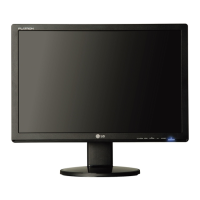
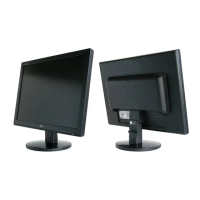
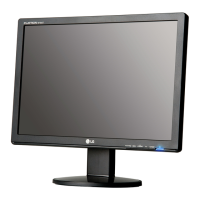
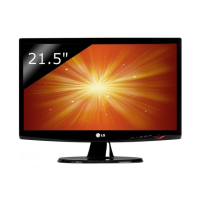
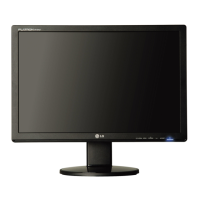
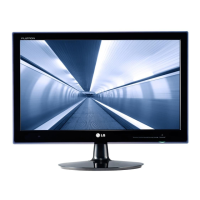
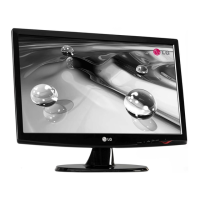
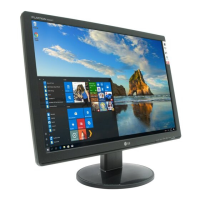
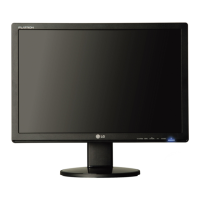
This document is the user's guide for the LG W2241S monitor, providing comprehensive information on its setup, operation, maintenance, and troubleshooting.
Function Description
The LG W2241S is a flat panel active matrix-TFT LCD monitor designed for general computing use. It functions as a visual display unit, connecting to a computer via D-Sub (PC) or D-Sub (Mac) cables to display images and video. The monitor supports various display modes and resolutions, offering features for image adjustment, color control, and screen positioning. It includes an On Screen Display (OSD) for easy navigation and configuration of settings. The monitor can be used with its included stand or mounted on a wall using a compatible wall mount plate (sold separately).
Important Technical Specifications
- Display Size: 21.6 inches (54.864 cm)
- Panel Type: Flat Panel Active Matrix-TFT LCD
- Screen Coating: Anti-Glare coating
- Viewable Area: 21.6 inches
- Pixel Pitch: 0.277 x 0.277 mm
- Sync Input:
- Horizontal Freq.: 28 - 83 kHz (Automatic)
- Vertical Freq.: 56 - 75 Hz (Automatic)
- Input Form: Separate TTL, Positive/Negative SOG (Sync On Green)
- Video Input:
- Signal Input: 15 pin D-Sub Connector
- Input Form: RGB Analog (0.7 Vp-p/ 75 ohm)
- Resolution:
- Max: VESA 1680 x 1050 @60 Hz
- Recommend: VESA 1680 x 1050 @60 Hz
- Plug&Play: DDC 2AB
- Power Consumption:
- On Mode: 40W (Typ.)
- Sleep Mode: ≤ 1 W
- Off Mode: ≤ 1 W
- Dimensions & Weight (with stand):
- Width: 51.57 cm / 20.30 inches
- Height: 41.80 cm / 16.46 inches
- Depth: 20.94 cm / 8.24 inches
- Net Weight: 4.65 kg (10.33 lbs)
- Dimensions & Weight (without stand):
- Width: 51.57 cm / 20.30 inches
- Height: 34.46 cm / 13.57 inches
- Depth: 6.31 cm / 2.48 inches
- Tilt Range: -5° ~ 20°
- Power Input: AC 100-240V~ 50/60Hz 1.0A
- Operating Environmental Conditions:
- Temperature: 10°C to 35°C
- Humidity: 10% to 80% non-Condensing
- Storage Conditions:
- Temperature: -20°C to 60°C
- Humidity: 5% to 90% non-Condensing
- Stand Base: Attached (O), Detached (O)
- Power Cord: Wall-outlet type or PC-outlet type
- Preset Modes (Resolution): Supports various resolutions from 720 x 400 to 1680 x 1050 with corresponding horizontal and vertical frequencies. Recommended mode is 1680 x 1050 at 60Hz.
- Indicator LED Color: Blue for On Mode, Amber for Sleep Mode, Off for Off Mode.
Usage Features
- Easy Setup: The monitor is designed for straightforward assembly of the stand and connection to a computer. It supports both PC and Mac connections via D-Sub cables.
- Stand Assembly/Disassembly: The guide provides clear instructions for connecting and disassembling the stand, including visual aids for proper alignment and locking mechanisms.
- Tilt Adjustment: Users can adjust the tilt angle of the display from -5° to 20° for optimal viewing comfort. The manual emphasizes ergonomic viewing positions, recommending that the forward tilt angle should not exceed 5 degrees.
- On Screen Display (OSD) Control: The monitor features an intuitive OSD for adjusting various display settings.
- Front Panel Controls: Includes buttons for "4:3 in Wide," "MENU," "▲/▼," "f.ENGINE," "AUTO/SET," and "Power."
- 4:3 in Wide: Allows selection of the image size (wide or 4:3), automatically adjusting to an optimized screen ratio depending on the input video signal.
- MENU Button: Accesses the main OSD menu. It can also be used to lock/unlock OSD controls by pressing and holding for several seconds.
- ▲/▼ Buttons: Used to select or adjust functions within the OSD.
- f.ENGINE Button: Provides access to additional image enhancement features (refer to page A15 for more information).
- AUTO/SET Button: Automatically adjusts display settings to the ideal current screen resolution and display mode. This is particularly useful for optimizing image quality.
- Power Button: Turns the display on or off.
- Screen Adjustment Options (via OSD):
- PICTURE: Adjusts Brightness, Contrast, and Gamma.
- COLOR: Allows selection of Preset color modes (sRGB, 6500K, 9300K) or custom adjustment of Red, Green, and Blue levels.
- TRACKING: Controls Horizontal and Vertical position, Clock (to minimize vertical bars or stripes), Phase (to remove horizontal noise and sharpen characters), and Sharpness.
- SETUP: Manages Language, OSD Position, White Balance (to correct color level distortions), Power Indicator (ON/OFF), and Factory Reset.
- f.ENGINE: Offers various image modes like Movie, Internet, User, Normal, and Demo for optimized viewing experiences depending on content.
- Mac Adapter: For Apple Macintosh users, a separate plug adapter is needed to change the 15-pin high density (3 row) D-sub VGA connector on the supplied cable to a 15 pin 2-row connector.
- Wall Mount Compatibility: The monitor supports wall mounting, with instructions provided for detaching the stand and installing a wall mount plate (purchased separately). It includes a Kensington Security Slot for theft prevention.
Maintenance Features
- Important Precautions: The manual stresses the importance of reading safety precautions before using the product. It advises against modifying the device, using damaged power cords, or operating in unsafe conditions.
- On Installation:
- Power Cord: Ensure the power cord is fully rolled out and the power plug is securely inserted.
- Ventilation: Do not block ventilation slots to prevent overheating.
- Display Location: Avoid placing the display near heat sources or in areas with high humidity.
- Power Breaker: The main power breaker should be easily accessible.
- Active Matrix LCD Care: Avoid rubbing or striking the LCD with hard objects.
- Dead Pixels: Minor imperfections (red, green, or blue spots) may appear on the screen, which do not significantly impact display performance.
- Optimal Resolution: For the best image quality, use the recommended resolution.
- On Cleaning:
- Screen: Unplug the display before cleaning. Use a slightly damp (not wet) cloth. Do not use aerosol directly on the display screen as it may cause electrical shock.
- On Repacking:
- When shipping the unit to another location, repack it in its original material.
- On Disposal:
- The fluorescent lamp contains a small amount of mercury.
- Dispose of the product with general household waste.
- Disposal must be carried out in accordance with local authority regulations.
- Troubleshooting Guide: Provides solutions for common issues such as:
- No image appears (power cord, power indicator, OSD locked).
- Display image is incorrect (display position, screen background, horizontal bars, noise, screen color, screen blinks).
- Display driver issues (installation, unrecognized monitor).
- FCC Regulations: The device complies with FCC Rules, Part 15, designed to provide reasonable protection against harmful interference in a residential installation. Users are advised to reorient or relocate the receiving antenna, increase the separation between equipment and receiver, connect the equipment to an outlet on a different circuit, and consult a radio/TV technician for help if interference occurs.


 To Next Page
 General