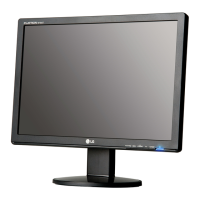
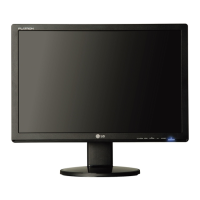
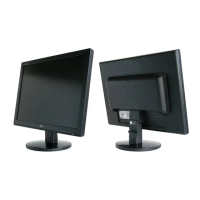
This document describes the LG W2242PK monitor, a flat panel active matrix-TFT LCD display designed for personal computer use. It provides detailed instructions on its installation, operation, and maintenance, emphasizing safety precautions and optimal usage practices.
Function Description
The LG W2242PK monitor serves as a visual output device for computers, displaying images, text, and video content. It features an On Screen Display (OSD) control system that allows users to adjust various display parameters to achieve optimal image quality and suit their operating environment. The monitor supports both analog (D-Sub) and digital (DVI) input signals, making it compatible with a wide range of computer systems. A key feature is its "Self Image Setting Function" for analog mode, which automatically adjusts display settings for individual input signals upon first connection or when issues like blurriness or flickering occur. The monitor also incorporates a "Pivot function" allowing the screen to be rotated 90 degrees clockwise for landscape and portrait viewing, enhancing versatility for different tasks.
Usage Features
The monitor offers a range of features designed to enhance user experience and display customization:
- Stand and Positioning: The monitor comes with a stand that allows for various adjustments. Users can tilt the screen from -6° to 17°, swivel it up to 356° (though this feature may not be available on all models), and adjust its height by a maximum of 4.33 inches (110.0 mm). For ergonomic viewing, it's recommended that the forward tilt angle does not exceed 5 degrees. The stand also includes a cable holder to manage cables neatly, though proper routing is essential to ensure smooth operation of the pivot function.
- Front Panel Controls: The front panel features several buttons for easy access to monitor functions:
- SOURCE Button: Used to enter or exit the OSD and to switch between D-Sub and DVI connectors when two computers are connected.
- MENU Button: Used to enter or exit the OSD. It also serves as a lock/unlock mechanism for OSD controls; pressing and holding it for several seconds will display "OSD LOCKED" or "OSD UNLOCKED."
- Buttons (Up/Down/Left/Right): These buttons are used to select or adjust functions within the OSD, including volume control for the integrated speakers.
- AUTO/SET Button: Enters a selection in the OSD. In analog mode, it performs an "Auto Image Adjustment" to optimize display settings for the current screen resolution.
- Power Button: Turns the display on or off.
- Power Indicator: Lights up blue when the display is on and changes to amber in Sleep Mode (Energy Saving).
- On Screen Display (OSD) Adjustments: The OSD provides comprehensive control over display settings, categorized into:
- PICTURE: Adjusts brightness, contrast, and gamma.
- COLOR: Allows customization of screen color presets (sRGB, 6500K, 9300K) and individual red, green, and blue color levels.
- TRACKING: Adjusts horizontal and vertical position, clock (to minimize vertical bars/stripes), phase (to adjust focus and remove horizontal noise), and sharpness.
- SETUP: Configures language, OSD position, white balance, power indicator (ON/OFF), 4:3 IN WIDE (to select image size), and factory reset.
- FLATRON f-ENGINE: Offers preset image settings optimized for different environments or content types, including MOVIE (for videos/movies), INTERNET (for text images), USER (manual adjustment of brightness, ACE, RCM), NORMAL (default conditions), and DEMO (advertising mode with split screen).
- Pivot Function: Allows the monitor panel to rotate 90° clockwise, enabling users to switch between landscape and portrait orientations. This requires lifting the monitor to its highest height before rotation to avoid contact with the stand base. Detailed information on this function is provided on a separate Pivot Software CD.
- Cable Management: The stand includes a cable holder to keep cables organized and prevent interference, especially when using the pivot function.
Maintenance Features
The manual emphasizes several maintenance and safety practices to ensure the longevity and proper functioning of the monitor:
- Safety Precautions:
- Use only the supplied power cord or a certified replacement.
- Ensure the power supply cord is easily accessible as the main disconnection device.
- Operate the display from a power source specified in the manual.
- Avoid overloaded AC outlets, extension cords, frayed power cords, and broken plugs.
- Do not open the display, as it contains dangerous high voltages and no user-serviceable components.
- Secure the display on sloping surfaces and use only manufacturer-recommended stands.
- Avoid dropping objects on or impacting the product screen.
- Turn off the display when leaving the room for extended periods and unplug it from the wall outlet if unattended for a long time.
- During thunder and lightning, avoid touching the power cord and signal cable.
- Installation Precautions:
- Prevent anything from resting on or rolling over the power cord.
- Do not place the display near water sources or in built-in enclosures without proper ventilation.
- Avoid blocking ventilation openings, covering them with cloth, or placing the display near radiators or heat sources.
- Do not rub or strike the LCD screen with hard objects or press it with a finger for extended periods to prevent damage or afterimages.
- Be aware that some dot defects (red, green, or blue spots) may appear but do not affect performance.
- Use the recommended resolution for optimal image quality.
- Use a screen saver to prevent image burn-in from fixed images, as burn-in is not covered by warranty.
- Cleaning:
- Unplug the display before cleaning.
- Use a slightly damp (not wet) cloth.
- Do not spray aerosol directly onto the display screen to avoid electrical shock.
- Repacking:
- Retain the carton and packing materials for future transport.
- Disposal:
- The fluorescent lamp contains mercury; dispose of the product according to local authority regulations, not with general household waste.
- Troubleshooting: The manual provides a troubleshooting guide for common issues:
- No image appears: Check power cord connection, power indicator color (blue/green for ON, amber for Sleep Mode), PC status, and ensure the display is within the horizontal/vertical frequency range. Check signal cable connection.
- "OSD LOCKED" message: Unlock OSD controls by pressing and holding the MENU button for several seconds.
- Display image is incorrect: Use the AUTO/SET button to adjust image position, minimize vertical bars/stripes (CLOCK icon), or reduce horizontal noise (PHASE icon). Check and adjust resolution and color settings (24 bits or higher).
- Screen color is mono or abnormal: Check signal cable connection, video card insertion, and color settings (24 bits or higher).
- Screen blinks: Check if the screen is set to interlace mode and change it to the recommended resolution.
- Display driver issues: Install the display driver from the provided CD or download it from the LG website. Ensure the video card supports Plug&Play if an "Unrecognized monitor" message appears.
- Optimal Resolution: The recommended aspect ratio is 16:10. Using other ratios (e.g., 16:9, 5:4, 4:3) may cause blurred letters, blurry screens, cut-off displays, or tilted screens. The setting method may vary by computer and OS, and some resolutions might not be supported by the video card.
- Wall Mount Plate Installation: Instructions are provided for separating the stand and installing a separately purchased wall mount plate, which requires removing four screws.
- Kensington Security Slot: The monitor includes a Kensington Security Slot for connecting a locking cable, which can be purchased separately, to secure the device.
This comprehensive guide ensures users can effectively install, operate, and maintain their LG W2242PK monitor while adhering to important safety guidelines.

 Need help?
 General

 To Next Page