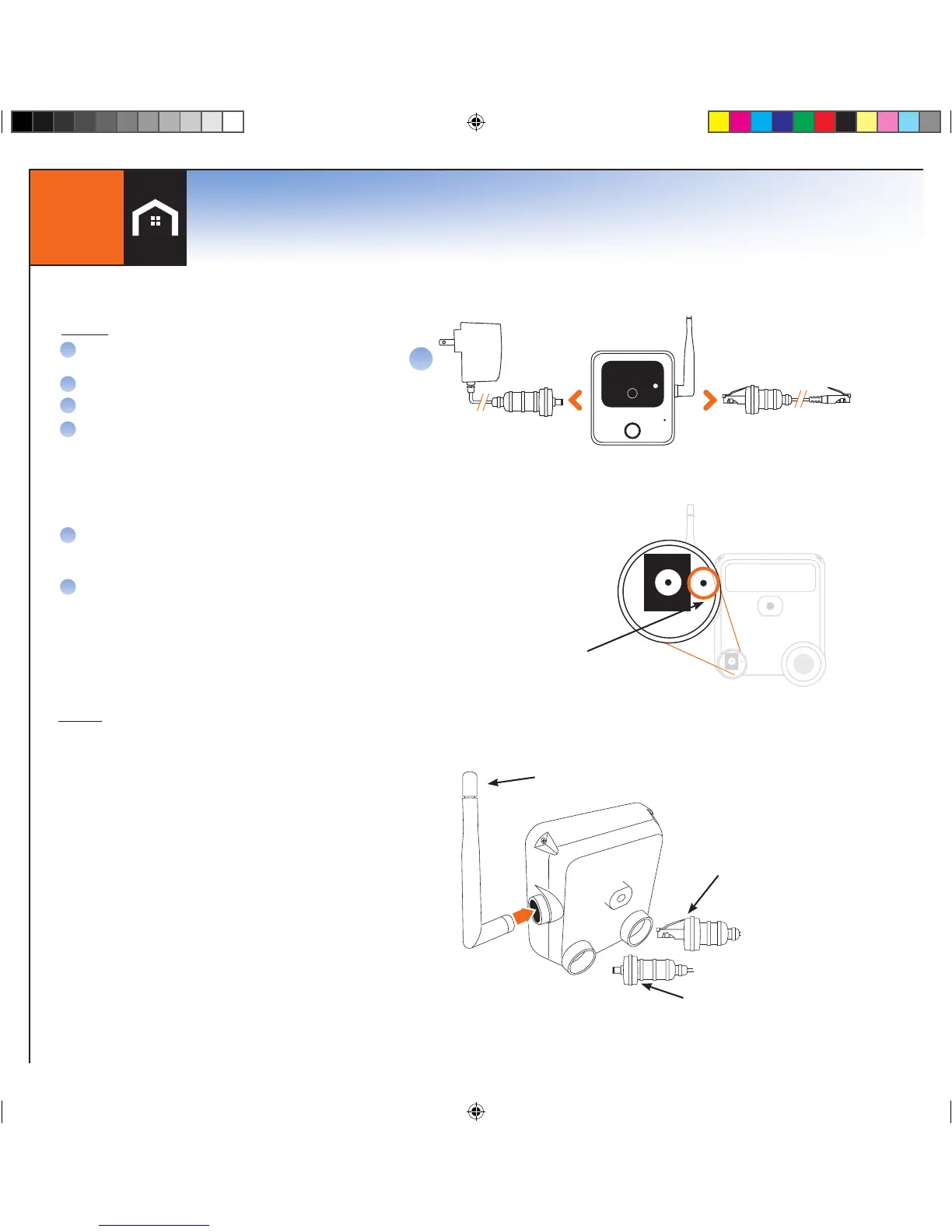
Wifi antenna must be installed
to use WiFi
Use rubber cover
for Ethernet plug
Use rubber cover
for power plug
A
B
C
D
E
First plug Ethernet cord into camera and router.
Wait for Power LED to stay solid
On console select Menu > Cameras > Add New
Once all cameras are found, press OK
Log in to LifeView and select Camera > Camera
Settings > Edit.
A. Enter SSID or Network Name, wireless
connection security type and password
*Entries are case sensitive, spelling and
spacing must be exact
Once Wifi* information has been saved wait
2 minutes before unplugging the power and
then Ethernet
After 2 minutes, plug power back into camera and
leave Ethernet unplugged. Once power light is solid
the camera is wireless and ready for final placement.
*If the camera works while connected to
the Ethernet but not wirelessly then the
WiFi* information must be verified. Repeat
step D if necessary.
TO USE
NOTES
Must be on same router as your LifeShield Base to
setup. After setup, plug into power where you like
Setup WiFi using camera Settings in LifeView,
disconnect Ethernet cable, then remove and
reconnect the power
Setup alerts in LifeView to take pictures when
sensors tigger
Live video per session is 5 minutes
If the camera works while connected to the Ethernet
but not wirelessly then the WiFi information must be
verified. Repeat step D if necessary.
F
To reset, insert paperclip into reset
button (next to power connector)
for at least 5 seconds and release
*Wireless, or WiFi, technology allows an electronic device to exchange
data wirelessly (using radio waves) over a computer network


 To Next Page