LifeSize Room User Guide 21
User Preferences
To access user preferences accessible to all users, follow these steps:
1. Press the button from the main screen to access the System menu.
2. Select the User Preferences button.
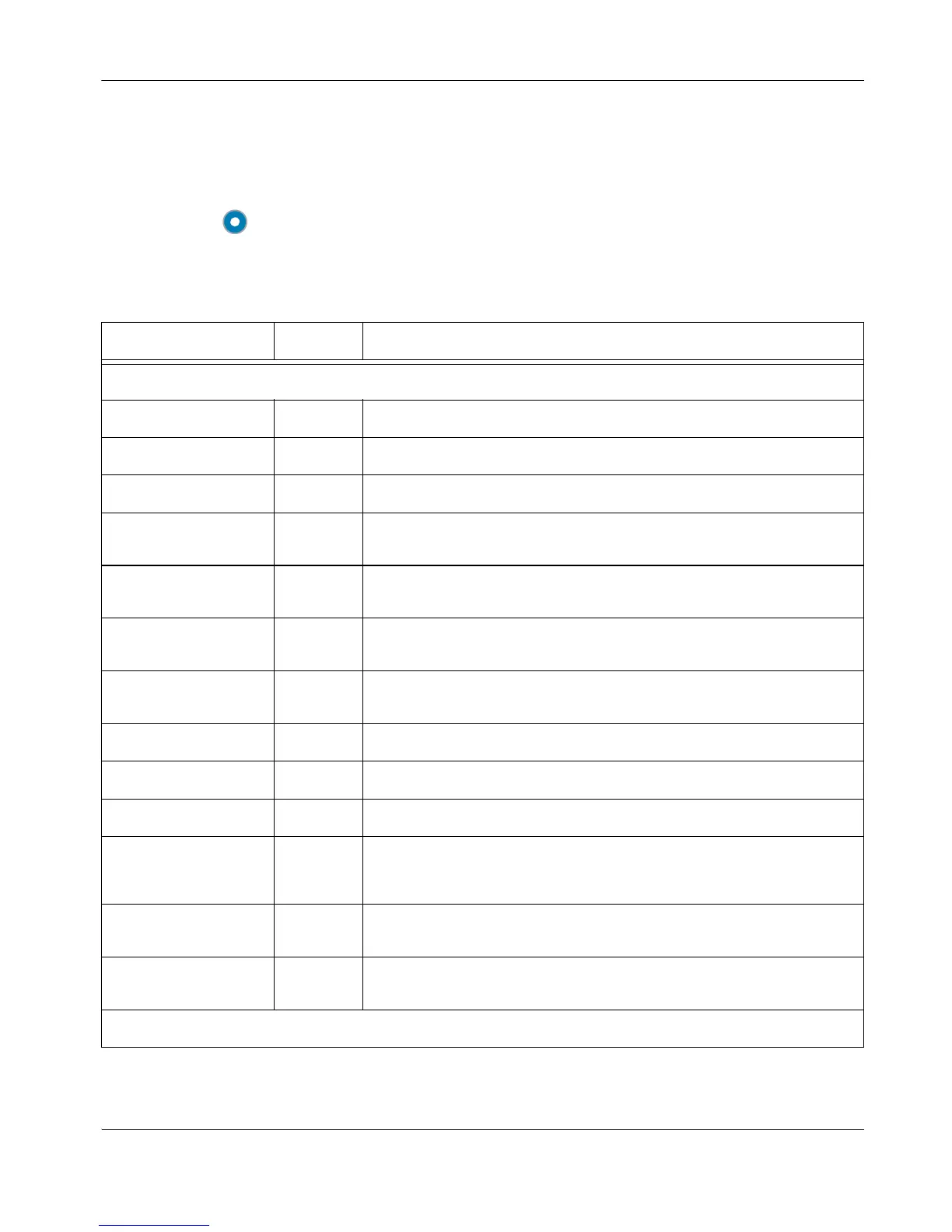
The following settings are available from the User Preferences menu.
Preference Default Description
Appearance
Language English Select the language for the text that displays on the screen.
System Name LifeSize Enter a descriptive name for the device.
Phone Number [number] Enter the phone number of the device.
Secondary Display
Layout
None Select the layout of the secondary display to correspond to the physical
arrangement of your conference room.
Fade Out Timer 10
seconds
Select the duration the user interface waits before it fades during a call.
This duration resets after any interaction with the system.
Caller ID Timeout 1 minute Select the duration the caller ID remains on the screen during a call.
This duration resets after any interaction with the system.
Picture In Picture Auto Select 'On' to display PIP continuously, 'Off' to never display PIP, or
'Auto' to display PIP only when the user interface is visible.
LCD Contrast 6 Select the contrast of the LCD for the LifeSize Phone.
Display 1 Background Default Select a background image to present on Display 1.
Display 2 Background Default Select a background image to present on Display 2.
Screen Saver LifeSize Select 'LifeSize' to display the LifeSize logo or 'Window' to display a
portion of the background as the screen saver. Select 'None' to display
the main screen.
Screen Saver Timeout 10
minutes
Select the duration of idle time to wait before displaying the screen
saver.
Sleep Timeout 10
minutes
Select the duration of idle time to wait before the system reverts to
standby mode. This time is added to the Screen Saver Timeout.
Calls



 To Next Page