SHAREMIKE REGISTRATION (OTHER REGISTERED COMPONENTS IN PLACE)
(Particularly valuable when Redcat is mounted on the wall)
For users adding a Sharemike or replacing a lost or malfunctioning Sharemike.
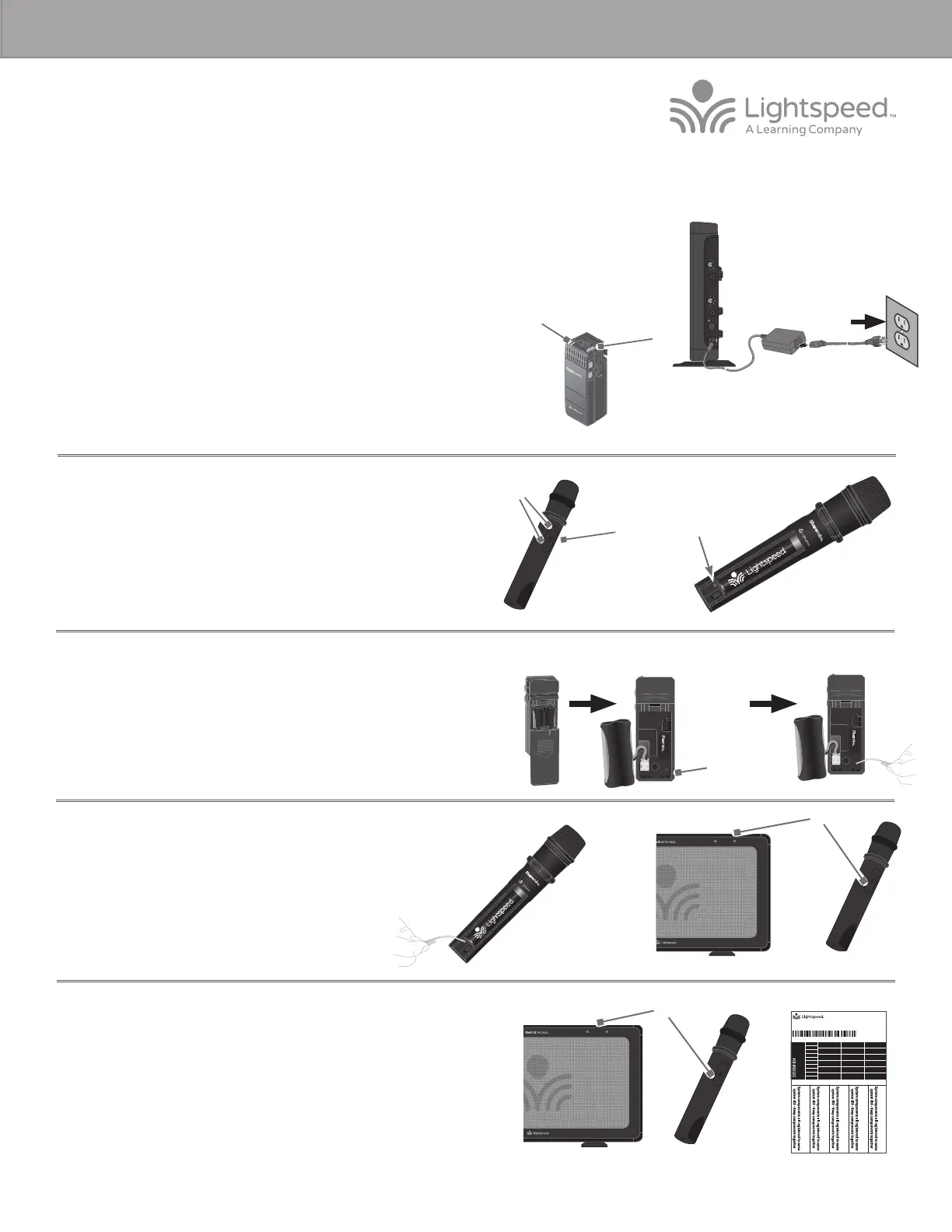
1. Start with the Redcat plugged in and powered on.
2. If replacing a Sharemike, make sure the malfunctioning Sharemike is powered o.
3. If a Flexmike is present, power it on and wait until it has a solid blue or red light
(“Ready”).
4. Power on the new Sharemike. Both microphone 1 and 2 blue lights should
start blinking.
5. Slide open the Sharemike battery compartment. The registration button is
located below the battery on the le side, marked REG.
7. Aer several seconds, the #2 light on the Redcat will turn solid and only the #2
light on Sharemike will remain blinking, then turn solid.
8. The registration is complete. You can begin speaking into the new Sharemike to
verify there is audio.
9. Place system ID number (attached to the Redcat Quickstart guide) on the new
Sharemike.
Power On
Solid light
(Existing Good Flexmike)
6. Use another registered functional component (existing Flexmike, Sharemike, or
Media Connector) to trigger the registration function in Redcat.
• Using a paperclip with the end straightened out, press and hold the registration
button inside the registered component for 3 seconds. (For the purpose of
these instructions, it is assumed that a Flexmike is the the existing registered
component.)
• The 1 and 2 amber lights will begin blinking on the Redcat.
• Briefly press the registration button on the Sharemike. The Sharemike’s 1 and 2
lights will start blinking alternately.
NOTE: if at any point, the Redcat or Sharemike lights begin blinking rapidly,
that indicates a registration error. Turn the new Sharemike o and repeat steps
4-9.
1POWER 2
Solid lights
1POWER 2
Blinking lights
Power On
Blinking lights
Registration
Button
Registration
Button
STANDARD REGISTRATION
SYSTEM ID#
SYSTEM ID#
SYSTEM ID#
SYSTEM ID#
RETAIN EXTRA LABELS IN THE EVENT A COMPONENT IS REPLACED OR ADDED.
Match components
to this system ID#
Apply to system components to indicate which parts are registered
as a system. Keep registered items together when storing away.
Registration ID Labels
00-01
00-01
00-01
00-01
00-01
00-01
00-01
00-01
00-01
00-01
00-01
00-01
00-01
00-01
00-01
00-01
00-01
00-01
00-01
00-01
00-01
00-01
00-01
00-01
00-01
00-01
00-01
00-01
00-01
00-01
00-01
00-01
334-0162-02-00-01
10101
REDCAT ACCESS REGISTRATION GUIDE
REGISTER
AUDIO IN
MIN
MAX
AUDIO
(ALD) OUT
MIN
MAX
ON/OFF
DC INPUT
16V/2.0A


 To Next Page
 Loading...