12
Using the touch screen
Unlocking the screen
To unlock your tablet, press the Power/Sleep button
once to wake from sleep mode. When the lock-
screen is displayed, slide the screen up to unlock.
The main home screen
The main home screen is where all of the main
applications tiles for your tablet will be located. From
here you can select applications to run or open
further menus to browse your files.
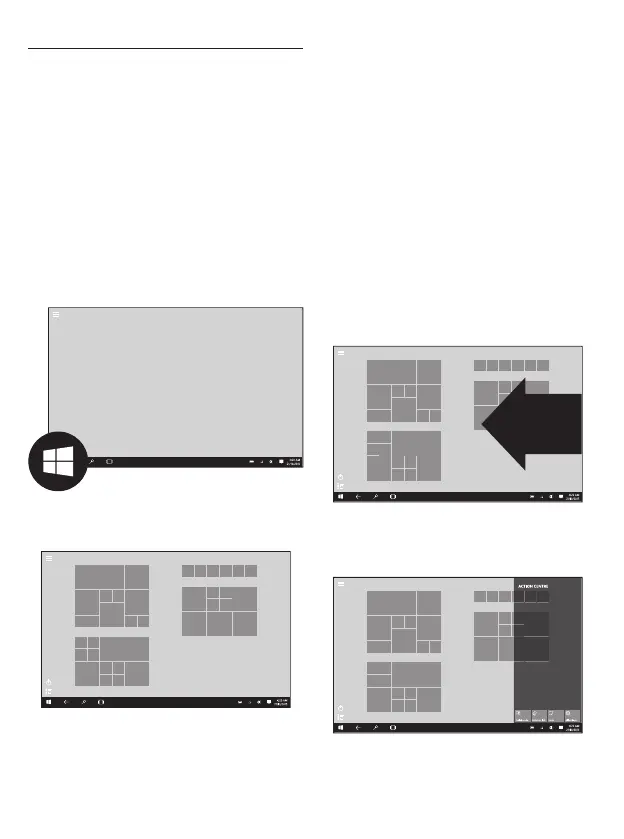
To access your main application tiles, tap on the
Windows Start Menu button located in the bottom-
left of the screen:
Your tablet will now display all of your main
application tiles and shortcuts:
Note: The main home screen may differ if your
tablet is not set to ‘Tablet’ mode. Please see the
‘Changing between Tablet and PC mode’ section
for more details.
Changing between Tablet and PC mode
Windows 10 can be used in either Tablet mode or
PC mode.
Tablet mode is enhanced for touchscreen devices
and is optimised to give the best Windows
experience when used on tablets.
PC Mode provides users with a ‘traditional’ PC
desktop experience including the Windows ‘Start
Menu’ and file storage on your desktop.
To switch between Tablet and PC Mode:
1. Slide in from the right side of the screen
The Action center will now slide in from the right side
of the screen:


 To Next Page