17
Using the Keyboard Cover
Connecting to your tablet
Important: Before connecting the tablet with
the Keyboard Cover for the first time, please turn
on your tablet and wait for the boot process to
be completed and the Windows desktop to finish
loading.
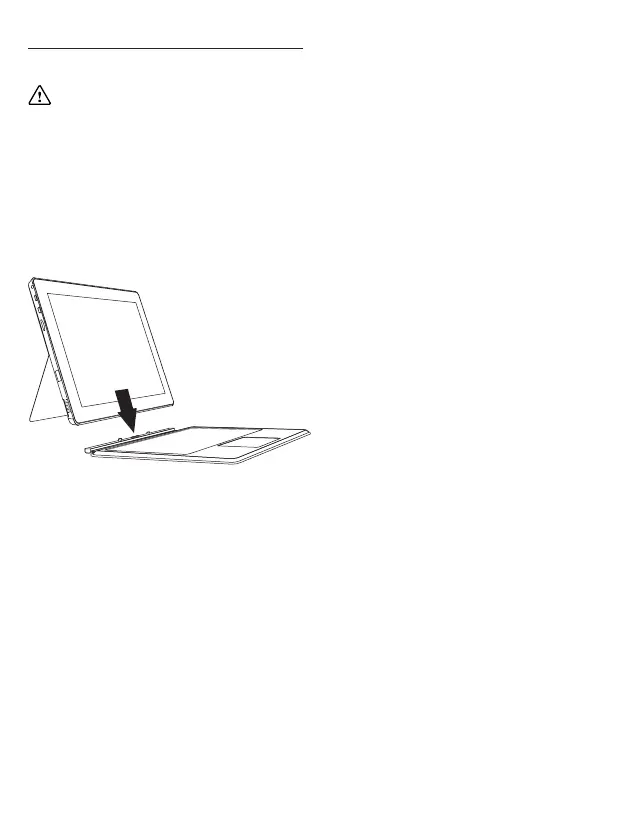
1. Place the Keyboard Cover onto a firm surface for
support when docking your tablet.
2. Connect the tablet to the Keyboard Cover by
locating the Pogo Pin connection and pushing your
tablet into the docking slot.
Windows will now automatically detect the
connection and begin to set up your accessory.
Please DO NOT undock the tablet during this
process.
Note: The time taken to automatically detect and
setup the Keyboard Cover can vary depending on
the hardware configuration, number of applications
running and number of external devices connected
to the tablet. Please be patient during this process.
3. After the auto-detection and setup of the
Keyboard Cover is complete, a confirmation prompt
will display on your tablet.
Your Linx Keyboard Cover is now successfully set up
with your tablet and is ready-to-use.
Note: When you have successfully set up the
keyboard for the first time, the setup process will not
have to be run again when docking your tablet into
the keyboard, making it faster and easier to use.


 To Next Page