13
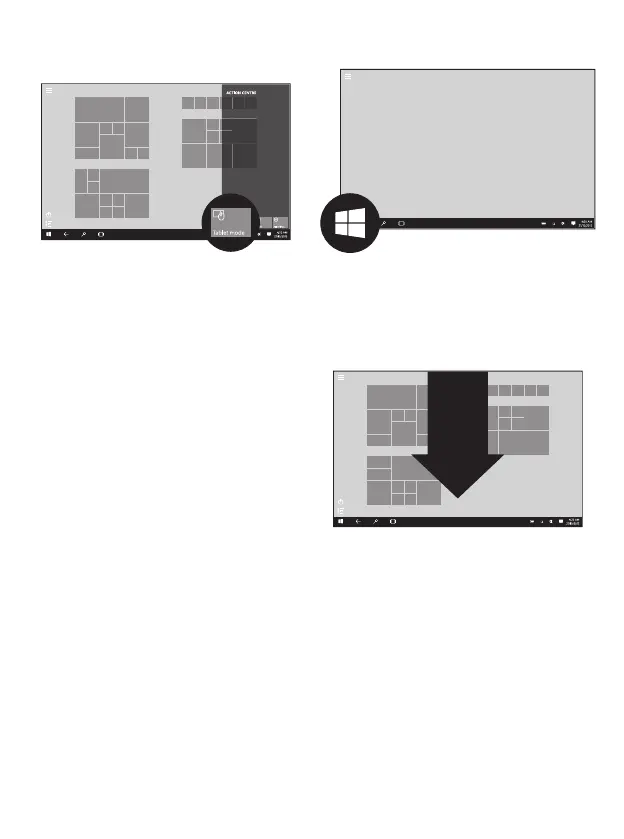
2. To choose between Tablet and PC mode, tap the
‘Tablet Mode’ tile located at the bottom left of the
Action center:
Note: When using the Linx 10VKBD Keyboard
Cover with the Linx 10V64, you will automatically be
prompted to switch between ‘Tablet Mode’ and ‘PC
Mode’ when you dock or undock your tablet from
the accessory.
Note: The Action Centre may have more option
tiles displayed than illustrated in the diagram. The
additional options can be toggled by tapping the
‘Collapse’ or ‘Expand’ option above the tiles.
The Windows home button
The Windows home button is used to take you back
to the main home screen at any time.
This function can be accessed by using two different
methods:
1. By pressing the Windows icon located on the
screen bezel on the front of your tablet (see Product
Overview > fig. F)
2. By pressing the Windows icon located in the
bottom-left of your tablet screen:
Opening and closing apps
To open an app, tap the app tile.
To close an app, slide your finger down from the top
of the screen to the bottom of the screen:


 To Next Page