Using Easy Guider: Timer
Recordg
Normal Timer Recording
Before you start...
• Refer to ‘Using Easy Guider: Record’.
..........................................................................................
1. On the Easy Guider menu, press to select ‘Timer
Record’, then press ENTER.
This screen will not be displayed, if your DVD recorder does not
feature the VCR Plus+ system support.
3. Press to select the signal source on which the
program you would like to record is being broadcast or
played, then press ENTER.
If you select ‘TV’, press to select the channel
you want to record, then press ENTER.
4. Press to select a recording frequency, then press
ENTER.
5. Press to select a recording mode, then press
ENTER.
Recording Mode (p.46)
6. Set the date, start time and end time one by one. Press
or number buttons (0-9) to insert number,
and press ENTER to confirm your input before going
to next setting.
7. The Timer Program information will appear. Press
ENTER to exit the Timer Record setting.
Using Easy Guider: Record
Before you start...
• Choose a recordable disc with enough space.
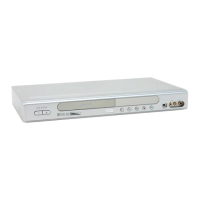
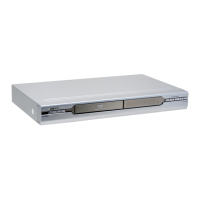
Check the disc types supported by the DVD recorder
you are using.
Model Comparison Chart (back cover)
Discs Types Supported (p.6)
• Complete the channel scanning process for your TV.
Setting TV Channels (p.18)
..........................................................................................
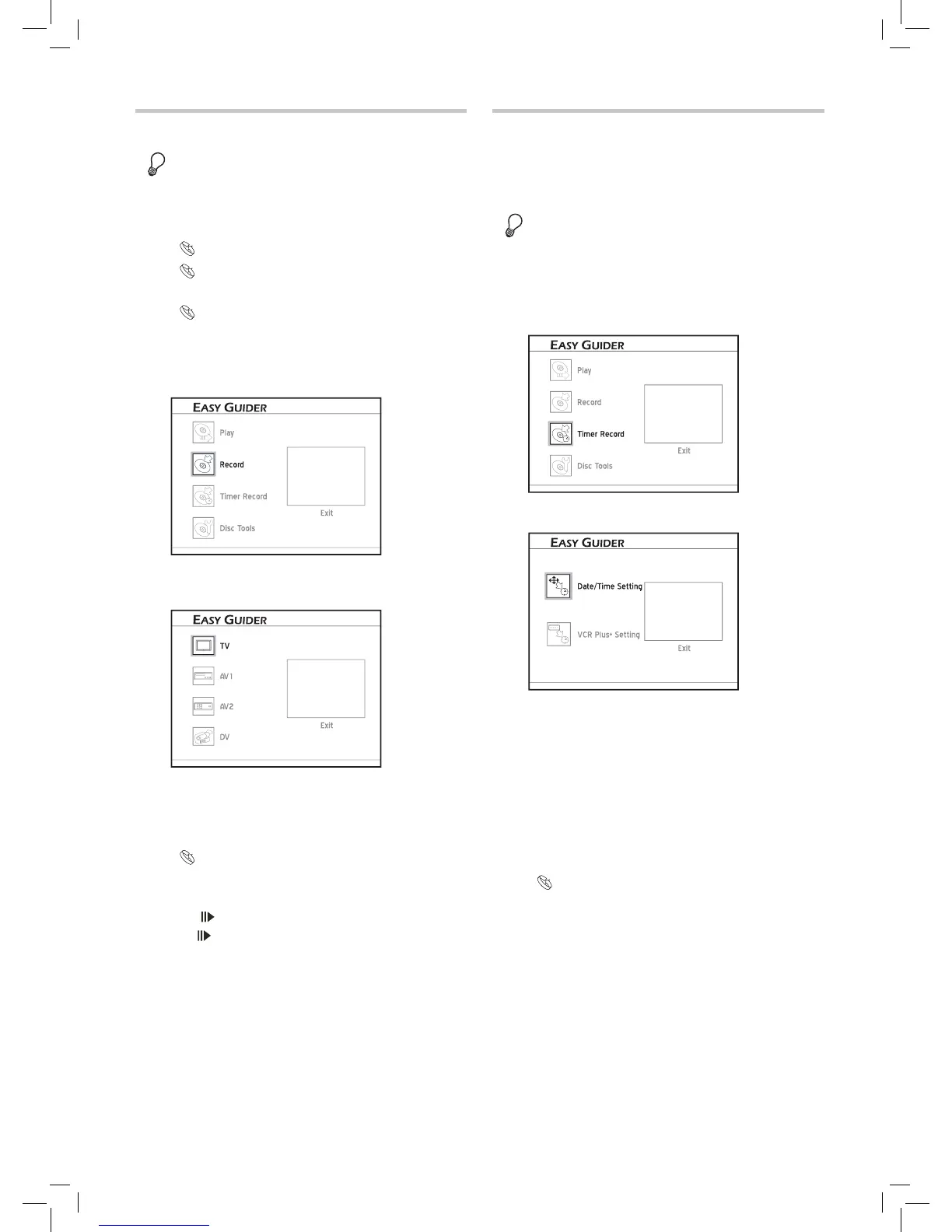
1. On the Easy Guider menu, press to select
‘Record’, then press ENTER.
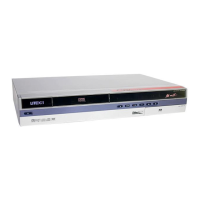
2. Press to select the signal source on which the
program you would like to record is being broadcast or
played, then press ENTER.
If you select ‘TV’, press to select the channel
you want to record, then press ENTER.
3. Press to select a recording mode, then press
ENTER.
Recording Mode (p.46)
4. Press to select ‘Go’, then press ENTER.
Recording will then start.
5. Press PAUSE/STEP to pause recording
Press PAUSE/STEP again to resume recording.
Press STOP to stop recording.


 To Next Page