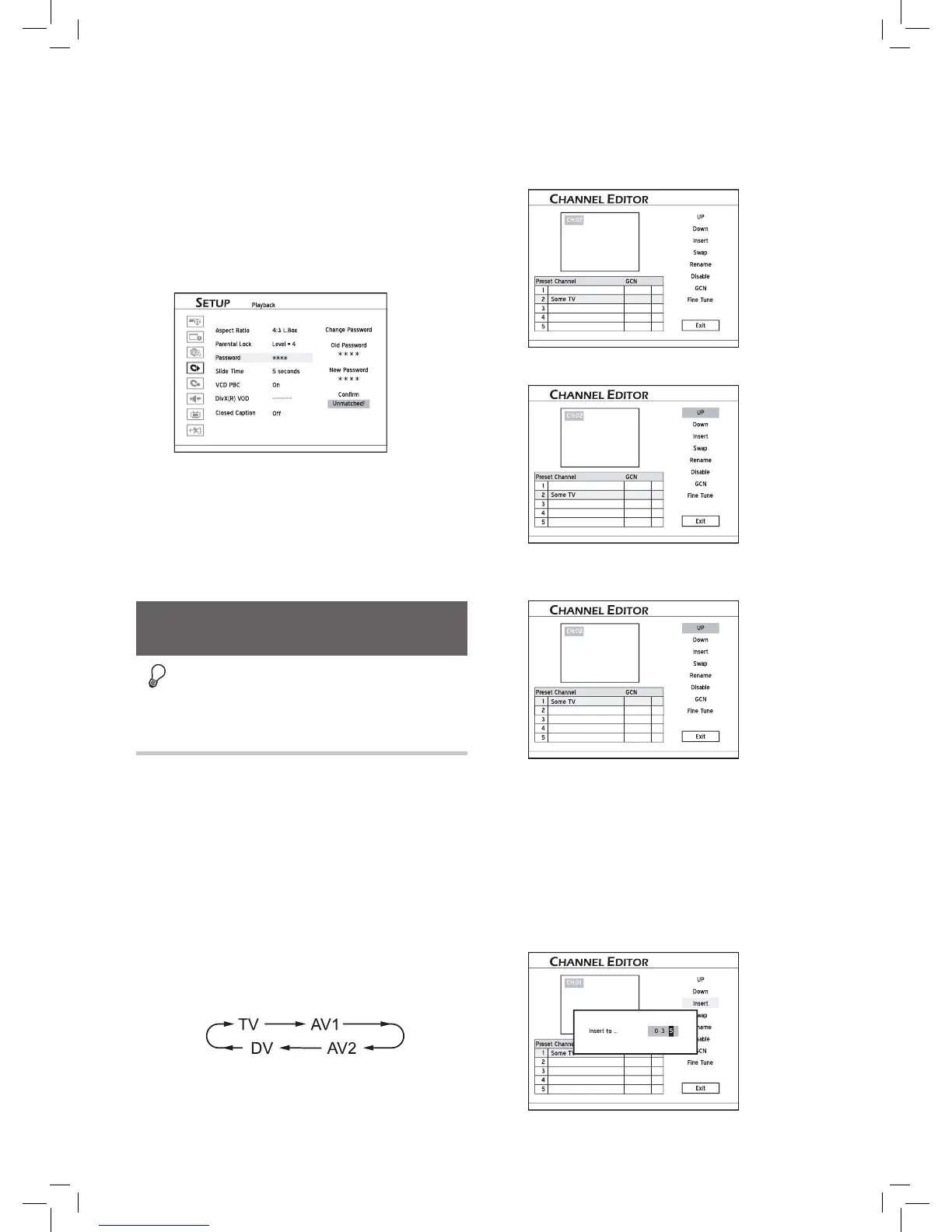
How to Set Password:
1. Press SETUP to display the Setup menu.
2. Change the password for parental control through
PlaybackPassword.
3. Press number buttons (0-9) to enter your 4 -digit
password.
The default password is 0000.
4. If the password you enter is correct, you will be asked
to enter a new password twice. If two passwords do not
match, a warning message will appear.
If you press or ENTER instead of number buttons
when you are asked to enter a password, you will re
-
turn to the second level of the menu without making
any change.
If the password you enter is incorrect or unmatched, a
warning message will appear for about 5 seconds, and
then you will be asked to enter your password again.
Advanced System Setup
Before you start...
• Complete the basic system settings introduced in the
previous section first.
Using Channel Editor
‘Channel Editor’ offers an easy-to-manage interface to
organize your TV channel list. You can activate ‘Channel
Editor’, using the following paths.
Path 1: Using Setup Menu
1. Press SETUP to display the Setup menu.
2. Go through TV Turner UtilitiesEdit Channel.
Path 2: Using Edit Mode While Viewing TV
1. Press TV(MODE) or press SOURCE to switch to the
TV-viewing mode.
If you press SOURCE, you may need to press the button
more than once to switch to ‘TV’.
4. When completed, press to select ‘Exit’ or
another option to continue, then press ENTER.
..........................................................................................
Inserting TV Channels
1. Press to select a channel from the list, press
ENTER.
2. Press to select ‘Insert’, then press ENTER.
3. Press or the number buttons (0-9) to enter
the channel number, then press
ENTER.


 To Next Page