6
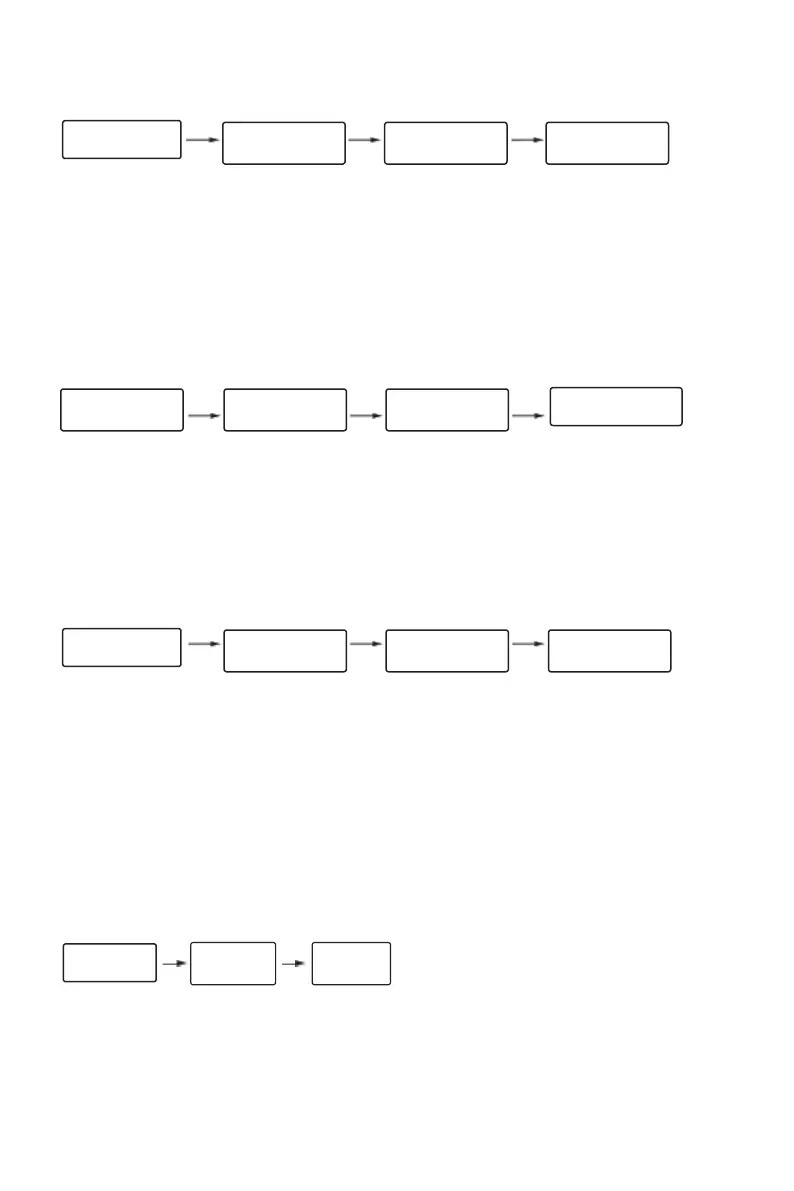
◆ Delete administrator information
After entering the door lock function menu, select "Delete user" and enter the number to be deleted and operate according
to the display and voice prompts.
As shown in the figure:
Please verify the
administrator
information
Voice broadcast sequence:
1 Door lock function" → "2 Delete user" → "Please enter the number to be deleted" → "Delete number xxx, please press
the confirmation key" → "Delete successful"
*Note: The currently verified administrator number cannot be deleted
5. Add ordinary users
Ordinary user settings include entering ordinary users and deleting ordinary user information. Ordinary user information can
be entered as fingerprints, cards, and passwords. After entering the door lock function management, follow the voice
prompts.
◆ Enter ordinary user information
*Add a new administrator password before adding ordinary users
You can add fingerprints, passwords, and cards to add users. After entering the door lock function, select'Add user', select the
type to add,and follow the display and voice prompts.。
As shown in the figure:
Added successfully ID: 010
Voice broadcast sequence:
1 Door lock function" → "1 Add user" → "(Select the type to be added and follow the voice prompts)" → "xxx
added successfully""
Note: When adding, the ID is automatically added in sequence starting from' Id: 10', the password is 6 to 12 digits, the number
of users is 90, and the maximum number of face users that can be added is 50, Add face and add finger options, if the
corresponding module is not connected, will automatically not be displayed. During the input process, the information that
has been entered cannot be entered."
◆ Delete ordinary user information
The deleted user information can be face, fingerprint, card or password. After entering the function, follow the display and
voice prompts.
As shown in the figure:
Please verify the
administrator
information
Voice broadcast sequence:
1 Door lock function" → "2 Delete user" → "Please enter the number to be deleted" → "Delete number xxx, please press
the confi rmation # key" → "Deleted successfully""
◆ Delete all users
Press and hold the 'Set'setting button on the rear panel for 5 seconds, and the prompt will be displayed to restore the factory
settings. Press the confirmation # button to confirm. After restoring the factory settings, all unlocking information and
records will be cleared, and the initial password will be restored to 123456.
Voice broadcast sequence:
Initialization successful
6. Mute mode
The Mute mode can adjust the door lock voice. After entering
the interface, press the prompt to turn on or off the mute
mode.
7. Language setting
After multiple languages are set, they can only be
switched by password. The specific supported languag-
es are determined by the configuration of the door lock.
The switching password is as follows:
Please verify the
administrator
information
Voice broadcast sequence:
'Silent mode is on' 'Silent mode is off'
Language switch (initial state)
555666888# Use Chinese
555666880# Use English
555666881# Use Vietnamese
555666882# Use Portuguese
555666883# Use Arabic
555666884# Use Russian
55341# Use Kazakhstan
555666886# Use Spanish
55342# Use Israeli
To delete number 002,
please press the #
key to confirm
Please enter the
number to be deleted
Please verify the
administrator
information
Enter the fingerprint,
password, and card to
be added
Please enter the
number to be
deleted
Delete number 010,
please press the #
key to confirm


 To Next Page
 Loading...