EasyManua.ls Logo

Loewe Concept 1700 - First-Time TV Setup and Operation; Initial Power On; On-Screen Display Navigation

Loewe Concept 1700
Print Icon
To Next Page IconTo Next Page
To Previous Page IconTo Previous Page
Loading...
Using
your
TV
set
for
the
first
time.
This
section
deals
with
the
operations
necessary
when
using
your
TV
set
for
the
first
time.
This
set
is
equipped
with
a
menu-based
user
guidance
system
for
setting
the
on-screen
language
and
the
TV
standard,
for
locating
and
storing
the
programme
channels
and
for
various
other
useful
functions.
If
your
dealer
has
already
carried
out
these
basic
settings
for
you,
you
can
skip
the
sections
“On-
screen
display“
and
“Programme
search
and
storage“.
Go
to
page
39
“Operation”
Switching
on.
When
switching
on
for
the
first
time,
the
power
key
on
the
set
is
pressed;
with
“Concept
1700“,
the
©
key
is
pressed.
“O1“
will
appear
on
the
screen
for
the
first
programme
memory
location.
On-screen
display.
Your
new
set
displays
all
setting
operations
on
the
screen,
e.g.
when
adjusting
the
volume,
brightness,
contrast,
etc.
The
screen
display
is
initially
in
German;
it
can,
however,
be
switched
over
to
the
other
languages:
Open
the
sliding
cover
of
the
remote
control
unit
to
its
fullest
extent
to
gain
access
to
the
buttons
which
are
not
required
for
day-to-day
operation.
Call
up
the
main
menu:
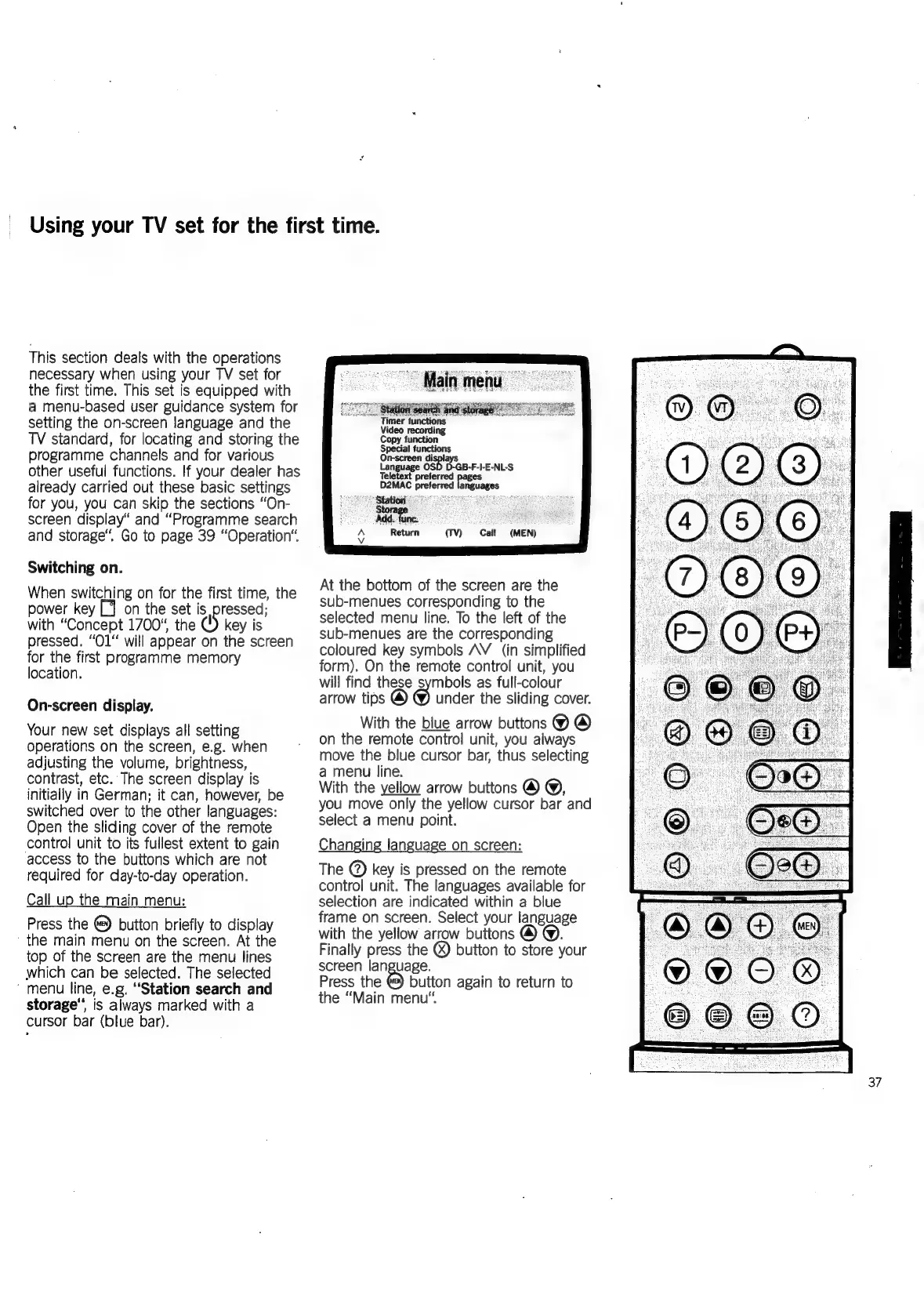
Press
the
button
briefly
to
display
the
main
menu
on
the
screen.
At
the
top
of
the
screen
are
the
menu
lines
which
can
be
selected.
The
selected
‘menu
line,
e.g.
“Station
search
and
storage",
is
always
marked
with
a
cursor
bar
(blue
bar).
Special
functions
On-screen
displays
Language
OSD
D-GB-F-I-E-NL-S
Teletext
preferred
D2MAC
preferred
languages
‘Add.
func.
Call
(MEN)
A
Return
(TV)
Vv
At
the
bottom
of
the
screen
are
the
sub-menues
corresponding
to
the
selected
menu
line.
To
the
left
of
the
sub-menues
are
the
corresponding
coloured
key
symbols
AV
(in
simplified
form).
On
the
remote
control
unit,
you
will
find
these
symbols
as
full-colour
arrow
tips
@
@
under
the
sliding
cover.
With
the
blue
arrow
buttons
@
@
on
the
remote
control
unit,
you
always
move
the
blue
cursor
bar,
thus
selecting
a
menu
line.
With
the
yellow
arrow
buttons
@
@,
you
move
only
the
yellow
cursor
bar
and
select
a
menu
point.
Changing
language
on
screen:
The
@
key
is
pressed
on
the
remote
control
unit.
The
languages
available
for
selection
are
indicated
within
a
blue
frame
on
screen.
Select
your
language
with
the
yellow
arrow
buttons
Finally
press
the
®)
button
to
store
your
screen
language.
Press
the
button
again
to
return
to
the
“Main
menu’.

Related product manuals