31 -
Change position of the PIP small picture
➠ Nothing else is displayed on the screen apart from the
status line.
Move the PIP into a corner of the screen.
The position of the small picture can also be selected
under Position in the PIP menu.
Switch to iPIP / Standard PIP function
➠ PIP menu open.
Select Functions,
go to the menu line below.
Select iPIP or Standard PIP.
In iPIP the frame around the PIP picture is orange.
iPIP operation:
When the iPIP function is set, the currently displayed
picture becomes the PIP picture on pressing the PIP
button. You can select other stations for the TV picture
and still keep an eye on the PIP picture. You can tempo-
rarily “ban” commercials or programme sections to the
PIP picture in this way.
The PIP picture becomes the TV picture again (PIP off).
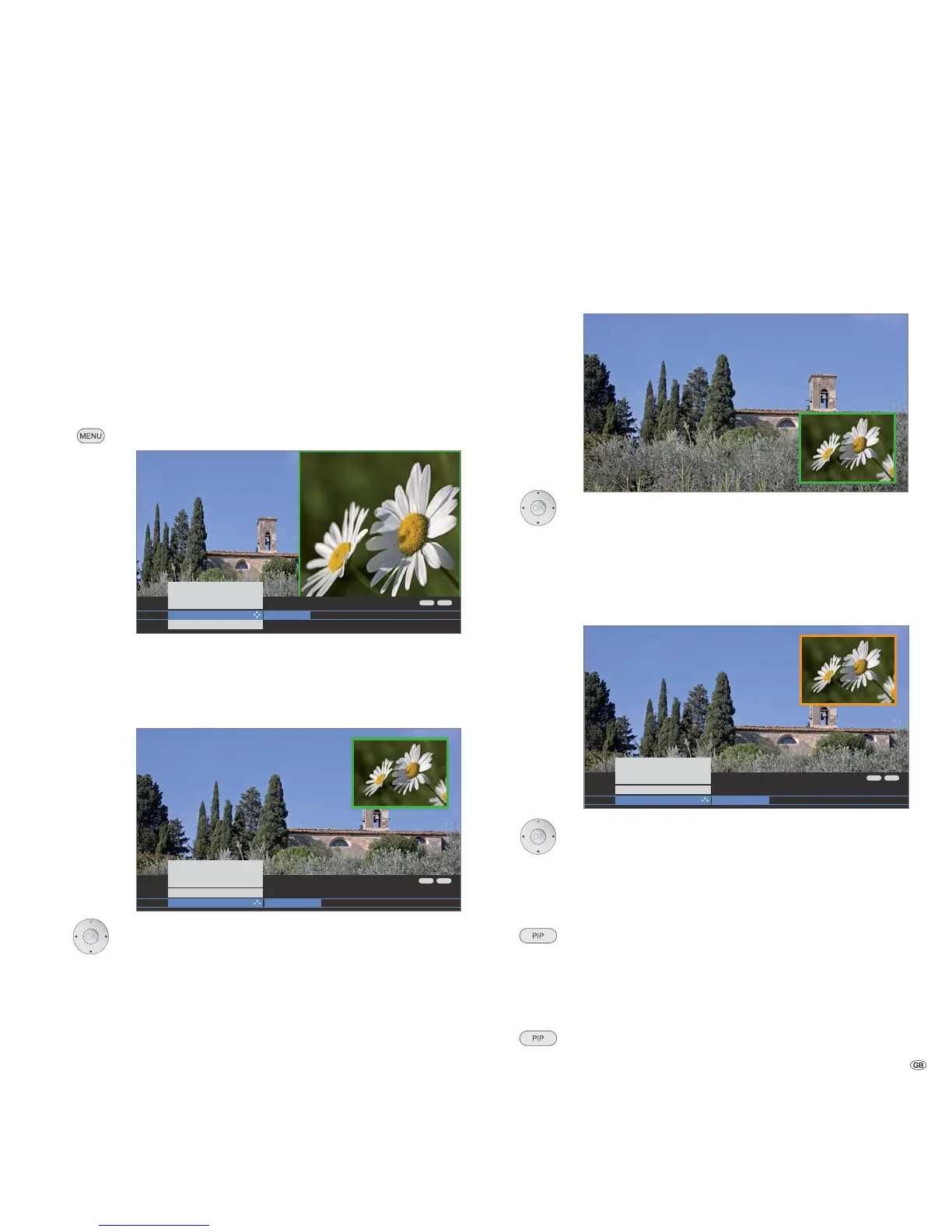
Configure Picture in Picture (PIP) mode
In the PIP menu you can set the PIP type (Split Screen or Small PIP), the
PIP function (Standard PIP or iPIP) and the position of the small picture.
Start PIP menu
➠ PIP mode started,
if not, press PIP button.
➠ The frame is green,
if not, press the green button.
Call PIP menu.
Switch to Small PIP / Split screen
➠ PIP menu open.
Select Type,
go to the menu line below.
Select Small PIP or Split screen.
Picture in Picture
ENDINFO
Split screen
Type
TV menu
Settings
PIP
Small PIP
ENDINFO
Standard PIP
Functions
TV menu
Settings
PIP
iPIP
ENDINFO
Split screen ...
Type
TV menu
Settings
PIP
Functions



 To Next Page