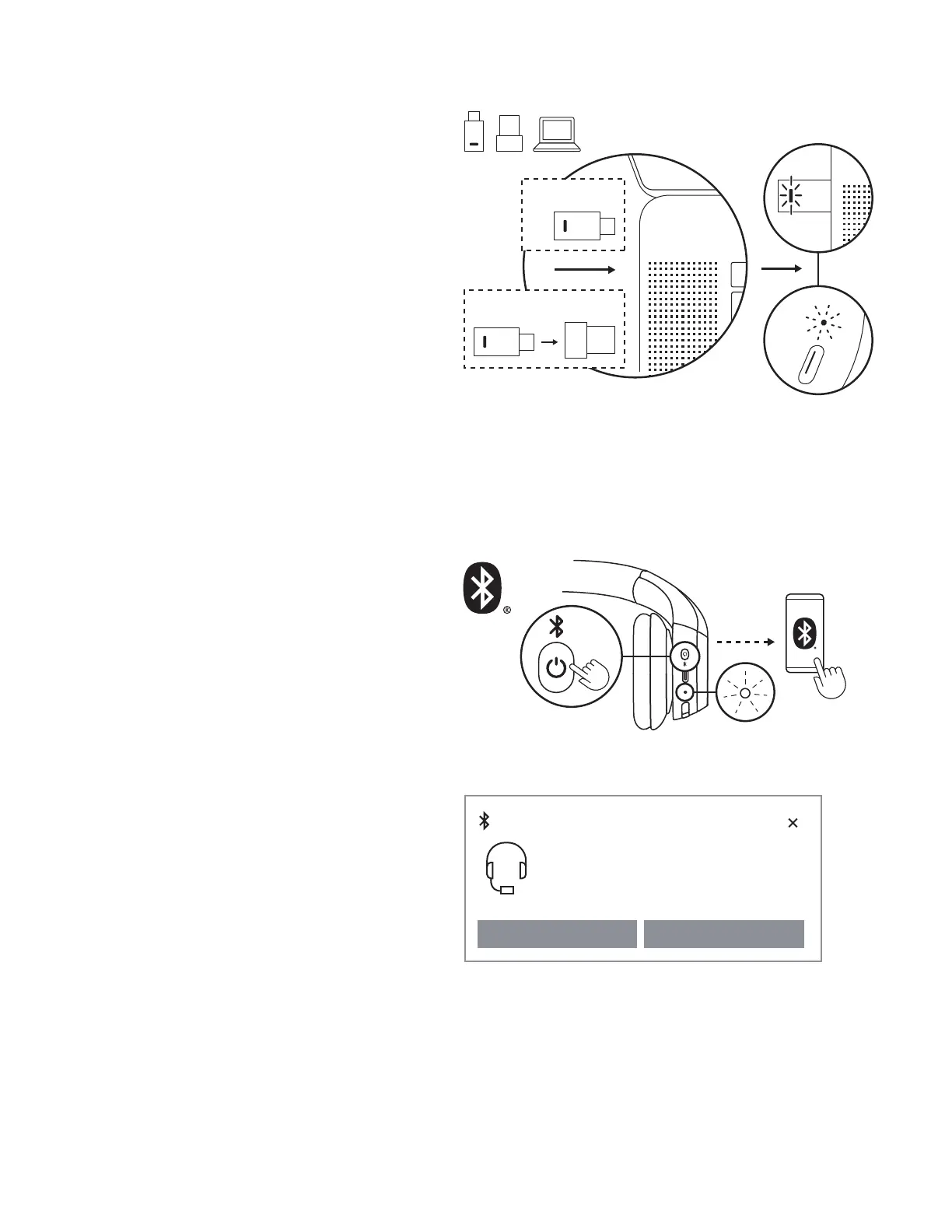
PAIRING VIA USBC RECEIVER
Only available for versions with receiver
1. USB-C
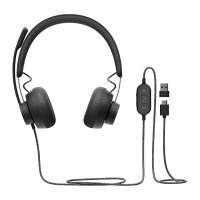
Plug the USB-C receiver into a USB-C port on
your computer or dock.
USB-A
Insert the USB-C receiver into the USB-A adapter.
Then plug the USB-A adapter into a USB-A port
on your computer or dock.
2. Headset is already paired to the receiver
itships with. Just power on the headset.
Oncesuccessfully paired, the light indicator on
the receiver will remain solid white.Light indicator
on the headset will also turn solid white.
PAIRING VIA BLUETOOTH
®
1. Long press the power button on earcup until LED
light blinking fast to initiate Bluetooth
®
pairing.
USB-C
USB-A
2 sec.
2a. For Windows
Place the headset close to your computer
andpair the headset via Swi Pair.
WhentheSwi Pair notication shows
“Zone305”, select “Connect.”
Only for native Bluetooth
®
version
You must connect to a Windows 11 computer
via the Swi Pair to enable Microso Teams
certication over native Bluetooth
®
. If you don’t
see a Swi Pair notication, do the following:
i. Pair your headset to the computer with
themethod shown below in 2b.
ii. When paired successfully, the Swi Pair
notication should show up. Select “Connect”.
Note: Make sure “Show notications to connect
usingSwiPair” is enabled in your computer’s
Bluetooth
®
settings.
Bluetooth
New Zone 305 found
If this is your device, connect to it.
Connect Dismiss
5English



 To Next Page