LogTag UTRIX Work Instruction Manual Revision 1.07 MP Release Page 44/52
Customisation (cont.)
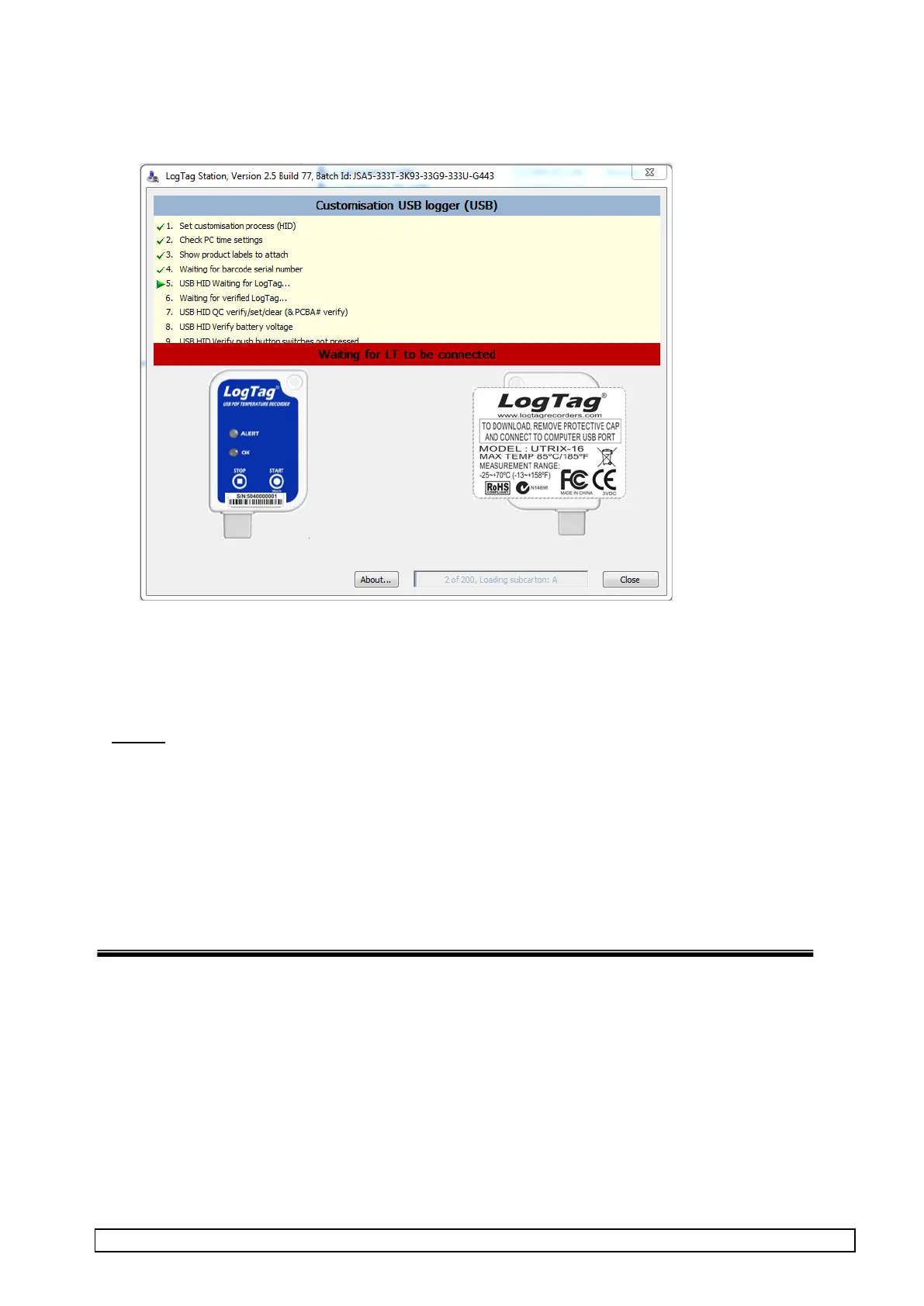
The software will then display the ‘waiting for LogTag’ screen below :
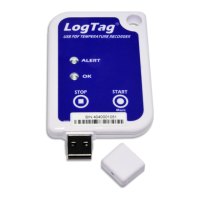
7. Remove USB protective cap and connect LogTag just scanned onto the USB extender cable.
8. Repeat steps 2-7 for all the LogTags for the batch (or until the software prompts for a new batch ID).
This means the all the LogTags for the order have been completed.
NOTES
1. The customisation software can be closed midway and re-opened later and will keep track of the number
of products remaining for a given customer order.
2. DO NOT have the customisation software running on two computers at the same time with the same
batch ID.
3. DO NOT change to a different computer while a given batch is being processed.


 To Next Page