EasyManua.ls Logo

Lorex LH041 Series - User Manual

Lorex LH041 Series
1 page
Print Icon
Loading...
Finished! You can now view video from your cameras on your smartphone or tablet.
Device ID: xxxxxxxxxxx
Find Your Device ID
Record your information below:
DEVICE ID:
1
Quick
Mobile
Guide
e
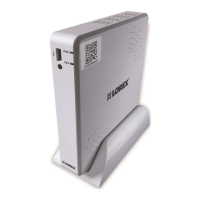
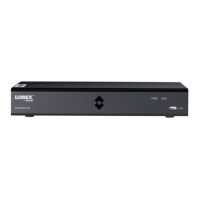
The Device ID is printed on a label on the top panel of the DVR.
c
d
a
b
Install the free FLIR Secure™ app from the App
Store or Google Play Store. Tap the FLIR Secure™
icon to open the app.
Tap SIGN UP and enter your email address and
password to create a new account.
Tap , then tap Security System.
Use the camera of your mobile device to scan the QR
code on top of your DVR.
If you cannot scan the QR Code, tap and enter the
Device ID located under the QR code.
Before You Start
Make sure you have a router and high-
speed Internet access (not included).
Connect your DVR to your router using an
Ethernet cable (see the Quick Connection
Guide for details).
Upgrade your DVR firmware and mobile
app to the latest versions.
Please note that an upload speed
of 2 Mbps is required for remote
video streaming (3 Mbps and above
recommended). Up to 3 devices may
connect to the system at the same time.
f
Quick Reference
Default access information:
Default user name: admin
Default password: 000000
Default system ports:
HTTP Port: 80
Client Port: 9000
If you have forgotten your password, contact Lorex techni-
cal support
See the label on top of your DVR for your Device ID
If you are having trouble connecting, try the following:
• Restart the DVR. See instruction manual at
www.lorextechnology.com
• Ensure the DVR is connected to the router using an Ethernet
cable and then restart the DVR
• Double check the Username, Password, and Client Port
• Ensure your DVR has the latest firmware
• For slower Internet connections, reduce recording settings for
sub stream to: Resolution - CIF, Frame Rate (FPS) - 10FPS,
and Bit Rate (Kbps) - 96 or 128kbps. See instruction
manual at www.lorextechnology.com
Information this document is subject to change without notice. As our products are subject to continuous improvement, Lorex Corporation and our subsidiaries reserve
the right to modify product design, specifications and prices, without notice and without incurring any obligation. E&OE © 2016 LOREX. All rights reserved
.
Need Help?
Important:
Make sure your device is on and connected
to the network.
Troubleshooting
Vist www.lorextechnology.com
Search the model number of your product

Click on your product in the search results
1
2
3
4
Click the Downloads tab
?
LH041_SERIES_QNG_EN_R3
Connect to Your Mobile Device
1
?
LH041 Series
Visit us online for up-to-date software and complete instruction manuals.
Quick Networking Guide
2
-OR-
Enter the DVR’s Username (default: admin), and
the DVR’s Password (default: 000000).
EXAMPLE:
Username: admin
Password: 000000
Tap Done. The app displays all the cameras that are
connected to your DVR. Tap any camera to stream
live video from it.

Other manuals for Lorex LH041 Series

Questions and Answers

  • C
    Christopher JacksonAug 7, 2025
    What to do if there is no picture on monitor/TV after connecting it to the Lorex DVR?
    • R
      Robert DoyleAug 7, 2025
      If there's no picture on your monitor/TV after connecting it to the Lorex DVR, first power off the monitor/TV and the DVR. Then, power on the monitor/TV, followed by the DVR. Also, make sure you've selected the correct input channel on your monitor/TV for the DVR connection. Check that the video cable is securely connected to both the DVR and the monitor/TV. If the video-out resolution is incorrect, press and hold the button on the remote control until the DVR restarts, which will reset the resolution to the default setting (1024x768).
  • R
    ryanjacobsAug 11, 2025
    Why is my Lorex DVR system not receiving power or not powering up?
    • M
      Michael RichardsonAug 11, 2025
      If your Lorex DVR system isn't receiving power or powering up, check that all cables are correctly and securely connected, including the power adapter at the back of the unit. Ensure the system is powered on by checking the LED indicators on the front. If connected through a power bar or surge protector, try connecting the power adapter directly to the wall outlet. Confirm the outlet has power by testing it with another device or trying a different outlet.
  • L
    Lauren AriasAug 15, 2025
    What to do if hard drive is full (0%) and the Lorex DVR unit is no longer recording?
    • J
      Joseph MooreAug 15, 2025
      If the hard drive on your Lorex DVR is full and the unit stops recording, it might be because the overwrite function isn't enabled. To fix this, go to the Main Menu, select DEVICE, then HDD. Under Overwrite, select Auto and click Apply.
  • T
    Tyler MontgomeryAug 20, 2025
    How to disable the beeping during motion detection on my Lorex DVR?
    • P
      payneannetteAug 20, 2025
      If your Lorex DVR system beeps during motion detection, it means that motion detection is enabled and the buzzer is activated. To turn it off, go to the Main Menu, click Alarm, then Motion. In the Buzzer drop-down menu, select OFF and click Apply.
  • J
    Jessica FischerAug 25, 2025
    What to do if hard drive is not detected by the Lorex DVR system?
    • M
      Mary AustinAug 26, 2025
      If the hard drive is not detected by the Lorex DVR system, remove the housing and check that the hard drive cables are firmly connected. If there is no hard drive installed, open the housing and install a compatible hard drive. After installing, make sure to format the drive.
  • B
    Brett MarshallAug 29, 2025
    What to do if the mouse is not detected by Lorex DVR system?
    • S
      Samuel AdamsAug 29, 2025
      If the mouse is not detected by your Lorex DVR system, ensure the mouse cable is firmly connected to one of the USB ports. If that doesn't work, power off the system by disconnecting the power cable, then firmly connect the USB mouse to a USB port, and reconnect the power cable to the DC 12V port on the rear panel.
  • N
    Nathan DavidSep 2, 2025
    What to do if there is no picture on selected channels / camera picture is not being displayed on Lorex DVR?
    • F
      fhernandezSep 2, 2025
      If there is no picture on selected channels or the camera picture isn't being displayed on your Lorex DVR, check the camera video cable and connections. Disconnect and reconnect the cable at both the system and the camera. You can also try moving the camera to another channel or using a different cable.

Lorex LH041 Series Specifications

General IconGeneral
SeriesLH041 Series
Video Channels4
Video OutputHDMI, VGA
Motion DetectionYes
Storage CapacityUp to 6TB
Remote ViewingYes
Weather ResistanceIP66
ConnectivityEthernet
StorageHDD

Related product manuals