EasyManua.ls Logo

Lorex LW1741 - User Manual

Lorex LW1741
212 pages
Print Icon
To Next Page IconTo Next Page
Loading...
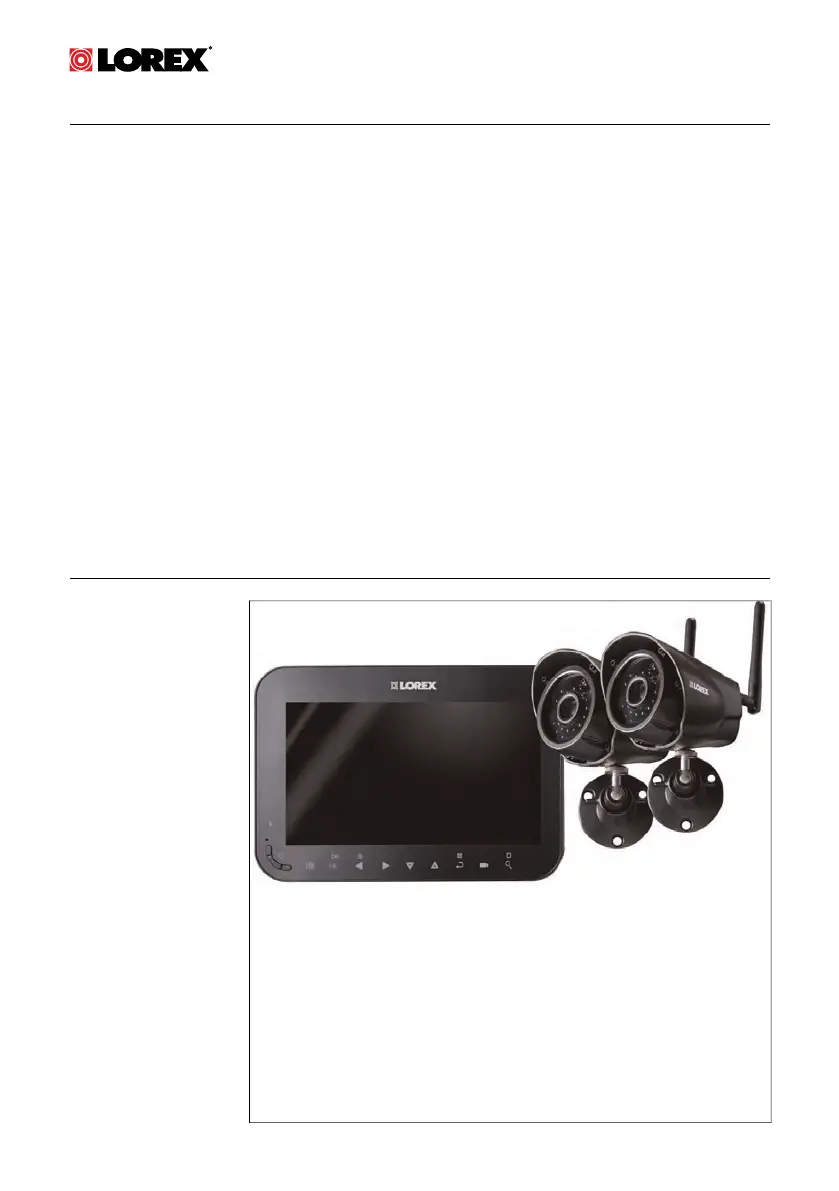
USER’S GUIDE
LW1740 / LW2740
SERIES
English / Français / Español

Table of Contents

Questions and Answers

  • N
    Nicholas RamirezAug 19, 2025
    Why is the picture dropping on my Lorex LW1741?
    • R
      rachel20Aug 19, 2025
      If the picture is dropping, try moving the camera(s) closer to the receiver. You can also try repositioning the camera(s), receiver, or both to improve the reception. Also, ensure you have raised the antenna on the receiver.
  • A
    Anthony SilvaAug 21, 2025
    Why is the picture choppy on my Lorex LW1741?
    • S
      Susan JacobsonAug 21, 2025
      The picture may become choppy when experiencing a lower frame rate due to reduced signal strength. Try moving the camera(s) closer to the receiver. Also, remove obstructions between the receiver and camera(s).
  • L
    langjeremyAug 23, 2025
    What to do if the video display on Lorex LW1741 Security System receiver is turned off?
    • R
      Robert BentleyAug 23, 2025
      If the video display on your Lorex Security System receiver is off, make sure the receiver is turned on and connected to a power outlet using the included power adapter if the battery is dead. If power saving mode is active, press any button on the receiver to turn the video display on again.
  • I
    Isaac RomeroAug 26, 2025
    What to do if the picture on Lorex LW1741 Security System is white?
    • J
      james89Aug 26, 2025
      To correct a white picture on your Lorex Security System camera, DO NOT point your camera towards a light source.
  • J
    Joshua MurphyAug 27, 2025
    How to fix Lorex LW1741 when there is no picture from the camera?
    • K
      kevinturnerAug 27, 2025
      If there is no picture from the camera, check the power to the camera and ensure that both the cameras and receiver are turned on. Also, make sure the camera is within range of the receiver. If the receiver’s battery is dead, connect it to a power outlet using the included power adapter. Finally, the camera channel may have been deactivated, check section 10.5 Activating / De-activating Channels, page 47 for instructions on activating the channel.
  • A
    Adam JonesAug 30, 2025
    What to do if there is no audio from Lorex Security System cameras?
    • P
      Phillip SmithAug 30, 2025
      If there is no audio from the camera(s), first, make sure the receiver volume is not muted and turn the receiver volume up. Also, ensure you are viewing your cameras in Single Channel or Auto Sequence Viewing mode. Note that there is no audio in Quad mode.
  • M
    michelleroachSep 1, 2025
    What to do if the video display on the Lorex Security System receiver is turned off?
    • H
      Henry MccarthySep 1, 2025
      If the video display on the receiver is turned off, ensure that the receiver is turned on. If the receiver’s battery is dead, connect the receiver to a power outlet using the included power adapter. If power saving mode is active, press any button on the receiver to turn the video display on again.
  • A
    Ashley HooverSep 3, 2025
    Why is there a bright spot in the image of my Lorex Security System at night?
    • L
      lisa08Sep 3, 2025
      A bright spot in the image while viewing the camera at night occurs when a camera is pointed at a window to see outside, because the night vision LEDs produce Infrared light that reflects off the glass. If you need to look outside, install the camera outdoors, ensuring it is under shelter.
  • B
    burgessneilSep 5, 2025
    Why is the picture white on my Lorex LW1741 Security System?
    • A
      andradejoshuaSep 5, 2025
      The picture is white because of a situation known as "washout" or "whitewash" where a strong light source is pointed at the camera lens. To resolve this, DO NOT point your camera towards a light source.
  • S
    Sophia SmithSep 7, 2025
    What to do if I can’t access the main menu on my Lorex LW1741 Security System?
    • C
      cranedeniseSep 7, 2025
      You may not be able to access the main menu because the system is recording. See 8 Recording, page 20 for details on pausing / stopping recording on the unit.

Summary

LW1740; LW2740 Series Features

Getting Started

Installing the Camera(s)

Installation Tips

Guidance on planning camera placement and initial checks before permanent installation.

Mounting Positions

Instructions and visual examples for mounting cameras on walls or counters.

Installing the Receiver

Setting the Time

Procedure to configure the system's date and time for accurate recording timestamps.

Camera Overview

LCD Receiver Overview

Front Panel

Detailed description of the receiver's front panel controls and indicators.

Side Panel

Description of the receiver's side panel, including power and microSD card slots.

Rear Panel

Overview of the receiver's rear panel components like antenna, battery compartment, and stand.

Using the System

Understanding the On-screen Display

Explanation of icons and information displayed on the receiver's screen during live view.

Navigating Menu Screen

Guide to navigating the system's menus for configuration and settings.

Viewing Modes

Explanation of different viewing modes: Single Channel, Auto Sequence, and Quad.

Recording

Format Memory

Instructions for formatting the microSD card before initial recording to ensure proper functionality.

Recording Mode Summary

Overview of available recording modes: Manual, Scheduled Continuous, and Scheduled Motion.

Scheduled Recording

Guide to setting up automatic continuous or motion-based recording schedules.

Motion Detection Settings

Adjusting motion detection sensitivity and defining detection areas for cameras.

Enabling File Overwrite

Setting to automatically delete oldest recordings to make space for new ones.

Playback

Video Playback

Instructions for viewing recorded video files directly on the system.

Playback Controls

Explanation of buttons and functions used during video playback.

Deleting Files

How to delete recorded video files or snapshots from the microSD card.

Viewing Video on PC

Steps to view recorded video files on a PC using a microSD card reader.

Settings

Camera Settings

How to adjust camera brightness for each camera's video feed.

Date and Time Settings

Procedure to enable/disable date/time stamps and change date/time formats.

System Configuration

Configuring power saving mode, channel activation, and scan intervals for viewing.

System Maintenance

Instructions for updating firmware and restoring default system settings.

Pairing Additional Cameras

Technical Specifications

General Specifications

Technical details for transmission, range, modulation, and environmental conditions.

Camera Specifications

Technical details for image sensor, resolution, IR range, lens, power, and dimensions.

Receiver Specifications

Technical details for LCD display, resolution, sensitivity, battery, power, and dimensions.

Dimensions

Physical dimensions of the LCD receiver and the camera with its stand.

Troubleshooting

Notices

FCC Notice

Information regarding FCC compliance and potential radio interference.

Industry Canada Notice

Information regarding Industry Canada compliance and radio interference.

Modification

Statement on user modifications and their effect on device operation authority.

RoHS

Compliance statement related to hazardous substances in electronic equipment.

Lorex LW1741 Specifications

General IconGeneral
Camera Resolution1080p
Number of Channels4
Night VisionYes
DVR Channels4
Mobile AccessYes
DVR Storage1TB

Related product manuals