EasyManua.ls Logo

Lorex VANTAGE LH110 ECO SERIES - User Manual

Lorex VANTAGE LH110 ECO SERIES
168 pages
Print Icon
To Next Page IconTo Next Page
Loading...
www.lorextechnology.com
DIGITAL VIDEO SURVEILLANCE RECORDER
LH110 ECO SERIES
Copyright © 2011 Lorex Technology Inc.
Instruction Manual
English Version 4.0
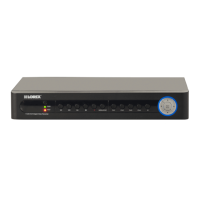
*8 Channel Model Shown
THE ECONOMICAL SOLUTION TO PROTECT YOUR HOME OR BUSINESS
RETAIL
INDUSTRY
BUSINESS
BUSINESS HOME
OUTDOOR

Table of Contents

Questions and Answers

  • K
    Kristina JohnsonAug 15, 2025
    How to fix a full hard drive on Lorex VANTAGE LH110 ECO?
    • R
      Randy RodriguezAug 15, 2025
      If your Lorex Security System's hard drive is full (0%) and no longer recording, the overwrite function may not be enabled. To fix this, go to the Main Menu, select DEVICE, then HDD Overwrite. Enable the Overwrite option and click Apply.
  • Y
    yolanda18Aug 18, 2025
    Why is my Lorex VANTAGE LH110 ECO Security System remote control not working?
    • S
      Stephanie JenningsAug 18, 2025
      If your Lorex Security System's remote control is not detected, install two fresh AAA alkaline batteries in the remote control.
  • K
    Katelyn StokesAug 21, 2025
    How to turn off the beeping sound on my Lorex VANTAGE LH110 ECO Security System?
    • M
      Michael RamosAug 21, 2025
      If your Lorex Security System beeps during motion detection, open the Main Menu and click DEVICE Alarm. In the Buzzer drop-down, select Off and click apply.
  • T
    Theresa WebbAug 25, 2025
    Why is my Lorex VANTAGE LH110 ECO Security System not receiving power?
    • M
      margaretwilliamsAug 26, 2025
      If your Lorex Security System isn't receiving power or powering up, first ensure all power adapter cables are correctly connected. Also, confirm the system is powered on by checking the LED indicators on the front. If connected through a power bar or surge protector, try connecting directly to the wall outlet. Verify power at the outlet by testing with another device or trying a different outlet.
  • P
    Patrick GrahamAug 28, 2025
    What to do if the mouse is not detected by my Lorex VANTAGE LH110 ECO?
    • S
      Stacy HoAug 28, 2025
      If the mouse isn't detected by your Lorex Security System, first, firmly connect the mouse cable to the USB Mouse port on the front panel. If that doesn't work, power off the system, reconnect the mouse to the USB port, and then reconnect the power cable.
  • W
    whitejuanAug 31, 2025
    What to do if there is no picture on my Lorex Security System camera?
    • E
      ewilsonAug 31, 2025
      If there is no picture on selected channels or the camera picture is not being displayed on your Lorex Security System, check the camera video cable and connections. Disconnect and reconnect the cable at both the system and the camera. Try moving the camera to another channel or using another cable.
  • M
    Ms. Brittany HillSep 3, 2025
    How to enable email notifications on Lorex VANTAGE LH110 ECO?
    • C
      Cynthia StokesSep 3, 2025
      If you are not receiving email notifications from your Lorex Security System, first, ensure that email notification is enabled. Open Main Menu, then go to Device Alarm. Click the Email Setup button. In the Email drop-down menu, select Default. Enter the Sender and receiver email and click Apply. If you want to use your own SMTP server, deselect the Default box, and enter your SMTP Server address, Port, User name, and Password in the respective fields.
  • C
    Corey MooreSep 6, 2025
    What to do if hard drive is not detected on Lorex VANTAGE LH110 ECO Security System?
    • D
      Daniel SmithSep 7, 2025
      If the hard drive is not detected by your Lorex Security System, remove the housing and check that hard drive cables are firmly connected. If there is no hard drive in the system, open the housing and install a 3.5" SATA hard drive.
  • J
    James MillerSep 10, 2025
    How to fix sound issues on Lorex VANTAGE LH110 ECO DVR?
    • C
      Corey StewartSep 12, 2025
      If the image on your Lorex DVR appears without sound, check the AUDIO connections to the DVR. Also, check the Configurations in Main Menu under Record. In the Audio drop-down menu, select Enable, and click Apply. Finally, increase the volume on any external speakers you are using.

Summary

Important Safeguards

Installation Safety

Safety guidelines for installing the video product.

Service and Use Guidelines

Safety and operational guidelines for servicing and using the video equipment.

Section 2: Configuring the DVR Menus

Section 3: Remote Connectivity

Remote Access Setup

Port forwarding, DDNS account creation, and configuration for remote system access.

Getting Started

Basic Setup and Connection

Step-by-step guide for connecting devices and initial system setup.

Recording and Playback Management

Configuring recording settings and viewing recorded video.

Lorex VANTAGE LH110 ECO SERIES Specifications

General IconGeneral
Recording ModeContinuous, Scheduled, Motion Detection
Remote ViewingYes (via Lorex Mobile Apps)
Power Supply12V DC power adapter
Weather ResistanceIP66
CompatibilityWorks with Lorex Home app (iOS and Android)

Related product manuals