EasyManua.ls Logo

Lorex U222AA-Z - User Manual

Lorex U222AA-Z
3 pages
Print Icon
To Next Page IconTo Next Page
Loading...
HD Wire-Free Security System
Quick Connection Guide
lorex.com
* Per camera in multi-camera packs
Package Contents
L222A8D_QCG_EN_R1
8JSFMFTT$BNFSB
(Model Number: 6"")
Rechargeable
Power Pack*
Power Pack
Adapter
USB Mouse
Ethernet Cable
Recorder Power
Adapter
HDMI Cable
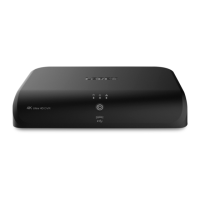
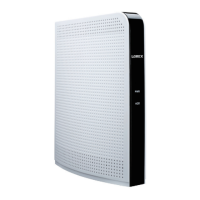
8JSFMFTT/FUXPSL7JEFP3FDPSEFS
(Model Number: -")
Camera Antenna*
STEP 3: Connecting with Lorex Cirrus
To connect with Lorex Cirrus:
1. Download and install the free Lorex Cirrus app from the App Store
or Google Play Store (Or scan QR code on the front page).
2. Tap the Lorex Cirrus icon to launch the app.
Connect to your system using the free Lorex Cirrus app for smartphones and tablets
(iOS and Android).
3. Tap
to open the menu. Tap Devices, then tap Add.
Need Help?
Visit us online for up-to-date software and complete instruction manuals
Click on the Downloads tab
4
Visit lorex.com
Search for the model number
of your product
Click on your product in the
search results
3
2
1
5. Enter a new, secure 8-15 character password. This password will be used to connect
to your system from now on.
Record your password below and store in a secure place:
STEP 2: Setting Up the Recorder
1. Connect the recorder to your router
using the included Ethernet cable.
2. Connect the included power adapter to
the recorder.
To set up the recorder:
Next, you must set up the recorder and connect it to your network.
OPTIONAL: Full Recorder Setup
• This guide describes basic setup of the recorder only.
This installation is intended for users who wish to monitor
their system using the free Lorex Cirrus app on their
smartphone or tablet.
• You may choose to use the recorder interface to control
your wire-free security system. Connect the included USB
mouse to one of the USB ports labelled Mouse / Backup,
and connect a monitor using the included HDMI cable.
See the included Quick Reference Guide for details.
4. Enter the following:
Copyright © 2020 Lorex Corporation
%WSYVTVSHYGXWEVIWYFNIGXXSGSRXMRYSYWMQTVSZIQIRX0SVI\VIWIVZIWXLIVMKLXXSQSHMJ]TVSHYGXHIWMKRWTIGMƼGEXMSRW
and prices, without notice and without incurring any obligation. E&OE. All rights reserved.
1 / 2
HDD
A
B
C
D
E
F
A
B
C
D
E
F
Ensure Device ID is selected.
Tap to scan the QR code on the bottom
of your recorder using the camera on
your mobile device.
Ensure the Client Port reads 35000.
Enter the username (default: admin).
Enter the password (temporary: 00000000).
Tap Save.
Dimensions
HDD
8.6”
219mm
2.5”
64mm
6.6”
169mm
U222A Series
4.7”
121mm
2.9”
73mm
5.2”
131mm
Camera Mounting Kit*
Toolkit
English Version 1.0
Scan for
Lorex Cirrus APP
STEP 1: Initial Setup
Before you begin, you will need to prepare the wire-free cameras and Power Packs.
2. Peel off the PLEASE REMOVE label
covering the contacts on each Power
Pack. Insert the charged Power Packs
into each camera base. Push up until
XLI4S[IV4EGOƄGPMGOWƅƼVQP]MRXSTPEGI
1. Twist the adjustment ring near the
camera base counterclockwise to
loosen and reposition each camera as
shown to the right.
Connect one of the
white antennas to each camera.
NOTE: The camera will ‘beep’ when the
Power Pack is properly inserted. If you do not
hear this alert, remove the Power Pack by
pushing on the release tabs* then re-insert.
NOTE: Power Packs come fully charged.
To prepare the cameras:
U222A Series
Adjustment ring
*
*
L222A8D_QCG_EN_R1.indd 1
2020-04-17 10:07:29 PM

Question and Answer IconNeed help?

Do you have a question about the Lorex U222AA-Z and is the answer not in the manual?

Overview

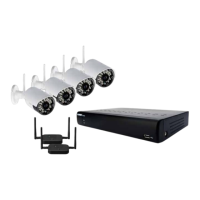
The Lorex HD Wire-Free Security System (U222A Series) is a comprehensive surveillance solution designed for easy setup and remote monitoring via a smartphone or tablet. This system includes wireless cameras (U222AA), a wireless network video recorder (L222A8), rechargeable power packs, camera antennas, a USB mouse, and a toolkit for installation.

Function Description:

The Lorex HD Wire-Free Security System provides high-definition video surveillance without the need for complex wiring. It allows users to monitor their property remotely through the free Lorex Cirrus app on iOS and Android devices. The system records motion-triggered events, offering a proactive approach to security. The wireless design simplifies installation, making it suitable for various indoor and outdoor environments. The recorder acts as the central hub, managing camera feeds and storing recordings.

Important Technical Specifications:

  • Camera Model: U222AA
  • Recorder Model: L222A8
  • Camera Dimensions: 2.5" (64mm) x 6.6" (169mm) x 8.6" (219mm)
  • Recorder Dimensions: 4.7" (121mm) x 2.9" (73mm) x 5.2" (131mm)
  • Power Pack Charge Time: Approximately 6 hours for 2-cell, 8 hours for 3-cell
  • Operating Temperature for Charging: 32-113°F (0-45°C)
  • Weather Resistance: IP66 rated for outdoor use
  • Connectivity: Wireless (camera to recorder), Ethernet (recorder to router)
  • Video Output: HDMI (for optional monitor connection)
  • App Compatibility: Lorex Cirrus app (iOS and Android)
  • FCC/IC Compliance: Meets Part 15 of FCC Rules and Innovation, Science and Economic Development Canada's licence-exempt RSS(s). Requires a minimum distance of 20cm between the radiator and the body.

Usage Features:

Initial Setup:

  1. Camera Preparation: Twist the adjustment ring counterclockwise to loosen and reposition the camera. Connect one white antenna to each camera. Peel off the "PLEASE REMOVE" label from the Power Pack contacts and insert charged Power Packs into each camera base until they click. A beep confirms proper insertion.
  2. Recorder Setup: Connect the recorder to your router using the included Ethernet cable. Connect the included power adapter to the recorder. For full setup, connect the USB mouse and an HDMI monitor.
  3. Lorex Cirrus App Connection: Download and install the Lorex Cirrus app. Launch the app, tap the menu icon, then Devices, then Add. Ensure "Device ID" is selected, scan the QR code on the recorder, verify the Client Port (35000), enter the default username (admin) and temporary password (00000000), then tap Save. Create a new, secure 8-15 character password.

Pairing Cameras:

  • Via Lorex Cirrus App: From Live view, tap any free channel, then PAIR. Press and hold the pair button on the back of the camera for 3 seconds. A "pairing successful" message will appear.
  • Via Recorder: Hover the mouse pointer near the top of an empty channel and click the pair icon. Press and hold the pair button on the back of the camera for 3 seconds.

Installation:

  1. Mounting Bracket: Mark and drill holes for the mounting bracket. Use included drywall anchors if mounting onto drywall.
  2. Secure Bracket: Secure the bracket to the surface with mounting screws.
  3. Attach Camera: Lower the camera base onto the mounting bracket until it locks.
  4. Security Screw: Insert and tighten the security screw through the fasteners on the camera base and mounting bracket.
  5. Power Pack Locking Screw (Optional): Tighten the pre-installed locking screw on the base of the Power Pack to prevent easy removal.
  6. Adjust Angle: Twist the adjustment ring counterclockwise to reposition the camera, then tighten.
  7. Cable Clips (Optional): Use included cable clips to manage the power cable.

Optimizing Motion Detection:

  • Placement: Position cameras at least 7ft (2.1m) above ground, angled slightly downward, and no more than 20ft (6.1m) from the monitoring area. Avoid obstructions and high-traffic areas.
  • Movement: For best performance, position the camera so objects move side-to-side across the image.
  • App Settings: In the Lorex Cirrus app, select a channel, tap the settings icon, then Motion. Adjust Sensitivity, configure Area Selection (to focus on areas of interest), and enable/disable the Buzzer.

Maintenance Features:

Power Pack Charging:

  • Connect the included power adapter to the micro USB port on the Power Pack.
  • LED indicator: Green for fully charged, Red for currently charging.
  • Important: The Power Pack LED flashes red if charging outside the safe temperature range (32-113°F / 0-45°C). The camera remains powered, but the Power Pack will not charge in this state.

Troubleshooting:

  • No Picture/Signal: Ensure camera is compatible, Power Pack is properly inserted (label removed), camera is paired, and Power Pack is charged. Remove obstructions between recorder and camera. Reposition camera/recorder.
  • Short Battery Life: Avoid high-traffic areas, excessive live video viewing, and ensure motion detection settings are optimized. Fully charge the battery.
  • Dropping/Choppy Picture: Move camera closer to recorder. Remove obstructions.
  • No Motion Detection: Ensure camera is within 20ft (6.1m) of the area of interest. Review installation tips and motion detection settings.
  • Too Bright Picture: Ensure camera is not pointed directly at a light source.
  • Night Vision Not Working: Ensure the area does not have too much light.
  • Unclear Picture: Clean the camera lens. Move camera to a different location if environmental interference is high.
  • Bright Spot in Video (Night): Avoid pointing camera through a window, as night vision reflects.

Accessories:

Available accessories include additional wire-free cameras (U222A), extra power pack adapters (ACPWF1), 2-cell accessory power packs (ACBATTR2), 3-cell accessory power packs PLUS (ACBATTR3), and solar panels (ACSOL1B). These can be purchased from lorex.com.

Lorex U222AA-Z Specifications

General IconGeneral
BrandLorex
ModelU222AA-Z
CategorySecurity System
LanguageEnglish

Related product manuals