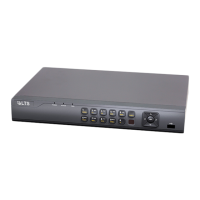
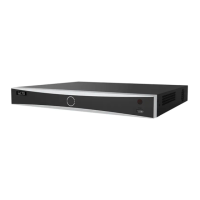
Network Video Recorder Quick Start Guide
22
Steps:
1. Click to select an idle window in the live view mode.
2. Click the icon in the center of the windw to pop up the adding IP camera interface.
3. Select the detected IP camera and click the Add button to add it directly, and you can click the Search
button to refresh the online IP camera manually.
Or you can choose to custom add the IP camera by editing the parameters in the corresponding textfiled
and then click the Add button to add it.
OPTION 2:
Steps:
1. Select the Add IP Camera option from the right-click menu in live view mode or click Menu> Camera>
Camera to enter the IP camera management interface.
2. The online cameras with same network segment will be detected and displayed in the camera list.
3. Select the IP camera from the list and click the button to add the camera. Or you can click the
One-touch Adding button to add all cameras (with the same login password) from the list.
Make sure the camera to add has already been actiavted.
OPTION 3:
Steps:
1) On the IP Camera Management interface, click the Custom Adding button to pop up the Add IP Camera
(Custom) interface.


 To Next Page
 Loading...