EasyManua.ls Logo

Lumens DC172 - User Manual

Lumens DC172
25 pages
Print Icon
To Next Page IconTo Next Page
Loading...
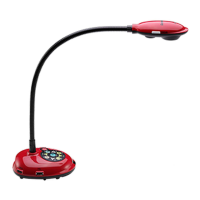
DC172
4K Document Camera
User Manual - English
[Important]
To download the latest version of Quick Start
Guide, multilingual user manual, software, or
driver, etc., please visit Lumens
https://www.MyLumens.com/support

Other manuals for Lumens DC172

Questions and Answers

  • M
    marvindawsonAug 17, 2025
    Why won't my Lumens Document Camera focus?
    • P
      Pamela CooperAug 17, 2025
      If your Lumens Document Camera is unable to focus, it might be because the document is too close to the lens. Try pressing the [ZOOM -] button on the remote or control panel, or physically move the lens further away from the document. After adjusting the distance, press the [FOCUS] button on the right side of the lens to activate the auto focus.
  • G
    guerrerobrandonAug 19, 2025
    What to do if the output image of Lumens Document Camera is too bright, too dark, or vague?
    • M
      markcollierSep 12, 2025
      If the output image from your Lumens Document Camera appears too bright, too dark, or vague, press the [AUTO TUNE] button. This will automatically adjust the image to optimize brightness and focus.
  • D
    David WhiteAug 22, 2025
    What to do if my Lumens Document Camera fails to store images or react?
    • B
      brooke20Aug 22, 2025
      If your Lumens Document Camera fails to store images or react, consider these possible solutions: 1. Check if the storage data has reached the maximum size of the USB disk (check this first) or the internal memory. 2. Verify if the capture function is set to continuous mode or if the capture time is set to be too long.
  • R
    Russell MitchellAug 25, 2025
    What to do if Lumens Document Camera is not recording images?
    • B
      brauncrystalAug 26, 2025
      If your Lumens Document Camera is unable to record images, verify the following: 1. Check if the stored data has reached the maximum size of the USB disk. 2. Note that the recording function is not supported in the internal memory. Ensure a USB disk is inserted if you want to record images.
  • M
    Michael GoodwinAug 27, 2025
    What to do if Lumens Document Camera, Ladibug™ and other applications cannot be used simultaneously?
    • D
      Deborah SteinAug 27, 2025
      Lumens Document Camera, Ladibug™, and other applications cannot be used at the same time. Only one application can run at a time. Close any currently running applications before starting the one you want to use.
  • L
    loributlerAug 30, 2025
    What to do if Lumens DC172 Document Camera has no image output?
    • A
      Amanda WilliamsAug 30, 2025
      To troubleshoot a Lumens DC172 Document Camera with no image output, try the following: 1. Check the power. 2. Check all cable connections. 3. Check the [Source]. 4. Check the settings for the source of the projector. 5. Check if DIP switch is properly set.
  • D
    David CarrSep 2, 2025
    What to do if the operating steps in the manual are not applicable to Lumens Document Camera?
    • D
      dicksonjimmySep 2, 2025
      The operating steps in the manual may not be applicable to your machine due to improvements in functions. Check if the firmware version of your machine is up-to-date. Go to the Lumens official website to check if the latest version is available for update.
  • C
    Chelsea GrantSep 4, 2025
    What to do if Lumens DC172 auxiliary floodlight doesn't light when turned on?
    • M
      Melissa HernandezSep 4, 2025
      If the auxiliary floodlight on your Lumens DC172 does not illuminate when the unit is turned on, make sure the head lamp is set to [Off].
  • A
    Andrea Thompson DVMSep 7, 2025
    How to unlock locked Lumens device?
    • B
      Brandon DennisSep 7, 2025
      To unlock a locked Lumens device, press [MENU] to access the setting menu, then navigate to [Settings] [Advanced Settings] [Lock Down]. Select [OFF] to disable the lock down function when the power is on.
  • M
    Michael JohnsonSep 10, 2025
    What to do if the image from Lumens Document Camera is incomplete?
    • S
      Sara MartinezSep 12, 2025
      Check the Auto Image setting of your projector.

Lumens DC172 Specifications

General IconGeneral
Frame Rate30 fps
USBUSB 2.0
Sensor TypeCMOS
External MemorySD Card (up to 32GB)
ISO SensitivityAuto
Storage MediaSD/SDHC

Related product manuals