EasyManua.ls Logo

Lumens VC-B30UAB - User Manual

Lumens VC-B30UAB
31 pages
Print Icon
To Next Page IconTo Next Page
Loading...
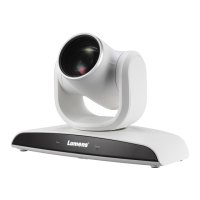
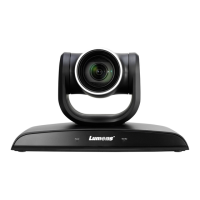
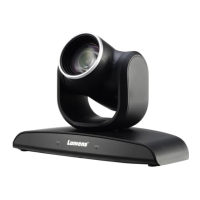
VC-B30U
PTZ Video Camera
Installation Guide - English
[Important]
To download the latest version of Quick Start
Guide, multilingual user manual, software, or
driver, etc., please visit Lumens
https://www.MyLumens.com/support

Questions and Answers

  • N
    Nicholas BatesAug 14, 2025
    What to do if Lumens Security Camera cannot be operated by remote control?
    • K
      Kevin SimonAug 14, 2025
      If the Lumens Security Camera cannot be operated by remote control, first ensure that the camera is connected to the computer and that video software is running. Also, prevent the camera from direct sunlight. Keep the camera away from energy-saving bulbs and IR touch screens to avoid interference. If multiple cameras are in the same area, operating two remote controls simultaneously may cause signal interference. Try using only one remote control.
  • H
    Heather WhiteAug 17, 2025
    Why is there no image output from my Lumens Security Camera?
    • V
      Victoria EvansAug 17, 2025
      If your Lumens Security Camera has no image output, first check the power. Ensure that your display supports the output resolution, such as 1080p60, 1080i60, or 720p60. Also, replace the cables to make sure they are not faulty.
  • T
    Tiffany FletcherAug 21, 2025
    What to do if Lumens Security Camera video screen flickers or freezes when connected to a MAC computer?
    • M
      Michael TorresAug 21, 2025
      If the video screen of your Lumens Security Camera flickers or freezes when connected to a MAC computer, confirm that DIP Switch-DIP4 at the base of the camera is switched to “ON” when using Mac OS X 10.10 or earlier.
  • K
    Kerry EllisAug 25, 2025
    How to change pan direction on Lumens Security Camera?
    • N
      Noah HinesAug 25, 2025
      If the pan direction is reversed when operating your Lumens Security Camera with the remote control, open the OSD menu and set the desired pan direction by navigating to [Pan Tilt Zoom] => [Pan Direction] => [Normal/Reverse].
  • M
    Megan MartinAug 28, 2025
    What to do if there is no image output from Lumens Camcorder VC-B30U?
    • J
      Julie BarajasAug 28, 2025
      If you are experiencing no image output from your Lumens VC-B30U Camcorder, first, check the power. Then, ensure that your display supports the output resolution, such as 1080p60, 1080i60, or 720p60. Finally, try replacing the cables to rule out any faulty connections.
  • R
    Ryan GallagherAug 31, 2025
    Why Lumens Camcorder VC-B30U cannot be operated by remote control?
    • J
      jacksonanthonyAug 31, 2025
      If your Lumens VC-B30U Camcorder isn't responding to the remote control, make sure it's connected to the computer and that video software is running. Also, prevent the VC-B30U from direct sunlight. Keep energy-saving bulbs and IR touch screens as far away as possible to avoid interference, and use only one remote control at a time.
  • T
    Tabitha WashingtonSep 3, 2025
    What to do if Lumens Camcorder VC-B30U pan direction is reversed?
    • D
      Drew DavisSep 3, 2025
      If the pan direction is reversed when operating your Lumens VC-B30U Camcorder with the remote control, open the OSD menu and set the desired pan direction by navigating to [Pan Tilt Zoom] => [Pan Direction] => [Normal/Reverse].
  • Z
    Zachary WoodardSep 6, 2025
    How to fix video screen flicker or freeze on Lumens Camcorder when connected to MAC computer?
    • B
      Brian ObrienSep 6, 2025
      If the video screen flickers or freezes when your Lumens Camcorder is connected to a MAC computer, confirm that DIP Switch-DIP4 at the base of the camera is switched to 'ON' when using Mac OS X 10.10 or earlier.
  • C
    Caleb JonesSep 10, 2025
    How to fix Lumens Camcorder boot without power signal?
    • D
      Donald RiveraSep 10, 2025
      Make sure you have plugged in the power cord.

Lumens VC-B30UAB Specifications

General IconGeneral
Camera TypePTZ Camera
Sensor1/2.8" CMOS
Effective Pixels2.07 Mega pixels
Resolution1920 x 1080
Video Resolution1080p
Frame Rate60 fps
Digital Zoom12x
Built-in MicrophoneYes
PowerDC 12V
Operating System CompatibilityWindows, macOS
Weight1.5 kg
Pan/Tilt AnglePan: -170° to +170°, Tilt: -30° to +90°
Video OutputUSB
Audio Input3.5 mm Line in
Control InterfaceUSB
InterfaceHDMI
Zoom30x Optical Zoom
Viewing Angle72.5° (Wide)
Field of View72.5° (Wide), 2.3° (Tele)

Related product manuals