English - 48 -
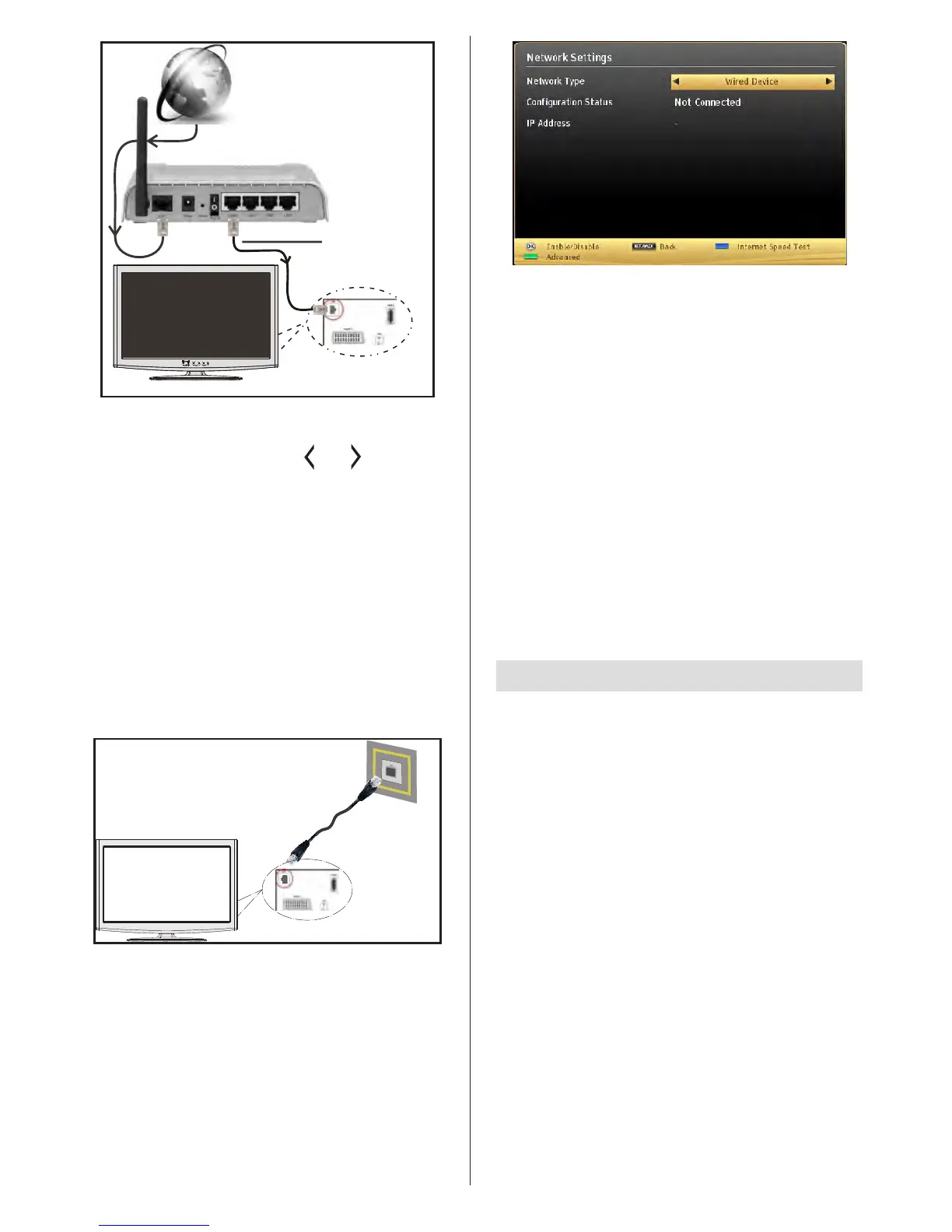
Lan(Ethernet cable)
Broadband ISP
Connection
Rear of TV
• To access and play shared les, you must select the
Media Browser. Press the Menu button and select
Media Browser by using the “
” or “ ” buttons and
press OK to continue. Select the desired le type and
press OK. You must always use the Media Browser
screen to access and play shared network les.
• PC/HDD/Media Player or any other devices that are
DLNA 1.5 compatible should be used with a wired
connection for higher playback quality.
To congure wired settings please refer to the
Network Settings section in the Settings menu.
• You might be able to connect your TV to your LAN
depending on your network’s conguration. In such
a case, use an ethernet cable to connect your TV
directly to the network wall outlet.
Conguring Wired Device Settings
The Network type can be selected as Wired or
Wireless, in accordance with the active connection to
the TV set. Select this as “Wired” if you are connecting
via an ethernet.
Conguration Status
This section displays the status of the connection.
Select Connected if you want to activate a
connection. Select as Not Connected to end an
active connection.
IP Address
If an active connection is available, the IP address
will be displayed on this section. If you want to
configure an IP address preference, press the
GREEN button and switch to the advanced mode.
Conguring Wired Network Settings in
Advanced Mode
After pressing the GREEN button, the “Advanced
mode” will be available. While in Advanced Mode,
press the RED button to edit settings. When
nished, press OK to save, Press RETURN/BACK
to cancel
Wireless Connectivity
Connecting to a Wireless Network
IMPORTANT: USB dongle (Supplied) is required to
use wireless network features.
• To use your TV with your wireless network, you
need a Wireless USB dongle. To make your
modem’ s SSID visible, you should change your
SSID settings via the modem’s software. The TV
cannot connect to the networks with a hidden
SSID.
To Connect to a wireless LAN, you should
perform the following steps:
1. Ensure that Nero Media Home software is
installed to your PC (for DLNA function).
2. Then connect the wireless adaptor to one of the
USB inputs of the TV.
3. To congure your wireless settings please refer
to Network settings section in this manual.


 To Next Page