1918
BACKING TRACKS BACKING TRACKS
- FORMATS- FORMATS
Audio Backing Tracks can be of different
formats, which we summarise here:
1. 1. Audio Mp3 or Wav
(or other formats digital) in one
stereo track (without click)
2. 2.
Audio Mp3 or Wav (or other
formats
digital) in two mono
tracks (with click in one of the
two tracks)*
3. 3. Multitrack audio (mp3 or wav or
other digital formats) **
4. 4. Stems (multi-track audio
according to an established
protocol)
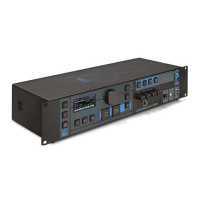
B. Beat PRO16 can play the 4 formats we
have listed.
*B.Beat PRO16 automatically recognises the Click
if it is present in one of the tracks of the Audio pro-
ject or Stereo file you want to import.
** B.Beat PRO16 can read individual Backing
Tracks with up to 24 Mono tracks. This means that if
Backing Tracks had stereo tracks the maximum num-
ber of tracks would be 12. Backing Tracks can also
have mono or stereo tracks, the important thing is that
the maximum number of 'channels' does not exceed
24. For example, 7 stereo and 10 mono. If your Backing
Tracks has more tracks you will have to delete some
tracks or mix them with other tracks in the project
through your DAW.
ATTENTION: the first 16 tracks can be output on chan-
nels 1 to 16, freely. Tracks 17 to 24 can be output in
channels 1 to 8.
IMPORTING A MULTITRACK AUDIO IMPORTING A MULTITRACK AUDIO
PROJECT ON B.BEAT PRO16PROJECT ON B.BEAT PRO16
Once you have created the Audio file con-
stituting the Backing Tracks on your DAW,
you can save the same project in separate
tracks, so each track will constitute a sin-
gle Audio file (Wav or Mp3). Save to a fold-
er that will contain all the tracks of that
single Audio project.
The maximum number of tracks you
can play with B.Beat PRO16 is 24 mono,
or 12 stereo.
Tracks 1 to 16 can be output in channels
1 to 16. Tracks 17 to 24 exit from chan-
nel 1 to 8. The configuration is done on
B.Beat MANAGER. Tracks 17 to 24 cannot
be routed to the headphone.
You are now ready to import your newly
created project into B.Beat PRO16:
1. 1. Connect B.Beat PRO16 to the PC
in one of the preferred modes
2. 2. Launch the B.Beat
Manager programme
3. 3. Press this button in the main
screen of the
B.Beat Manager programme:
From this point you can transport audio
projects to B.Beat PRO16. See B.Beat
Manager Software guide.
IMPORT A VIDEO IMPORT A VIDEO
OR IMAGES ON B.BEAT PRO16OR IMAGES ON B.BEAT PRO16
B.Beat PRO16 can play Video files in Mp4
and MOV format.
Video files can be previously synchronised
with an Audio project. Synchronisation
can be done with any video Editing soft-
ware e.g. iMovie, Final CUT and others.
Once you have synchronised the video
with the music, you can transfer both the
audio and video project to B.Beat PRO16
and create a project that will be handled
by B.Beat PRO16 as if it were a single
Audio and Video element. This is particu-
larly effective for performances where
you want to combine a Video commentary
with music. The video can be associated
with a Backing Tracks even without being
synchronised, but the moment you com-
bine it with the music on B.Beat Manager
the two elements will be joined and will be
played together by B.Beat PRO16.
The video can also be transferred to
B.Beat PRO16 without being linked to a
Backing Tracks, in which case the file will
be independent of the music but can be
played at any time, and will accompany
your performances.
You are now ready to import the Video/Im-
ages into B.Beat PRO16:
1. 1. Connect B.Beat PRO16 to the PC
in one of the preferred modes
2. 2. Launch the B.Beat Manager
programme
3. 3. From the Library menu, select Media.
4. 4. Click on the button:
From this point you can transport video
files to B.Beat PRO16. See B.Beat Manager
Software guide.
IMPORT MIDI FILES IMPORT MIDI FILES
ON B.BEAT PRO16ON B.BEAT PRO16
Projects imported from the PC to B.Beat
PRO16 can contain Audio, Video and Images
as well as a MIDI File. With the Midi File you
will be able to issue particular commands
to the various devices in your set up. These
messages, if synchronised with the music,
will make your performance more effective.
Via Midi you can send program change or
system exclusive messages to keyboards
and expanders or other modules you use in
the live part of the show. You can build the
MIDI File on your DAW, and then transfer
it to B.Beat PRO16 within an Audio-Video
project that will form the sound and vid-


 To Next Page
 Loading...