3736
follows:
Load the audio project on which you want
to make the recording. Position yourself at
the point where you want to start record-
ing, e.g. at the beginning of the project.
Press REC, the red LED starts flashing
but recording has not started. You enter
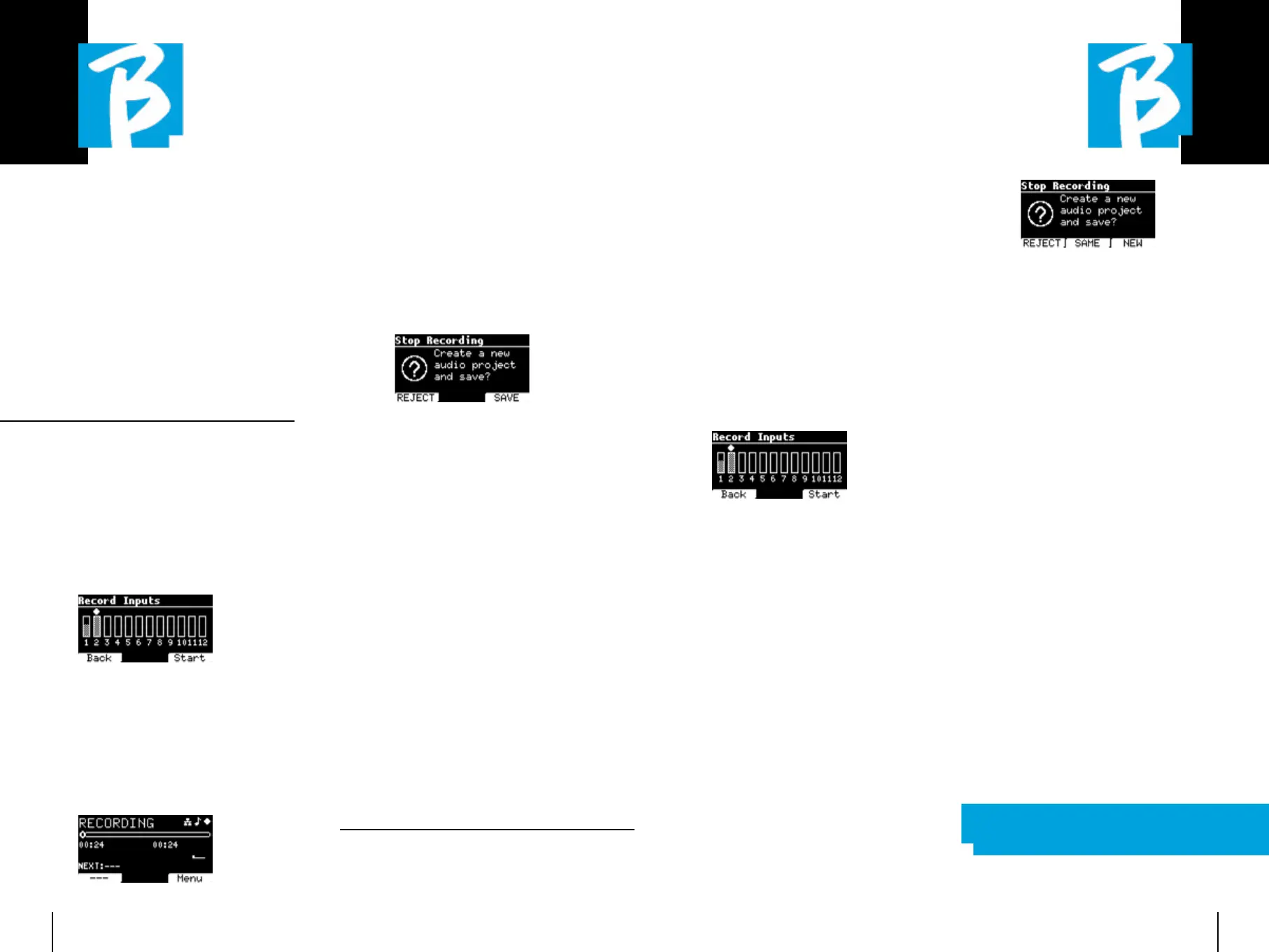
the recording screen, which displays the
v-meter with the input levels and control
over any distortions, which are indicated
with a dot.
From now on, by pressing the F3 (START)
button, or PLAY, or REC, the B.Beat will
start recording and playing the loaded au-
dio project. The red LED of the REC button
will be lit.
To exit the recording environment without
recording, press F1 [BACK].
To end the recording, simply press STOP or
the REC button again.
At the end of the recording you can
choose whether or not to save what you
have recorded. In addition, you can decide
whether the recording should be part of
the project loaded in memory, or whether
you want to create a new project with the
newly recorded tracks.
loaded Audio Project (if the sum of the
project tracks and the recorded tracks
does not exceed the total of 24 tracks
available on B.Beat PRO16). This function
is particularly convenient for recording live
performances, or for adding audio tracks
just before the performance, in rehearsal
or sound check, without having to go back
to the DAW.
RECORDING RECORDING
WITHOUT A PROJECT IN PLAYWITHOUT A PROJECT IN PLAY
To record with B.Beat press REC without
having any projects loaded in the working
memory (RAM), the red LED starts flash-
ing but recording has not started. Auto-
matically, the recording screen appears,
displaying the v-meter with the input lev-
els and checking for possible distortions,
which are indicated with a dot.
From this moment on, by pressing the
F3 (START) button, or PLAY, or REC, the
B.Beat will start recording. The red LED of
the REC button will be lit.
To exit the recording environment without
recording, press F1 (BACK).
To end recording, press STOP or the REC
button.
At the end of the recording you can choose
whether or not to save what you have re-
corded. This screen only appears if an in-
coming audio signal is detected.
To delete the recording select F1 (RE-
JECT), Press F3 (Save) if you want to
save the recording. In this case a new pro-
ject called “Rec <progressive number>”
will be created.
The new project will contain as many
tracks as there are inputs where audio
was present during recording. All tracks
will have the same duration (equal to the
duration of the recording) and will be syn-
chronised with each other.
Tracks will play from the outputs set as
default (See System). The newly created
project will immediately be ready to be
played and you can immediately hear the
result of the recording.
RECORDING RECORDING
ON A LOADED AUDIO PROJECT [ONLY ON A LOADED AUDIO PROJECT [ONLY
FOR B.BEAT PRO16 PLUS]FOR B.BEAT PRO16 PLUS]
If you have a B.Beat PRO16 PLUS it is pos-
sible to make a recording even while you
are playing an audio project. Proceed as
To delete the recording select F1 [RE-
JECT], Press F2 [Same] if you want to mix
the newly recorded tracks with the pro-
ject loaded in memory. ATTENTION: if the
sum of the recorded tracks and those of
the loaded project exceeds the number of
24, the recorded tracks cannot be mixed
to the current project. Press F3 [New] if
you want to save the recording in a new
project. In this case, a new project named
'Rec <project number> - <project title>'
will be created. If you choose to save the
tracks to the same project by pressing F2
[SAME] the B.Beat will add the recordings
to the played project (one track for each
recorded input) by moving them out of the
default channels (See System). The newly
created project will immediately be ready
to be played and you can immediately hear
the result of the recording.
ATTENTION: if the sum of the number of
recorded tracks and those of the project
loaded in memory exceeds the maximum
number of 24, the recorded tracks must
be saved in a new project. This new pro-
ject can be exported and processed with
a DAW via the B.Beat Manager.
SYNC MODESYNC MODE
Sync mode allows two B.Beat devices of


 To Next Page
 Loading...