3534
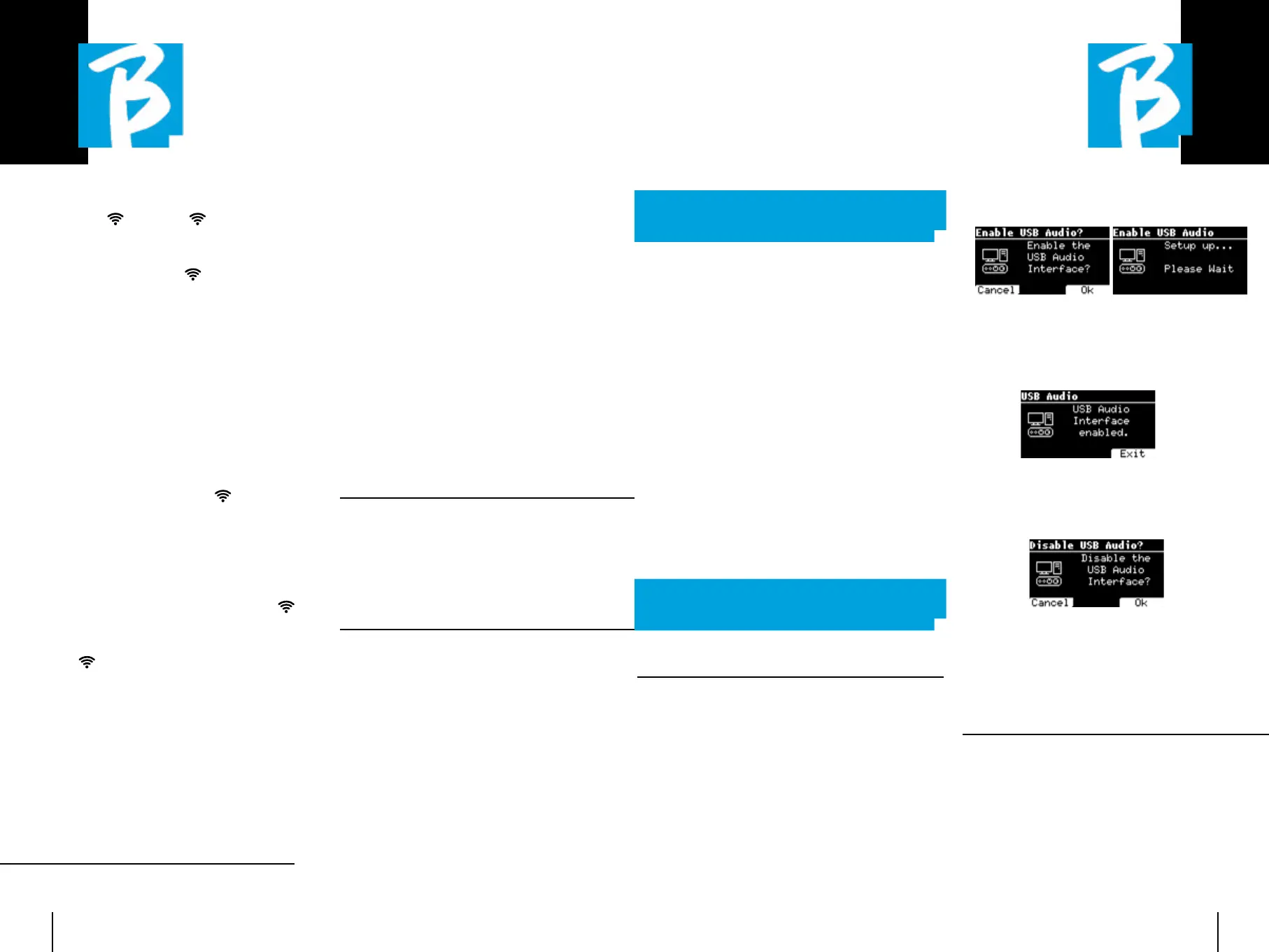
want to enable the USB Audio mode.
Press OK (F3) to confirm. After the above
sequence, the Sound Card mode is acti-
vated. Then the screen below appears:
If you want to deactivate the Sound Card
mode, press the F3 EXIT button and con-
firm your choice.
The Sound card mode can be reactivated
by going to the SYSTEM>ENABLE USB AU-
DIO menu (with the USB cable connected
to B.Beat).
RECORDINGRECORDING
B.Beat Pro16 is capable of recording up
to 12 audio tracks via its 12 input chan-
nels. The basic version can record when
the working memory (RAM) is empty, i.e.
if no Audio Project is loaded, while the
PLUS version can record even while an
Audio Project is being executed, i.e. it will
be possible to add up to 12 tracks to the
Wireless Wireless : : Wireless
connection to
active networks can be activated to con-
nect even without the Ethernet Cable.
Entering the Wireless
page activates
three functions (with the optional M Pen2
or with the internal connection in the
PLUS version):
1.F1 [BACK] to exit this screen.
2.F2 [INFO] to check the network to which
B.Beat PRO16 is connected
3.F3 [CONN - DISABLE] to search for an
available network and connect. To instruct
B.Beat PRO16 on Wireless
networks,
B.Beat Manager must be used. With the
App you can detect the active and avail-
able network and train B.Beat PRO16 to
recognise it, and you can also enter the
network password. Once you have trained
B.Beat PRO16 to a particular Wireless
network all you have to do is press CONN
and it will recognise it to enter. If no Wire-
less
network is included among those
that B.Beat PRO16 is trained to recog-
nise, this message appears: “USE B.Beat
Manager to connect”. When B.Beat PRO16
connects to a public network the F3 fast
becomes [DISABLE] and pressing it will
disconnect B.Beat PRO16 from the public
network.
MUTE FAMILIESMUTE FAMILIES
These are groups of tools that are estab-
lished to simplify Mute operations in par-
ticular cases.
Families are created with the B.Beat Man-
ager software and tracks of audio pro-
jects can be assigned to specific families.
For example: the violin can be assigned to
the Family Orchestra, as can the viola and
the cello.
If on B.Beat PRO16 you MUTE the Or-
chestra family, no tracks (including Violin,
Viola and Cello tracks) assigned to that
family will be played. In this way, groups of
instruments can be quickly muted without
going into project editing one by one.
B.BEAT PRO16 INFOB.BEAT PRO16 INFO
It contains this information: Firmware
version / Serial Number / Memory space
available and used / Time elapsed since
last power-up.
SOFTWARE LICENSESSOFTWARE LICENSES
It displays the Firmware licences.
*For copyright reasons, the Song Service may not be available in all countries.
WRITING SCORES AND LYRICSWRITING SCORES AND LYRICS
Our Backing Tracks can contain Lyrics
and Chords that will be displayed via the
Prompter App. The App runs on smart-
phones and tablets of all kinds, and is
available free of charge on Apple Store and
Google Play. The M-Live MTA8-format Mu-
sic Bases available at
www.songservice.www.songservice.
it - www.song-service.com* it - www.song-service.com* can contain
Lyrics and Chord information.
To write Lyrics please refer to the guide
of the B.Beat MANAGER software. To write
scores, please refer to the help of the
B.Beat MANAGER software.
B.beat reads lyrics and chords in standard
M-Live and Lyrics formats.
RECORDING AND SOUND CARDRECORDING AND SOUND CARD
SOUND CARDSOUND CARD
If you want to use the Computer during
sound check, you can connect it directly
to the B.Beat PRO16 via the front 'Audio
PC' connector. Thus B.Beat PRO16 be-
comes a real Sound card 12 in and 16 out.
When Audio Card mode is active B.Beat
PRO16 cannot play or record.
To enable sound card mode, connect a
USB cable from a Computer to the 'PC Au-
dio' connector. B.Beat Pro16 will ask if you


 To Next Page
 Loading...