2524
ing Tracks that appear in the 'Next' field.
The "Next" field indicates which title will
be played after the Backing Tracks cur-
rently being played, if the Next field is
empty (---), it means that there will be no
Projects to be executed at the end of the
current execution.
2. VIDEO (F2)2. VIDEO (F2) if there is a Backing track
and a video being executed, you can ac-
cess the video management without af-
fecting the playback of the musical Back-
ing Track. Pressing F2 VIDEO takes you to
a screen that allows you to control Stop
and Play of the currently playing video.
3. MENU (F3)3. MENU (F3) offers two options:
a.Edit tracks
b.Level Meters
EDIT TRACKSEDIT TRACKS
Editing of tracks and mixes on the
DAW is recommended. In any case, a
number of interventions to improve per-
formance are possible from B.Beat PRO16
and especially from the B.Beat Manager
software. This can be done from the Edit
Tracks page:
From this screen, you can select a track
(press Up or Down to move along the
tracks) and make changes as follows:
• Mute a track:• Mute a track:
select the track with Up and Down
-> press [F1] Mute.
Press F1 again if you want to unmute.
The Mute icon appears on the left:
The Family Mute: on B.Beat PRO16 it is
possible to establish Instrument Families.
This option is managed from B.Beat Man-
ager; see specific guide. For example, you
can establish various instrument families
(keyboards, bass, percussion, etc.) and
assign them to the specific family. In this
way you can define a Mute relative to the
specific family, by B.Beat manager. By ac-
tivating the Mute of a family, all tracks be-
longing to the specific family will always
be muted, for all Audio projects loaded on
B.Beat PRO16. If you want to exclude the
family mute from a specific project, you
can always do so from the Mute function
on Edit Tracks. When an instrument fami-
ly is muted, this icon appears next to the
track name:
Family Mute can only be used on Backing
Tracks that have separate tracks. For ex-
ample on the MTA files that can be down-
loaded from www.songservice.itwww.songservice.it
• Send the track to the Headphone output:• Send the track to the Headphone output:
select the track with Up and Down
-> press [F3] Phone.
The icon appears on the right
Press F3 again if you want to exclude the
track from the Headphone output.
The headphone output will be adjust-
ed via the BCK-TRACKS potentiometer.
• Adjust the volume of a track:• Adjust the volume of a track:
select the track with Up and Down
-> turn the Alpha Dial to lower/raise the
volume. The value is indicated in graphics
and by a number from 0 to 100.
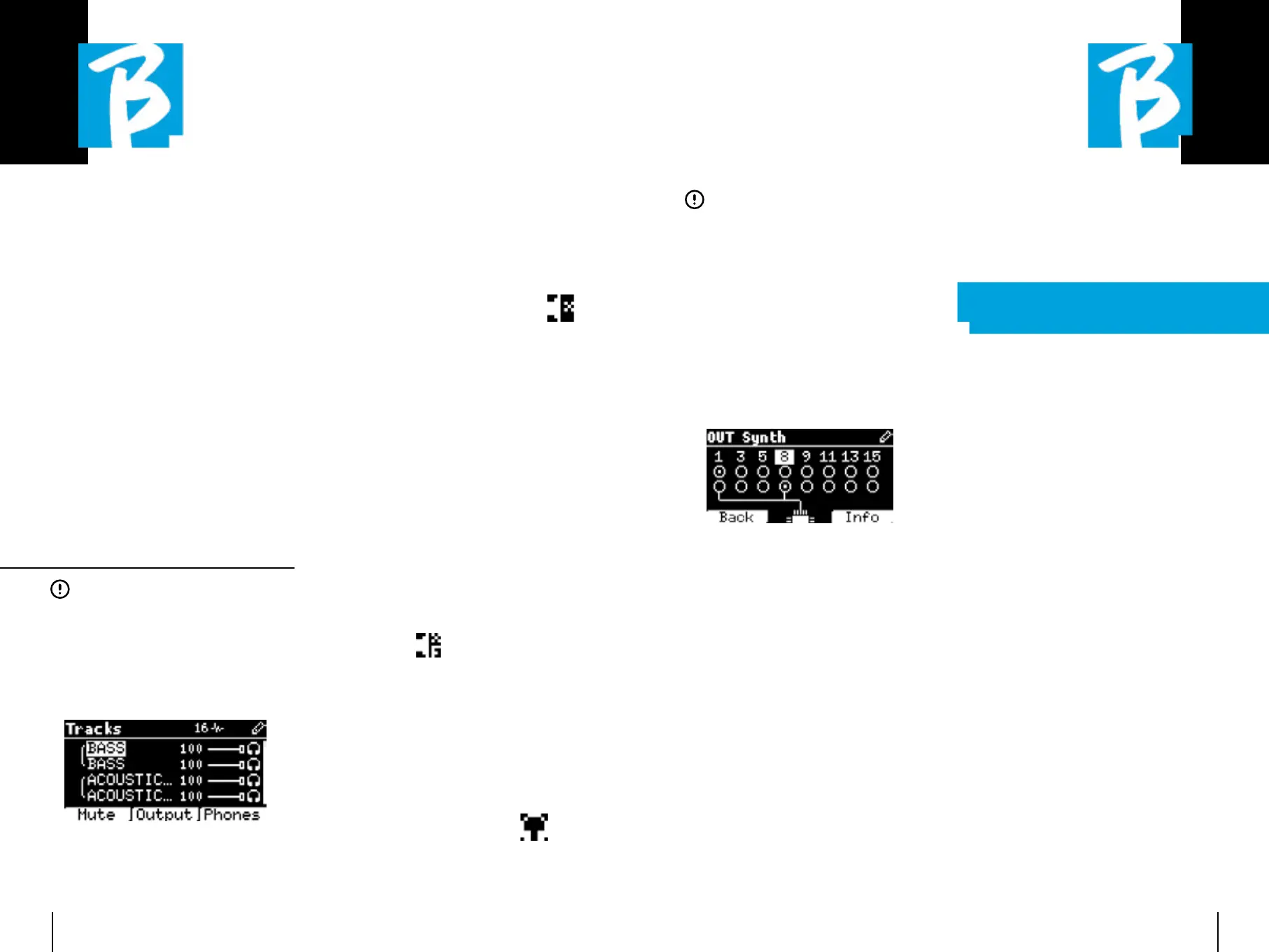
• F2 Output button: • F2 Output button:
pressing F2 accesses the Audio output
setting:
tracks 1 to 16 can be output in channels
1 - 16. Tracks 17 to 24 can go out on one
or more outputs between 1 and 8.
Turn the Alpha Dial and select an output,
press ENTER to activate the output, press
again to deactivate the same output.
Pressing F3 INFO allows you to check
which track comes out on the selected
output.
• Playing a Video (Media)• Playing a Video (Media)
1. 1. Press [library]
2. 2. Press function key [F1-MEDIA]
3. 3. Rotate [alpha dial] or press
[up and down] to select
4 4. Press [play] to launch
playback
5. 5. The Main screen appears
PLAYLISTPLAYLIST
The Playlist is a set of audio (or audio +
video) projects that is selected from the
B.Beat PRO16 Library and can be played in
sequence in a predefined order. Between
tracks the playlist can stop or can contin-
ue automatically via Autoplay (see menu
System -> Autoplay).
The Playlist can also be used as a simple
collector of Projects that are used at par-
ticular events. Projects can be recalled at
will.
When the Playlist is loaded into memory,
the complete list of contained tracks can
be viewed by pressing ENTER, on the Al-
pha Dial from the Player's main page.
The Play List environment contains the
list of Play Lists that were transferred
from B.Beat Manager or were created on
B.Beat PRO16. The following functions are
possible from this operating section:
1. PLAY button: 1. PLAY button: Immediately
plays the selected playlist via
Up and Down
2. ENTER button: 2. ENTER button: to enter the
content of the Playlist and edit it
at will.


 To Next Page
 Loading...