1716
TRANSFERRING DATA TRANSFERRING DATA
TO B.BEAT PRO16TO B.BEAT PRO16
All Audio, Video, Images and Midi materi-
al must be prepared via a DAW and other
Audio Video synchronisation programmes.
Once the sound and video material of your
show is assembled and mixed proper-
ly, you are ready to transfer it to B.Beat
PRO16. For this you use B.Beat PRO-
16Manager, a software made available in
both Windows and Mac versions. If you
have Audio Backing Tracks in Mp3 Stereo
or Wav format, you can upload them to
B.Beat PRO16 using the USB input, with a
stick. B.Beat PRO16 reads the contents of
the Stick and plays it in real time, or it can
import files into its memory. To transfer
the repertoire of Backing Tracks, Videos,
Images and Midi Files synchronised with
the audio, you can use the B.Beat Manag-
er software, below are the PC connection
methods.
CONNECTING B.BEAT PRO16CONNECTING B.BEAT PRO16
TO THE COMPUTER TO THE COMPUTER
Here are the connection modes between
B.Beat PRO16 and Computer, which can be
PC or Mac:
The easiest way to connect B.Beat PRO16 The easiest way to connect B.Beat PRO16
to the computer is to use the Ethernet to the computer is to use the Ethernet
network.network.
As follows:
1.1. Connect the supplied network cable
between B.Beat PRO16 and the Computer
2. 2. Switch on B.Beat PRO16
3.3. Launch the B.Beat Manager App
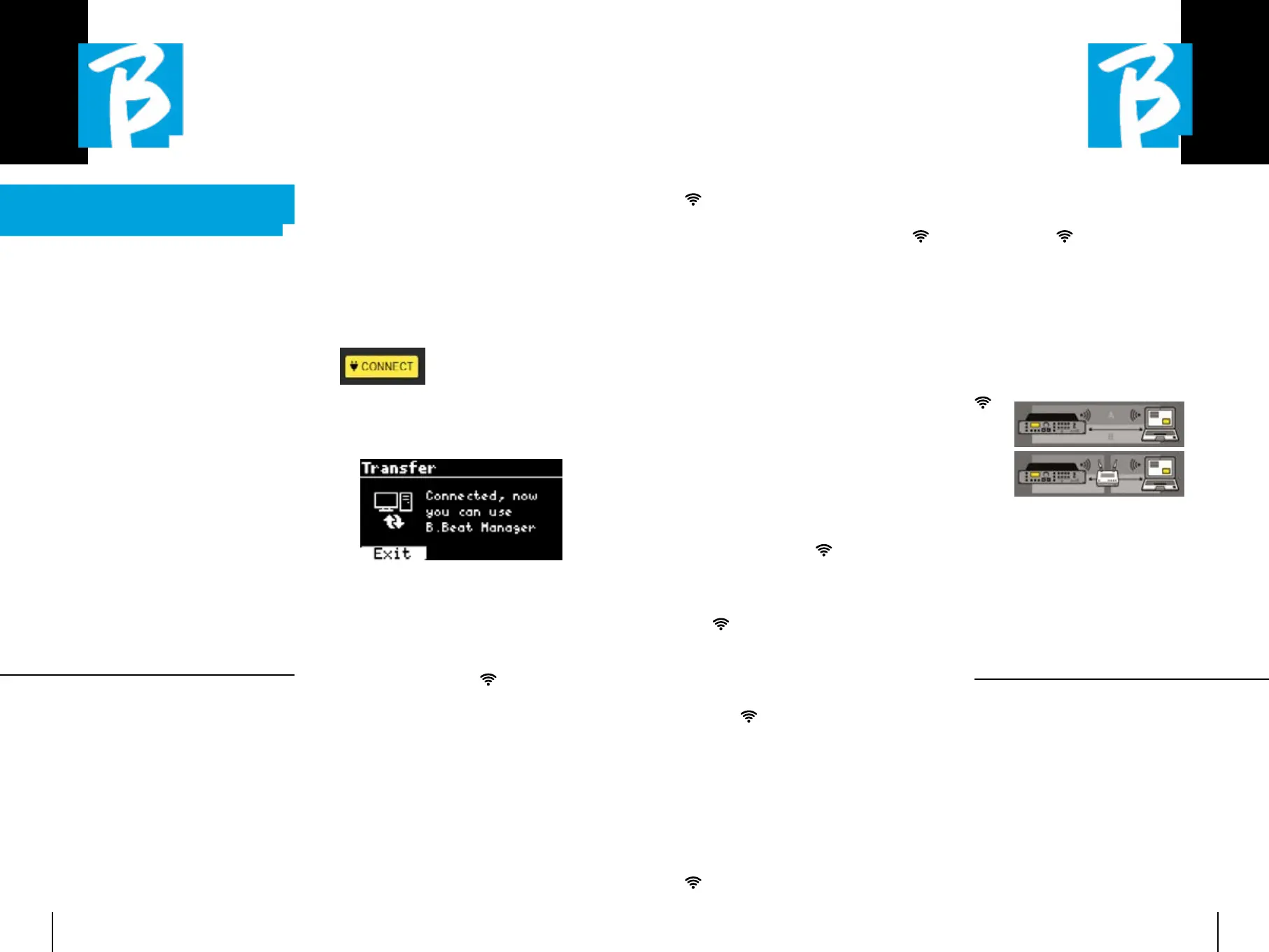
4.4. After about 60 seconds the App will
see the B.Beat PRO16 connected, you can
connect to the B.Beat PRO16 by pressing
the button on B.Beat Manager:
5.5. The display of the B.Beat PRO16 shows
this screen confirming the connection has
been made
If your PC has no Ethernet input, you have If your PC has no Ethernet input, you have
two options: two options:
1.1. Use a USB - Ethernet PC interface
2.2. Create a Wireless
Hotspot with
B.Beat PRO16 to which the PC can connect.
The optional M-Pen2 is required to gener-
ate the hotspot. The password for entering
the Hotspot of B.Beat PRO16 by default is
12345678.
3.3. Connect the Computer to the hot spot
of B.Beat PRO16which will be detected
automatically. The default password is
12345678. It can be modified later by the
B.Beat Manager software.
To connect B.Beat PRO16 to the WirelessTo connect B.Beat PRO16 to the Wireless
network we recommend this proce- network we recommend this proce-
dure [Optional M-Pen2 required for B.Beat dure [Optional M-Pen2 required for B.Beat
PRO16. In the PLUS version, WirelessPRO16. In the PLUS version, Wireless
connection is included]: connection is included]:
1.1. Insert M-Pen2 on B.Beat PRO16
2.2. Connect the B.Beat PRO16 to the PC via
the supplied Ethernet cable (or via hotspot as
above)
3.3. Open the B.Beat Manager on the PC and
connect to B.Beat PRO16 (see above)
4. 4. In the Software click on options (gear icon
top right)
5.5. Open the 'networks' tab
6. 6. Select the Wireless
network you wish
to connect to
7.7. Write down the password of the Wire-
less
network in use
8.8. Click on save and connect
9. 9. Your B.Beat PRO16 is connected to the
Wireless
network in use (if you are con-
nected to the PC on Hotspot at this point the
connection to B.Beat PRO16 will be interrupt-
ed but you can re-activate it as above)
10.10. Disconnect the Ethernet cable from
the B.Beat PRO16
11. 11. Also connect your PC to the Wireless
network (if you haven't already done
so)
12. 12. Open the B.Beat Manager on your PC
and connect to the B.Beat PRO16 in your
new Wireless
network.
The above procedure also applies to Hotspot
networks generated by Smart Phones or Tab-
lets. From now on, the network data (address
and password) are stored on B.Beat PRO16,
which will automatically recognise the network.
This solution is perfect when you use B.Beat
PRO16 in home and want to use Wireless
.
To transfer a large number of Backing Tracks
and Videos, we recommend using the Net-
work cable connection mode. The network
connection guarantees maximum speed and
reliability during data transfer.
SOFTWARE INSTALLATION SOFTWARE INSTALLATION
B.BEAT MANAGERB.BEAT MANAGER
The B.Beat Manager software is available in
two versions for two operating systems:
Windows 10 and later - macOS 10.15 Catali-
na and later. Full compatibility is not guaran-
teed on earlier systems. The software can be
downloaded free of charge from this address:
Windows
https://download.m-live.com/download/bbe-
at/manager/bbeat_manager_win.exe
Mac
https://download.m-live.com/download/bbe-
at/manager/bbeat_manager_mac.dmg


 To Next Page
 Loading...