2322
When the USB Stick is not plugged in, the
F2 button controls the TXFER function to
connect to the B.Beat Manager, if you are
connected to the PC.
USING THE USB STICKUSING THE USB STICK
B.Beat PRO16 reads USB sticks that can
contain Backing Tracks in Mp3 or Wav for-
mat.
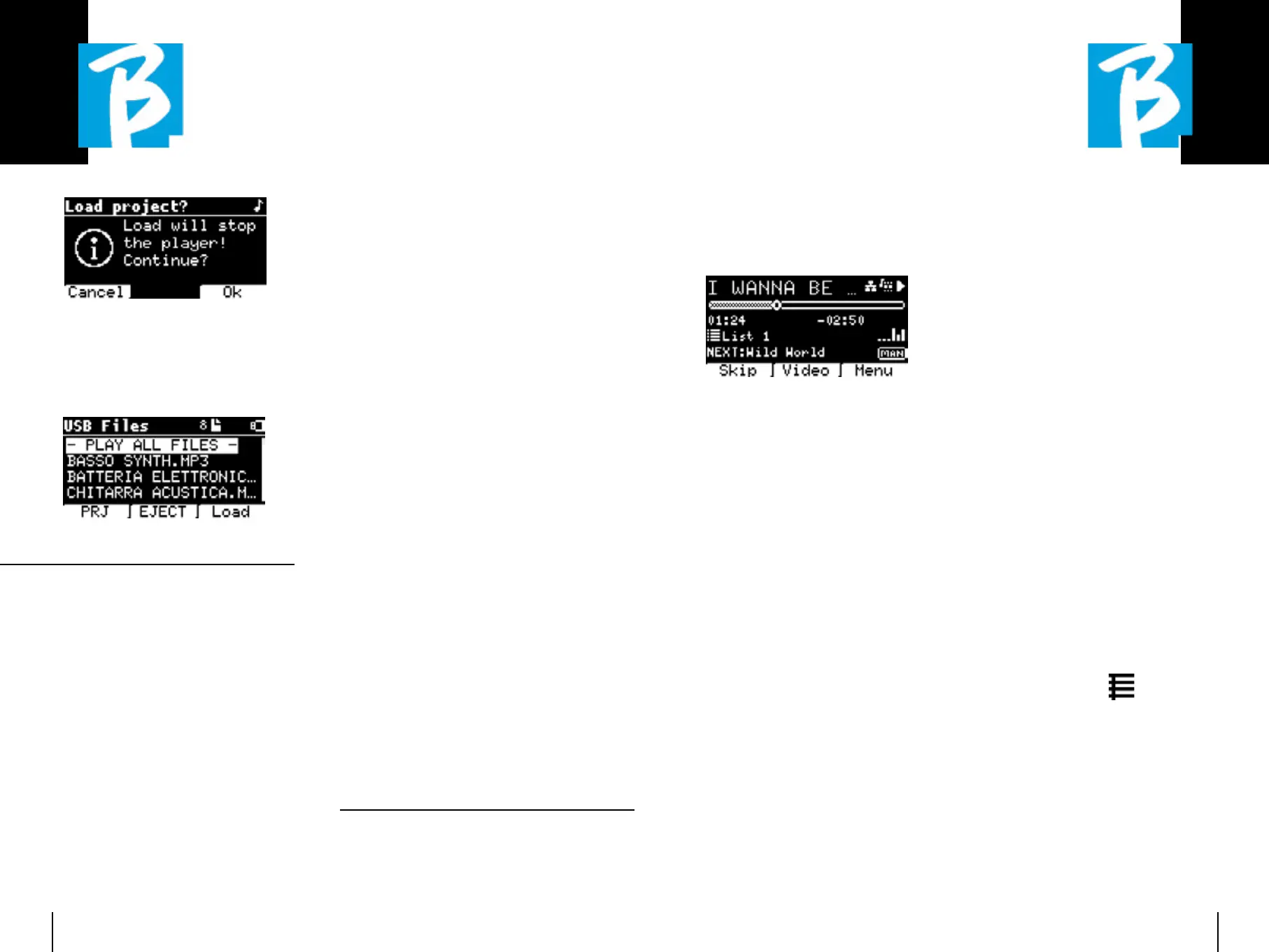
When inserting a USB stick into the
B.Beat PRO16 drive, the following screen
appears:
From this screen, which lists the names
of the files contained in the stick, it is
possible:
1) Navigate the key archive
(via the Alpha Dial, keys Up
Down)
2) Play the files directly (also
in sequence if you select 'Play all
files'). You point to a file and press
Play to play it.
3) Import files into the internal
archive of B.Beat PRO16.
a) You point a file with Alpha Dial or
up - down
b) Press Enter on Alpha Dial
c) From the next screen
press 'Import'
4) Select a project such as
Next Song from the USB
a) You point a file with Alpha Dial or
up - down
b) Press Enter on Alpha Dial
c) From the next screen
press Set as next
d) From then, the project is
placed in the Next
Song location
When a USB stick is inserted into B.Beat
PRO16, the internal memory can be
accessed by pressing the LIBRARY key,
and the stick by pressing the F2 USB key.
If you want to eject the stick press F2
Eject from the Stick read position.
PLAYING BACKING TRACKSPLAYING BACKING TRACKS
To play an Audio project:
1) Press [Library]
2) Rotate [Alpha dial] or press [up
and down] to select the file
3) Press [Play] to play, the song
starts.
4) The Player screen appears
At the top is the title of the running file,
the icons on the right indicate that B.Beat
PRO16 is connected to a network, the run-
ning file has an associated Video, the file
is in pause position.
The Song Position Pointer is under the
title. You can move along the Song by
turning the Alpha Dial. The SPP moves to
the desired point and pressing Enter will
switch to that point.
Below the SPP are time indicators: time
elapsed since the beginning, time to the
end of the song.
Under the indicators, the currently Playlist
being executed is described, if present.
Otherwise, this line is empty.
On the right there are the Vu Meters which
signal the levels of the Outputs: be care-
ful if the volume potentiometer is at zero
these vu meters are not active.
NEXT:NEXT: indicates the Song that will follow
the current one. The Next song can be
freely selected, or it can be the Song in
the playlist if you are using a Playlist or
Show. To the right of NEXT the word MAN
indicates that Play at next must be giv-
en manually, either by pressing PLAY or by
pressing the Start/Stop pedal if present.
This screen allows you to check the Play-
er's situation and perform certain actions:
STOP: STOP: if pressed once, the project current-
ly being executed will be placed in Pause.
If pressed a second time, the project will
be WRAPPED. If you press Stop the third
time, the memory will be emptied and it
will switch to the Playlist screen.
PLAY: activates playback of the current
project. If the button flashes Blue, it
means the project is paused, press Play
to continue. When the Play button flashes
quickly, it means that a Song is loaded in
memory, ready for Play.
ALPHA DIAL: ALPHA DIAL: by turning the alpha dial the
song position moves along the time line of
the project loaded in memory, the display
shows the destination song position (GO
TO) in minutes and seconds. By pressing
enter the performance starts from the
chosen Song Position. This can happen
even while the project is being executed.
If a PLAYLIST is loaded, this icon appears
on the Player screen:
The playlist is playing and when the EN-
TER button is pressed, the list of projects
in the playlist is directly accessed. From
here, some selection and editing actions
can be performed on the Playlist. See the
PLAYLIST chapter.
Function keys on the PLAYER screen:
1. SKIP (F1)1. SKIP (F1) allows you to skip the Back-


 To Next Page
 Loading...